 Mowo
The Visual Scripting editor
Tour the Visual Scripting graph editor, from My Visual Script and the action palette to pin rules, shortcuts, Find References, Diff and Compile.
The Visual Scripting editor is where you build a class: double-click a .vscript asset in the Content Browser to open it. This page walks through the layout, how pins connect, the action palette, and how to find, compare and compile.
Create a class
- Pick a parent
In the Content Browser, right-click a folder and open Visual Script Class. Choose the parent: Actor, Pawn, Character, Player Controller, Game Mode or Game State. Each spawns as its own backing class, so a Character class moves like a character and calls
ACharacter's functions on itself. - Name it
The editor writes
NewVisualScriptClass.vscriptwith an emptyBeginPlaygraph and starts a rename. The class name is the file name without the extension, soBP_Door.vscriptdefines classBP_Door. - Open it
Double-click the asset.
Two layouts
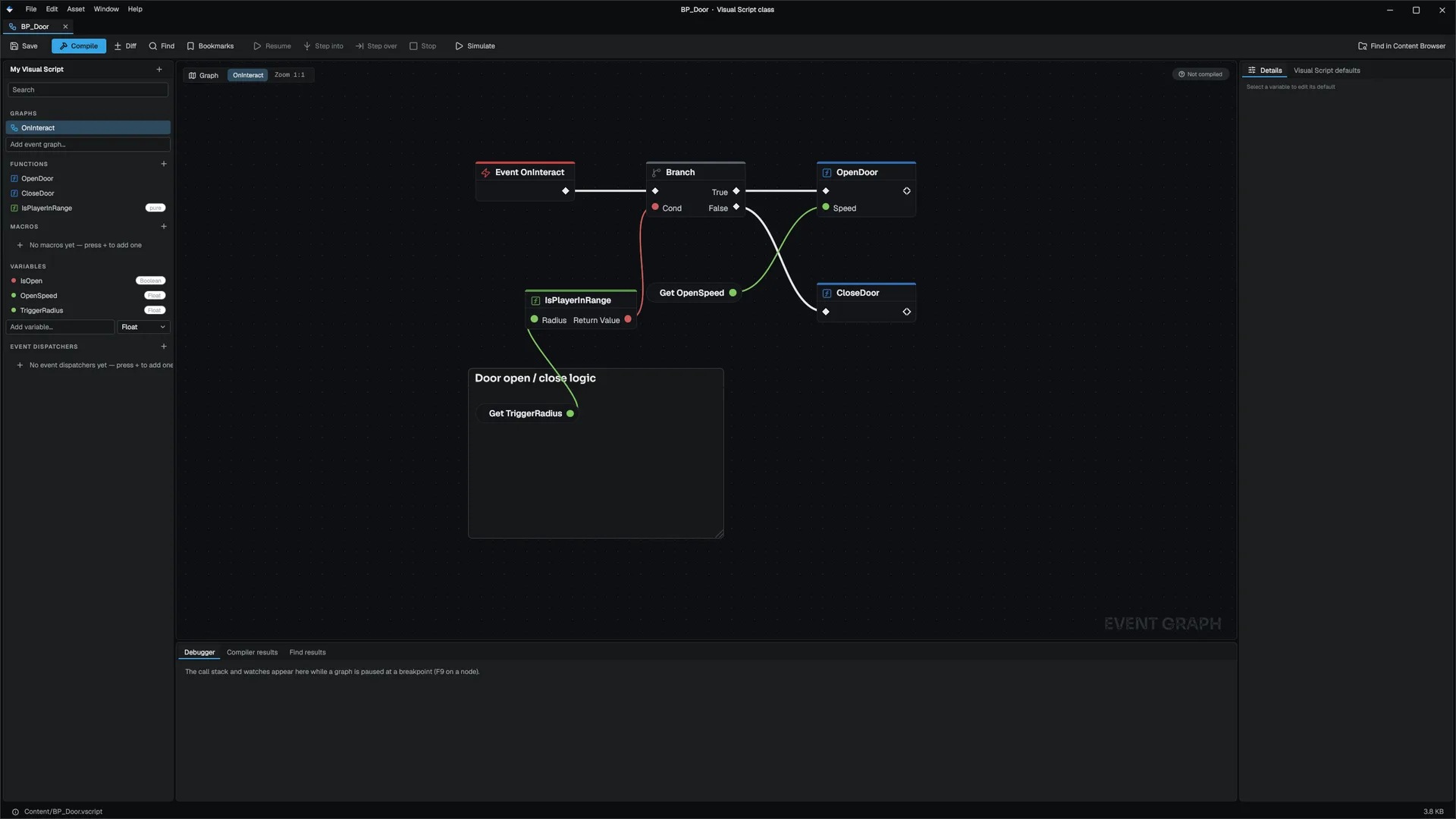
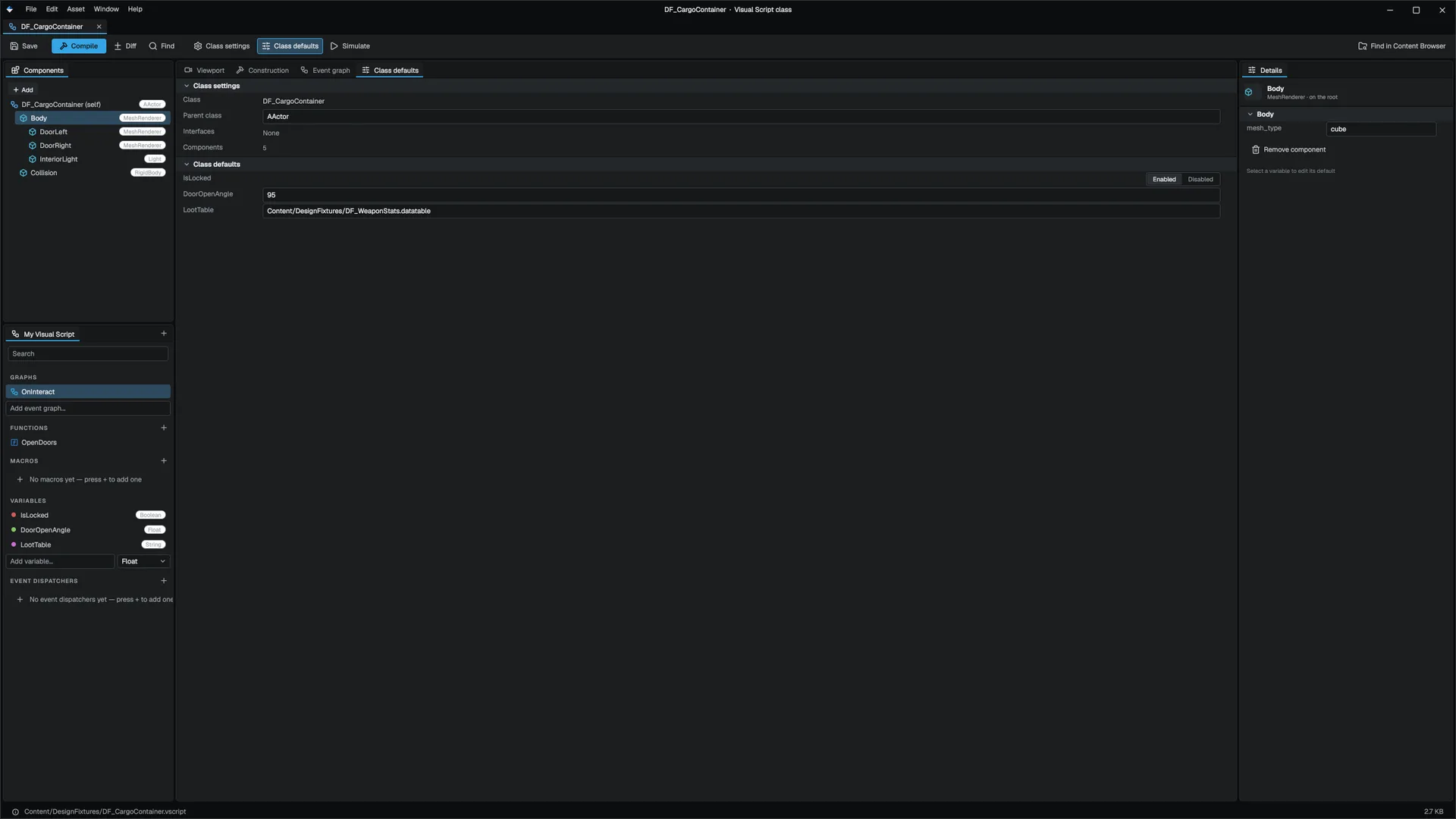
A class with no component slots is a script, and opens in the graph layout. A class with component slots is an actor class with a body, and opens in the class layout.
| Graph layout | Class layout | |
|---|---|---|
| Left | My Visual Script | Components above My Visual Script |
| Centre | The canvas | Tabs: Viewport, Construction, Event graph, Class defaults |
| Right | Details and Visual Script defaults tabs | Details |
| Bottom | Debugger, Compiler results, Find results tabs | Strips under the canvas |
| Toolbar | Save, Compile, Diff, Find, Bookmarks, Resume, Step into, Step over, Stop, Simulate | Save, Compile, Diff, Find, Class settings, Class defaults, Simulate |
The Viewport tab draws the class's component slots as the constructed actor would show them: every mesh slot at its slot transform, through the attach chain.
My Visual Script
My Visual Script lists the class members in five sections: Graphs, Functions, Macros, Variables and Event dispatchers. Functions, macros and dispatchers have a + in their heading. Event graphs and variables are added from the fields Add event graph... and Add variable... at the bottom of their lists. Name an event graph after a lifecycle event, such as Tick or OnTriggerEnter, to handle it. The + in the panel header adds a function, macro, dispatcher or component.
Select a member to edit it in Details. Class settings covers the class name, parent and interfaces; Class defaults lists the default value of every variable.
Nodes and pins
A node is one operation: an event entry, a call, a branch, a math op, a variable read. Its pins are the connection points on its edges:
- Exec pins carry the order of execution. An exec output wires to the next node's exec input.
- Data pins carry values: a bool, an int, a float, a string, a vector, an object or a struct.
A node with no exec pins is pure. The VM evaluates it on demand when a downstream data pin reads it. Math nodes, variable reads and const C++ getters are pure.
Connection rules
The editor only lets you draw a wire the VM can run. The editor's pin types are Exec, Bool, Int, Float, String, Vector, Object, Struct and Wildcard.
| From | To | Allowed |
|---|---|---|
| Exec | Exec | Yes |
| Exec | Data, or data to exec | No |
| Int | Float, or Float to Int | Yes. The value is converted to the parameter type before a call. |
| Wildcard | Anything | Yes |
| Any other pair | Same type | Yes |
| Any other pair | Different type | No |
The action palette
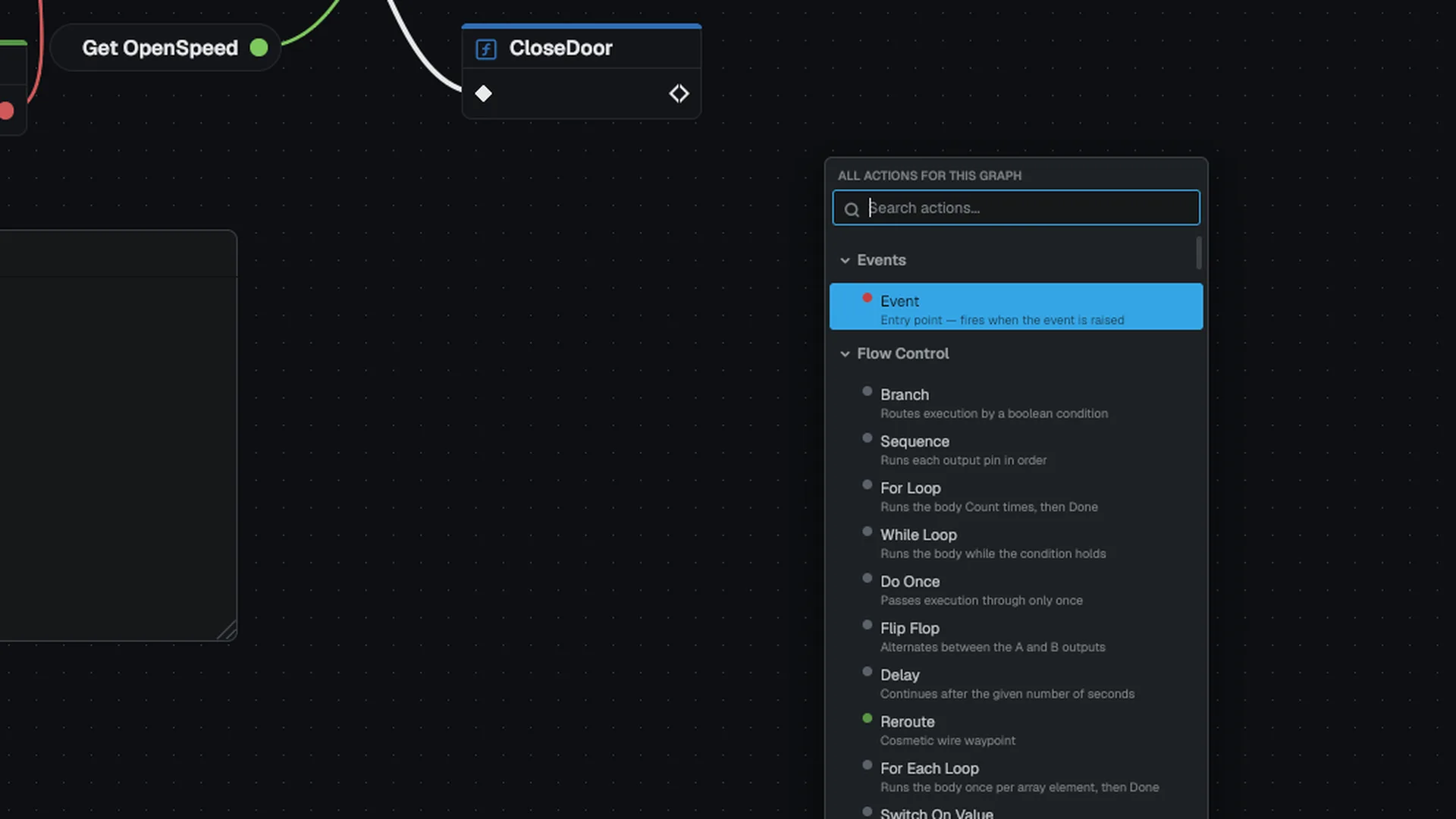
Right-click the empty canvas to open the action palette, or drag off a pin to see only the entries that fit that pin. Type to filter by name or category. The built-in entries:
| Category | Entries |
|---|---|
| Events | Event |
| Flow Control | Branch, Sequence, For Loop, While Loop, Do Once, Flip Flop, Delay, Return, Reroute, For Each Loop, Switch On Value, Gate, Set Gate, Do N, Multi Gate, Break Loop |
| Math | Math (Pure Op), Math Expression... |
| Struct | Make Vector, Break Vector |
| Utilities | Select, Is Valid |
| Object | Self, Get Actor By Name, Get Actor By Tag, Cast To, Objects Equal, Call On Target |
| Event Dispatchers | Bind Event On Target, Unbind Event On Target, and Broadcast for each of the class's dispatchers |
| Variables | Get Variable, Set Variable, Get Local Variable, Set Local Variable, Get Property, Set Property, and Get and Set for each class variable |
| Array | Make Array, Array Get, Array Length, Array Contains, Array Find, Array Add, Array Set, Array Remove Index, Array Clear |
| Map | Make Map, Map Find, Map Contains, Map Length, Map Keys, Map Add, Map Remove, Map Clear |
| Graph | Timeline, Implements Interface |
| Networking | Has Authority, Switch Has Authority |
| Class | Class Reference |
| Text | Make Localized Text |
| Async | Every registered async action. See Node libraries. |
| Comment | Comment |
| Functions | The class's own functions, and every reflected function an actor can call on itself |
| Macros, Macros (Standard) | The class's own and inherited macros, then the shipped standard macros |
| Name Library | One category per reflected M<Name>Statics class, for example Gameplay Library |
The reflected entries come from the node catalogue, which walks every reflected class and flattens its MFUNCTIONs, so a new MFUNCTION shows up with no registration step VisualScriptNodeCatalog. An RPC function shows its direction beside its name.
Math Expression... asks for an expression such as a * b + 2 and builds the pure node graph for it VisualScriptExpression.
Comments
A comment is a titled box around a group of nodes. The VM ignores it. Select some nodes and press C to wrap them in a comment. Moving a comment moves the nodes inside it. Drag its corner to resize it.
Mouse and keyboard
| Action | Input |
|---|---|
| Pan | Right-mouse drag |
| Zoom | Mouse wheel |
| Open the palette, or a node's context menu | Right-click without dragging |
| Box-select | Left-drag on empty canvas |
| Frame the selection | F |
| Frame the whole graph | Home |
| Wrap the selection in a comment | C |
| Rename the selected node | F2 |
| Toggle a breakpoint on the selection | F9 |
| Nudge the selection one grid cell | Arrow keys |
| Align two or more nodes | Shift + arrow keys |
| Straighten two or more nodes | Q |
| Select all, copy, cut, paste, duplicate | Ctrl+A, Ctrl+C, Ctrl+X, Ctrl+V, Ctrl+D |
| Undo, redo | Ctrl+Z, Ctrl+Y |
| Delete | Delete or Backspace |
| Find | Ctrl+F |
| Bookmark the selected node | Ctrl+B |
| Save | Ctrl+S |
The canvas bindings come from the shared graph widget.
The node context menu
Right-click a node for its actions: breakpoints, conditional breakpoints and logpoints (see Debugging), Open Function Graph on a call, Find References to ..., Collapse to Function, Collapse to Macro, Duplicate, Copy, Break All Links and Delete. Some kinds add their own entries: a Timeline edits its tracks and curves, a Make Localized Text node has Edit Localized Text.... A selection that holds a latent node such as Delay cannot collapse to a function. See Functions, macros and dispatchers.
Find References
Right-click a node that names something (a function call, a variable get or set, a dispatcher broadcast or bind, a macro, an event, a cast or class reference) and choose Find References to .... Find References to class '...' is always offered for the open class. The search reads every .vscript under the project's Content/. An asset open in the editor is searched as you see it, unsaved edits included VisualScriptReferenceFinder.
Results land in Find results: one row per use, naming how it is used (Call, Get, Set, Bind, Broadcast, Cast, Parent class and so on), the class, the graph and the node. Click a row to jump to the node, opening the other asset first when needed.
Matching follows the way the VM resolves names. A self-only use, such as a graph-function call or a variable get, counts only in the declaring class and its subclasses, so an unrelated class with its own Health is not a reference to yours. A cross-object use, such as Call On Target or a bind to another actor's dispatcher, counts in any class.
Diff
Diff compares the open graph with Against Last Save, Against Depot (HEAD), or Against Revision from the file's recent history when the project is under source control. Nodes are paired by id, so deleting one node does not mark every later node as changed. Each added, removed, changed or moved node and each added or removed link becomes a row, and the diffed nodes are badged on the canvas FVisualScriptGraphDiff.
Compile and save
- Compile
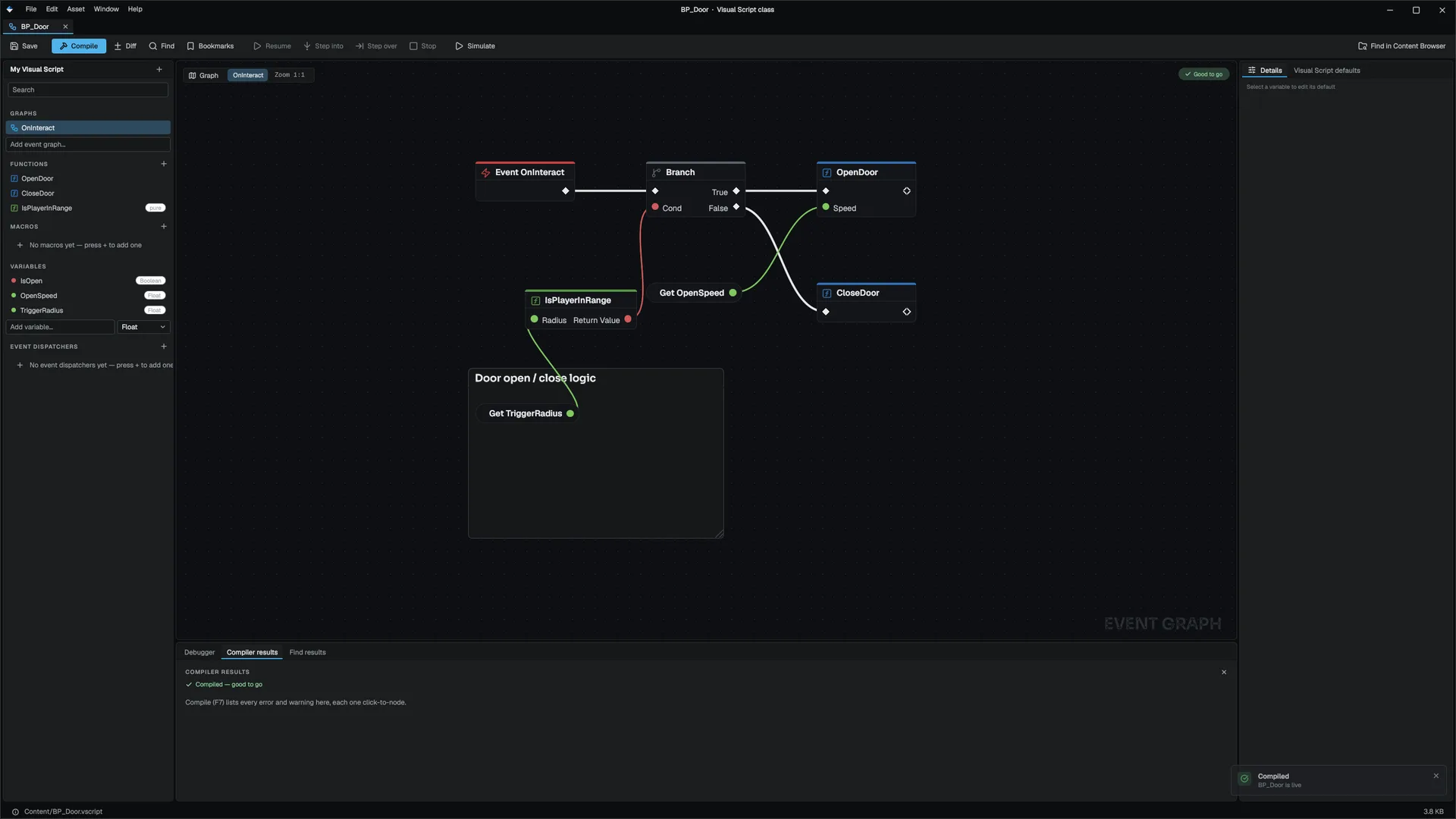
Click Compile. The editor validates the class and lists the results in Compiler results. Each row names the graph and node, and the toolbar pill reads Good to go when the class is clean.
- Go live
A compile with no errors re-registers the class. Placed actors and actors in Play-In-Editor rebind to the new version and keep their variable values.
- Save
Click Save or press Ctrl+S. In a multiplayer Play-In-Editor session, saving also reloads the class in the server and client processes. See Hot reload.
Simulate starts Simulate in the level viewport, so the class runs against the open world.
Next
- Variables and types: what pins carry.
- Flow control: what each node does.
- Debugging: breakpoints on this same canvas.
Engine sources
This page describes behavior implemented in these files of the engine repository, checked against commit 5922e6e5e.
- Engine/Source/Runtime/VisualScripting/Public/VisualScripting/VisualScriptNodeCatalog.h
- Engine/Source/Runtime/VisualScripting/Public/VisualScripting/VisualScriptReferenceFinder.h
- Engine/Source/Runtime/VisualScripting/Public/VisualScripting/VisualScriptGraphDiff.h
- Engine/Source/Runtime/VisualScripting/Public/VisualScripting/VisualScriptExpression.h