 Mowo
Importing assets
Import models, textures and audio into asset packages, choose import options, save presets, and reimport when the source changes.
Importing turns a file from a content tool into a project asset. The editor builds the file, from where it lies, into asset packages in the Content/ folder you import into: a model into mesh, skeleton, animation, texture and material packages, a texture into a .tex, a sound into a .sound. Each package records its source and the options you chose, so a reimport replays them.
Keep source files outside Content/, in a SourceArt/ folder beside it at the same relative layout. The project references the packages, not the sources, so the sources never ship and never load at runtime.
Supported source formats
| Kind | Extensions | Imported as |
|---|---|---|
| Model | .fbx, .gltf, .glb, .obj | Static Mesh (.mesh) or Skeletal Mesh (.skmesh), with .skel, .anim, .tex and .mat packages |
| Texture | .png, .jpg, .jpeg, .tga, .bmp, .hdr, .exr | Texture (.tex) |
| Audio | .wav, .ogg, .mp3, .flac | Sound Wave (.sound) |
The model list comes from the file-type table. An .exr is decoded by the engine's own reader and treated like .hdr: linear, HDR group, BC6H. Deep and multi-part EXR files are refused with a message asking for a single-part export.
Import a file
- Start the import
Drag one or more files from Explorer onto the Content Browser, or use Import in the Content Browser toolbar or a folder's context menu. Dragged files land in the folder under the cursor.
- Review the batch
One dialog opens for the whole batch. The left side lists each file with its size, or a model's triangle and material counts once its summary has been read, and a status mark. Right-click a row for Import This File, Skip and Show in Explorer.
- Choose options
The right side shows the options for every kind of file in the batch, the selected file's kind first. A kind's options apply to every file of that kind. Reading a model's summary runs on a worker, so the editor stays responsive; importing waits until the summary has landed.
- Import
Click Import all (or Import N remaining once part of the batch is done). Packages are built on a worker, one file at a time, and the dialog keeps painting.
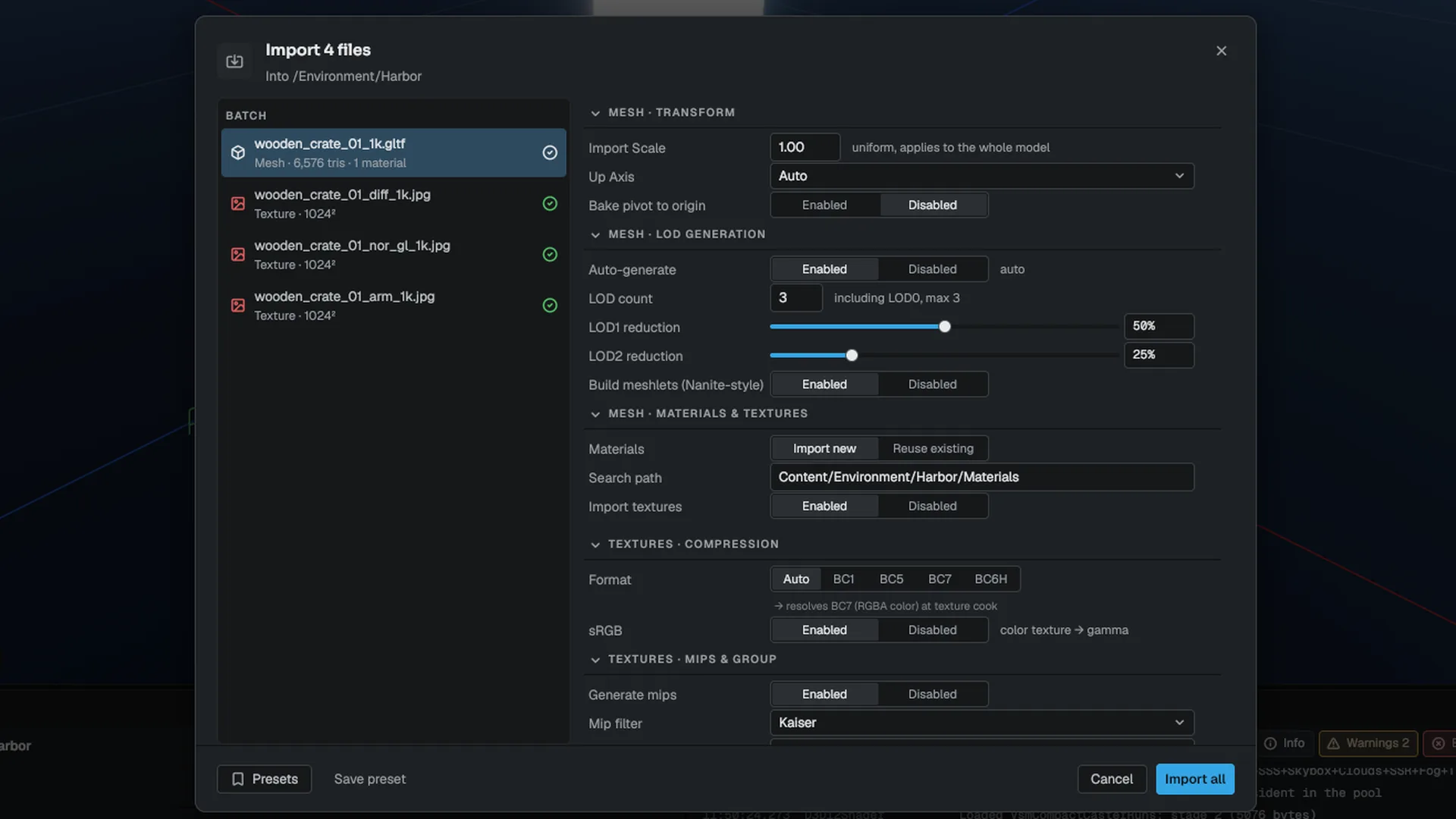
Your last-used options for each kind are saved per user in Saved/Config/Editor/ImportPrefs.mdfb and pre-fill the next import.
What a model import writes
For a model named Rock imported into a folder, the import writes:
| Package | Holds |
|---|---|
Rock.mesh or Rock.skmesh | The built render data, the import transform and build settings, and the material slot bindings |
Rock_Skeleton.skel | The skeleton, for a skinned model |
Rock_<Clip>.anim | One Animation Sequence per clip |
Rock_<texture>.tex | One Texture package per texture its materials use, whether beside the source or embedded in it |
Rock_<Material>.mat | One Material package per material slot, with the slot's factors and textures mapped |
The mesh binds every slot to its Material package, so editing the material changes the mesh. A reimport binds Material packages that already exist and never rewrites one: once it exists, a material belongs to the artist.
Reimporting the same source into the same folder keeps every package's id, so references survive. A same-named package from another source is never overwritten: a second Rock.fbx from another folder imports as Rock_2.mesh and its set, and the dialog tells you.
Model options
| Section | Option | Effect |
|---|---|---|
| Transform | Import Scale | A uniform scale, applied when the mesh loads |
| Up Axis | Auto, X-up, Y-up or Z-up: rotates the source's up axis into the engine's +Y | |
| Bake pivot to origin | Moves the root so the model's bottom center sits at the origin. Skipped for skinned models. | |
| LOD generation | Auto-generate | Builds reduced levels of detail from LOD0 |
| LOD count, LOD1 / LOD2 reduction | Total levels (at most 3) and the target triangle ratio per level | |
| Build meshlets | Clusters the mesh for the mesh-shading path | |
| Materials & textures | Import new / Reuse existing | Create Material packages, or bind ones already in the search path |
| Search path | Folder for the materials | |
| Import textures | Package the textures the materials use | |
| Skeleton | Import / Skip (static mesh) | Keep the skeleton and clips, or import the geometry as a static mesh |
The engine target is Y-up, right-handed, 1 unit = 1 meter. The defaults are correct for standard glTF and FBX exports, where the importer reads the source's up axis and unit from the file. If a model still comes in sideways or at the wrong size, fix it with Up Axis and Import Scale. For a whole pipeline with the same problem, the import.ForceUpAxis and import.UniformScale cvars apply to every import.
The glTF material extensions for emissive strength, clear coat, sheen, transmission and anisotropy carry into the generated materials. A material is marked masked (alpha-tested) when the source says so (glTF alphaMode MASK), has an opacity texture, or its base color alpha is clearly two-valued (import.AutoCutoutAlpha), so foliage and fences do not render as solid quads. glTF alphaMode BLEND imports as an alpha-blended (translucent) material whose coverage comes from the base color texture's alpha, and the glTF sampler wrap (REPEAT, MIRRORED_REPEAT, CLAMP_TO_EDGE) of the base color texture sets how the material's textures wrap; a texture with no sampler repeats. Materials without a declared wrap repeat their textures.
A .gltf or .obj names other files: buffers, images and .mtl libraries. Keep them beside the source at their relative layout so the import resolves them.
Texture options
| Option | Choices |
|---|---|
| Compression | Auto, BC1, BC5, BC7, BC6H |
| Generate mips | On or off |
| Mip filter | Box or Kaiser |
| Texture group | Color (sRGB), Normal map, Mask (linear), HDR |
| Max size | Default, No limit, or a clamp on the longest edge |
| Alpha coverage | Off, 0.25, 0.33, 0.5, 0.75 |
| Filter | Default, Nearest, Bilinear, Trilinear, Anisotropic |
| Blend mip levels | Off or on (Nearest and Bilinear) |
| Anisotropy | 2x, 4x, 8x, 16x (Anisotropic) |
| Nearest upscale | Off, 2x, 4x, 8x, 16x |
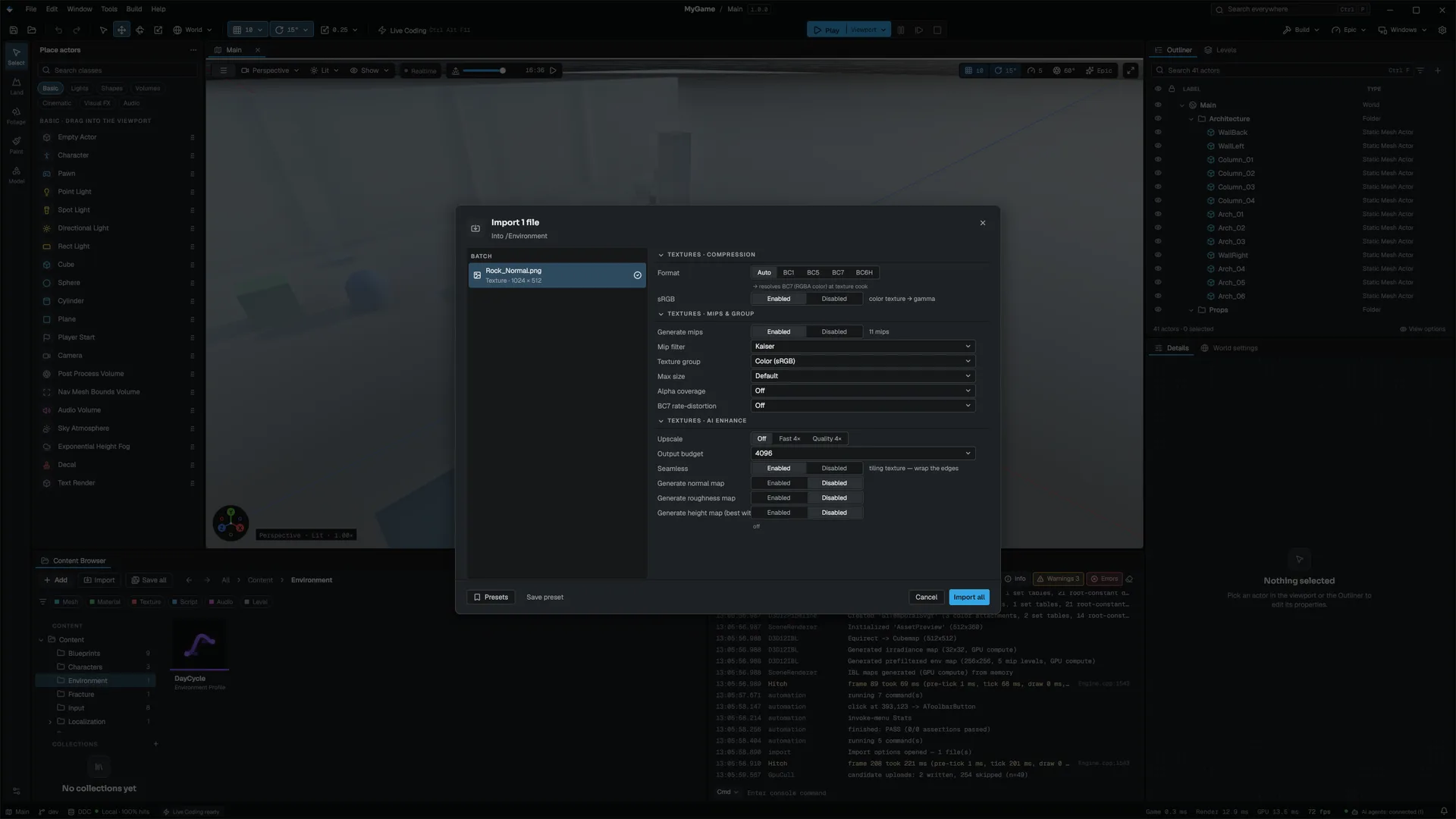
The settings are stored in the .tex package, and the cook honors them when it builds the mip chain. Auto compression picks by group: BC6H for HDR, BC5 for normal maps, BC7 for everything else. Normal maps, masks and HDR textures always sample linear.
Alpha coverage keeps alpha-tested foliage, fences and hair cards from thinning out with distance: each mip's alpha is rescaled so the same share of texels passes the alpha test as in mip 0. Match it to your material's cutoff.
Filtering and pixel art
Filter is how materials sample the texture. Default is trilinear with the project's anisotropy (r.MaxAnisotropy), what every texture used before the option existed. Nearest keeps point sampling at every distance, which is what pixel art needs; with Blend mip levels off it also picks one mip level per pixel instead of fading between two, so texels stay hard-edged (and shimmer a little in motion, as point sampling does). Bilinear smooths within a level and picks one level; with blending on it is Trilinear. Anisotropic is trilinear plus 2x to 16x anisotropic filtering for textures seen at grazing angles; r.MaxAnisotropy still caps it.
Only an all-linear sampler is ever anisotropic, on every backend: a Nearest request is never turned into a smooth one by the anisotropy setting.
Nearest upscale repeats every source texel by a whole factor before the mip chain is built, so a 16x16 tile cooked at 4x is a 64x64 image whose texels are exact 4x4 blocks. The first two mips are then exact copies, the edges stay hard under anisotropic filtering, and the longest edge is capped at 8192. Pair it with the Nearest filter or with Anisotropic for blocky art that has to look good at an angle.
Texture arrays
A texture array is one asset holding several same-sized images (a block tileset, a decal set). Unlike an atlas, each layer has its own mip chain, so a layer never bleeds into its neighbour at distance, and nothing needs padding between tiles. Build one from a folder or a list of PNG, JPEG, TGA or BMP files with FTextureArrayBuilder Engine/Source/Runtime/AssetSystem/Public/AssetSystem/TextureArrayBuilder.h:
#include <AssetSystem/TextureArrayBuilder.h>

TextureImportSettings settings;
settings.nearestUpscale = 4;                                  // 16x16 tiles become 64x64
settings.compression = static_cast<int32_t>(MtexCompression::BC7);

FTextureArrayBuilder::BuildFromFolder("Art/Blocks", "Content/Blocks.mtex", settings);
Files sort in natural order (tile2 before tile10), and layer i is the ith file. Every layer must have the same size. A folder or list holds at most 2048 layers, the most any backend this engine targets can address, and one image becomes a two-layer array because a one-layer image is a plain 2D texture to every backend. The result is an array .mtex, which the Content Browser imports as a texture: its thumbnail and the Texture Editor show layer 0, and the Details panel shows the same Filter options. Sample it in a material with the Texture Sample Array node (see Materials).
You can change every setting after import in the Texture Editor (double-click the texture). See the editor section.
Textures recognized by name
A texture with no import settings yet (for example a loose file copied into Content/ by hand) is classified by the end of its file name, case-insensitively:
| Suffix examples | Group |
|---|---|
_n, _nrm, _norm, _normal, _normalmap, _nmap | Normal map |
_r, _m, _ao, _roughness, _metallic, _mask, _orm, _arm, _height, _opacity | Mask (linear) |
_hdr, _ibl, _envmap | HDR |
The rule only applies while nothing has set the group, so a rescan never overrides your choice. A project can replace these lists in Config/TextureImport.ini.
AI enhancement
A PNG, JPEG, TGA or BMP texture can be upscaled and given generated normal, roughness and height maps by bundled models that run on your machine. Use the AI enhance section of the import dialog, or right-click textures in the Content Browser and choose AI Enhance. The work runs in the background with a progress toast. A texture that asks for enhancement at import takes the loose-file path described in Sidecars and UUIDs, because the enhancement reimports it in place.
The models run through ONNX Runtime. Where the machine has a GPU, enhancement runs there through ONNX Runtime's WebGPU execution provider, which drives D3D12 on Windows, Vulkan on Linux and Metal on macOS, so it works on any vendor's GPU. If the provider is missing, refuses to register, or finds no usable GPU, inference runs on the CPU and the log says why. Pick the device in Project Settings ▸ Performance ▸ On-device inference ▸ Inference Device (Auto, GPU or CPU), or with the ml.ExecutionProvider console variable (auto, gpu, cpu). The change applies to models loaded from then on. See Project Settings.
Measured on an NVIDIA GeForce RTX 3050 against the CPU provider on an AMD Ryzen 9 7900X, with identical output on both:
| Model | Input | GPU | CPU | Speed-up |
|---|---|---|---|---|
| Upscale, Fast 4× | 256×256 | 248 ms | 415 ms | 1.7× |
| Upscale, Quality 4× | 256×256 | 3842 ms | 13236 ms | 3.4× |
| Normal map | 512×512 | 940 ms | 3366 ms | 3.6× |
| Roughness map | 512×512 | 938 ms | 2180 ms | 2.3× |
| Height map | 512×512 | 864 ms | 1709 ms | 2.0× |
The first GPU model a process loads takes longer, because the GPU device and the driver's shader cache start cold.
Audio options
| Option | Choices |
|---|---|
| Convert to .maudio | Build a processed clip, or keep the source as authored |
| Codec | PCM 16-bit, PCM 24-bit, PCM float, Opus (lossy) |
| Sample rate | Keep original, 22050, 44100 or 48000 Hz |
| Channels | Keep original, Mono, Stereo |
| Loudness | Leave as authored, -23 LUFS (broadcast), -16 LUFS (game), -14 LUFS (streaming) |
| Stream over | Seconds. Clips at least this long stream. 0 leaves it to the toggle. |
| Stream from disk | Play without holding the decoded clip in memory |
| Loop, Preload into memory | Mark the clip as looping; load it at startup instead of on first play |
The .sound package holds the built clip, which is what plays in the editor and the game, and keeps the source as editor-only data that the cook strips. Loudness normalization does not scale the samples: the build measures the clip and stores a gain. A streaming clip streams straight out of the package, loose or inside an archive.
Double-click a .sound to change its build settings or add a per-platform codec override; Apply rebuilds it from the source it carries and keeps its id.
Named presets
Presets in the dialog's footer lists the saved option sets for the selected file's kind; Save preset saves the current options under a name. Saving with the name empty overwrites the preset that is loaded. Presets live in Config/ImportPresets.ini, a project file the team shares, unlike the per-user last-used values. Each preset holds only its own kind's options:
[ImportPresets]
schema_version=1

[Preset Hero Props]
kind=Model
+Model=(scale=0.01,up_axis=2,generate_lods=False,lod_count=2,material_search_path="Content/Materials/Shared",import_skeleton=False)
A project's older ImportPresets.mdf is converted on first use and the original moved to Saved/MigratedSources/Config/.
Reimport
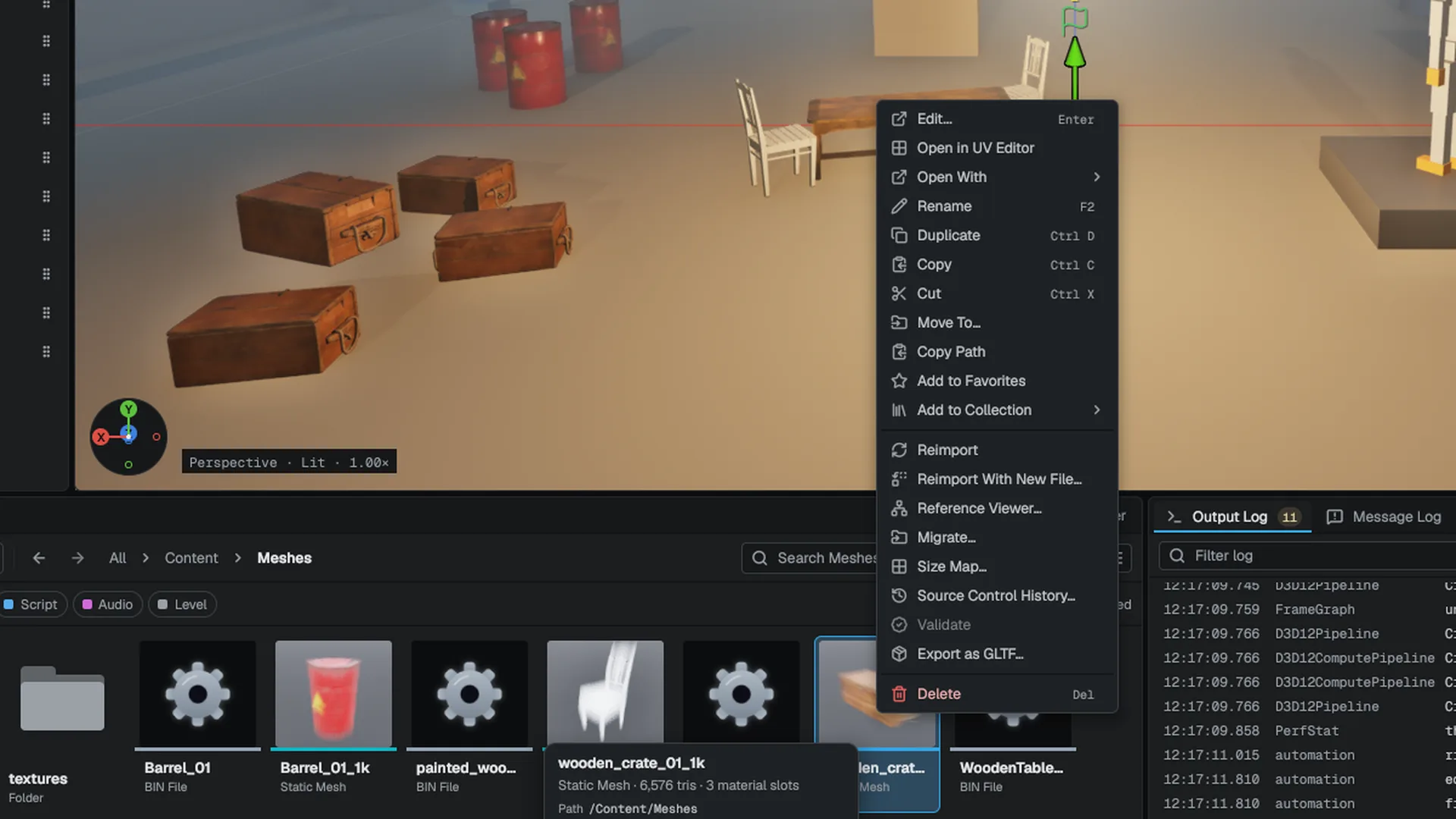
Right-click a package in the Content Browser (one or a selection) and choose Reimport. The package rebuilds from the source it recorded, with the settings it was imported with, under its own file name, with every id kept. A mesh reimports its whole set: its Material packages that exist are bound, not rewritten, and a slot without one gets one. A Skeleton or Animation Sequence reimports the mesh it came with. A Material package has no source to reimport from.
When a source changes after import, the asset tile shows that it changed on disk. Reimport is blocked while Play in Editor runs, because it rebuilds GPU data that live actors use. If the new file does not parse, the old version stays and a notification says the reimport failed.
Move an older project's sources out of Content
Projects created before packages kept sources and .mdfmeta sidecars in Content/. mbt asset migrate <project> --source-art moves every texture, model and sound source to SourceArt/ at the same relative path and imports each into a package where it was. A texture, model or sound keeps its sidecar's id, the old path redirects to the package, and references under Content/ are rewritten. A .gltf or .obj moves with the files it names. Add --report-only to see the plan first.
The loose-file path
Setting editor.ImportModelsAsPackages 0 (models) or editor.ImportAsPackages 0 (textures and sounds) restores the older import: the source is copied into Content/ with a .mdfmeta sidecar that holds its id and options. That path, and the Reimport With New File and Reimport From Original Source commands that go with it, are described in Sidecars and UUIDs.
Related
- Asset formats for what a package holds.
- Cooking for how packages are built for a target.
- Content Browser for importing, moving and renaming assets in the editor.
Engine sources
This page describes behavior implemented in these files of the engine repository, checked against commit e41a4451a.
- Engine/Source/Runtime/AssetFormats/Public/AssetFormats/AssetPackageTypes.h
- Engine/Source/Runtime/AssetFormats/Public/AssetFormats/MaudioImportSidecar.h
- Engine/Source/Runtime/AssetFormats/Public/AssetFormats/ExrDecode.h
- Engine/Source/Runtime/Filesystem/Public/Filesystem/ModelFormats.h
- Engine/Source/Runtime/AssetSystem/Public/AssetSystem/AssetDisplayInfo.h
- Engine/Source/Runtime/AssetSystem/Public/AssetSystem/TextureImportSidecar.h
- Engine/Source/Runtime/AssetSystem/Public/AssetSystem/TextureArrayBuilder.h
- Engine/Source/Runtime/AssetSystem/Public/AssetSystem/AssetPackageMigration.h
- Engine/Source/Runtime/Core/Public/Core/ProjectLayout.h
- Engine/Source/Runtime/ML/Public/ML/OnnxSession.h