 Mowo
Source control
Review changes, submit, pull and push with git, lock binary assets with Git LFS, merge conflicted assets by property and diff revisions from the editor.
The editor works with git directly. Window ▸ Debug ▸ Source Control opens the Source Control tool document: your pending changes as one changelist, with submit, history, locks and the remote operations. The editor runs the git command line in the background and never blocks while it works. Git must be on your PATH; for locking, the repository also needs Git LFS.
Connecting a project
A project folder that is not a git repository shows Not connected and Connect…. The dialog starts a repository in the project folder and, given a remote URL, adds it as origin; leave the URL empty to keep the history local. Commit Content/, Config/ and Source/; leave Saved/ and Intermediate/ out (Saving and recovery).
Once connected, the status bar shows the branch and Content Browser tiles show each file's state (Content Browser).
The changelist
The table, titled Default changelist · N files, lists every changed file with an include tick, its status and its folder. Staged and unstaged changes are not separated.
| Status | Meaning |
|---|---|
| Modified, Added, Deleted, Untracked | The file's change |
| Conflicted | An unmerged file. Conflicts are listed first and cannot be ticked |
| Locked by <user> | A file someone else has checked out. It is listed even when you did not change it, so you know before you start |
| Toolbar | Effect |
|---|---|
| Refresh | Re-reads status and the lock list |
| Check out | Locks the selected files with Git LFS |
| Revert | Discards changes to the selected files, after one confirmation |
| Diff | Opens the first selected file in the Diff View |
| Submit… | Opens the submit dialog |
Double-click a row to diff it. The row menu adds Diff Against Depot, History, Copy Path, Check Out, Revert, Fetch, Pull, Push, Show History and Show Locks, and on a conflicted file Merge by Property and Mark Resolved.
Remote operations
| Action | What runs |
|---|---|
| Fetch | git fetch --all --prune, then a refresh of the LFS locks |
| Pull | git pull --ff-only |
| Push | git push; a branch with no upstream is pushed with --set-upstream origin <branch> |
A progress card follows the operation. Only one remote operation runs at a time, and pull and push refuse a detached HEAD. Every git error goes to the Source control page of the Message Log as well as the Output Log.
Submitting
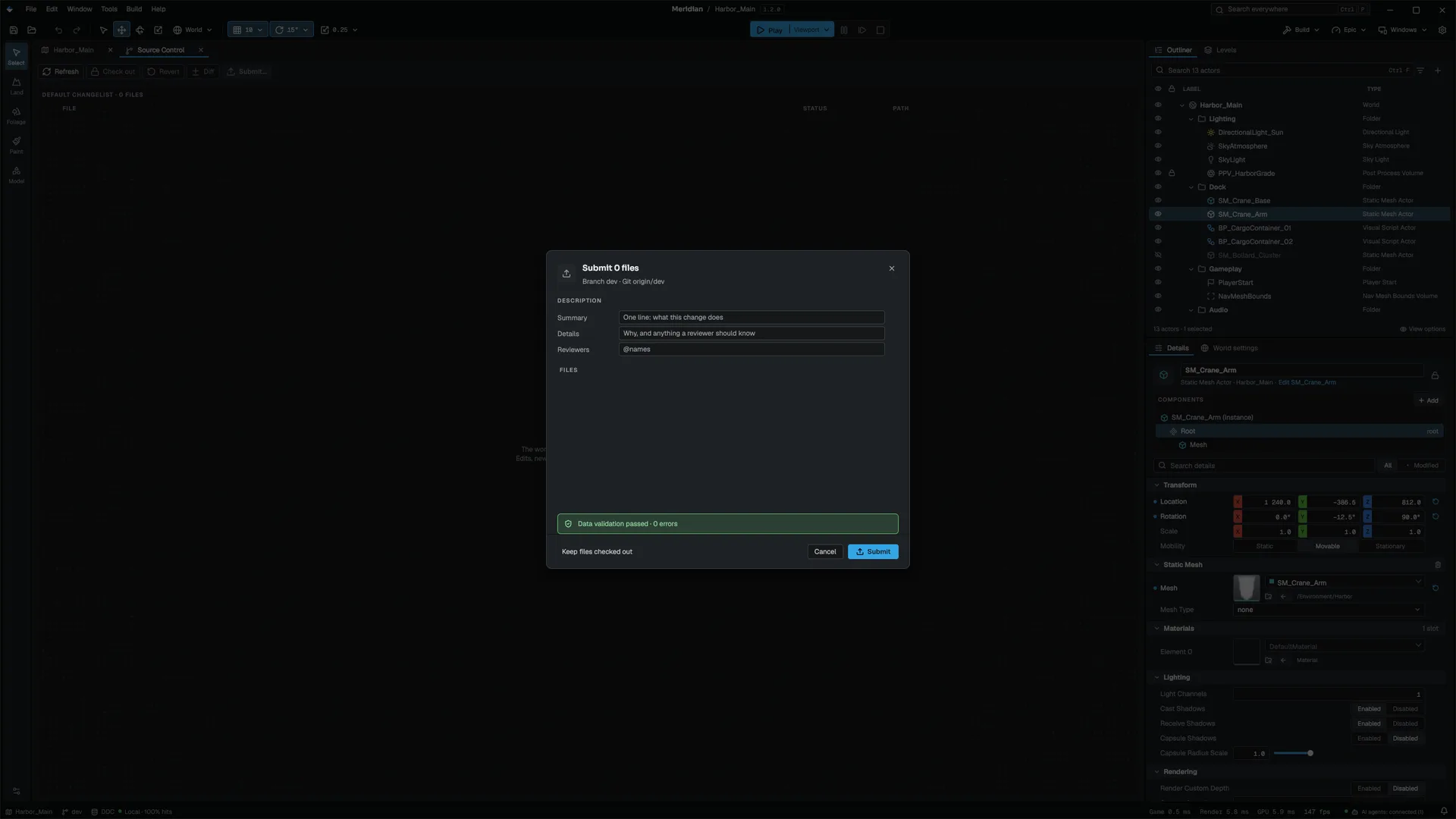
Submit… opens Submit N files with the branch and upstream in its subtitle.
- Describe the change
Fill in Summary (required; the commit's first line), and optionally Details and Reviewers. They become one commit message.
- Check the files and the banner
The file list carries your ticks from the changelist. Opening the dialog runs data validation on those files: the banner is green when they pass and shows error and warning counts when they do not.
- Submit
The editor stages exactly the ticked files, commits, pushes, and then releases your LFS locks on them. Tick Keep files checked out to keep the locks.
Each step runs only if the previous one succeeded. If the push fails, the commit stays local and your locks stay held. A submit is refused while any conflict is open.
History
Show History turns the table into the log of the whole repository; History on a row shows one file's log. Columns are commit, subject, author and date, up to 200 commits. The search matches subject, author, date and both hash forms. The row menu has Copy Commit Hash, Whole Repository and Back to Changelist.
Locking binary assets
Two people editing the same binary asset, such as a mesh or a texture, create a conflict nobody can merge. Git LFS locks prevent that. A lock is a check-out:
| Where | How |
|---|---|
| Changelist | Check out on the selection |
| Content Browser | Check Out / Release Lock on an asset's menu, for files LFS tracks; a disabled Locked by <name> row when someone else holds it |
| Lock view (Show Locks) | Every lock on the server and who holds it. Release Lock on yours, Force Release (<owner> loses the file) on someone else's |
Lock policy
Whether your team requires check-outs is set per project in Config/SourceControl.ini, which you commit so the whole team shares it:
[/Script/Mowo.SourceControlSettings]
RequireLockForBinaries=True
WarnOnly=False
+LockedExtensions=.psd
+LockedExtensions=.wav| Key | Effect |
|---|---|
RequireLockForBinaries | An LFS-tracked file (or a listed extension) needs a check-out before you save it. Off by default |
WarnOnly | Saving a file someone else holds asks instead of refusing |
LockedExtensions | Extensions covered in addition to what LFS tracks |
The lock view's menu toggles the first two (Require Check-out for Binary Assets, Warn Instead of Blocking). The file is re-read on every status refresh, so a teammate's change applies without a restart.
Saving a locked asset
Every asset save goes through the same check:
| File state | What happens on save |
|---|---|
| Allowed | The file is written |
| Someone else holds the lock | Refused: the document stays unsaved and the Message Log names the owner. With WarnOnly, you can Save Anyway |
| Needs a check-out, nobody holds it | Check Out Asset? offers Check Out (lock, then save), Make Writable (save without a lock) or Cancel |
Someone else's lock blocks a save even when the policy is off. Once you check out or make a file writable, it saves without asking again for the rest of the session. Without a repository, every save goes through.
Resolving conflicts
Merge by Property on a conflicted text asset (MDF documents and .vscript graphs) merges the two sides property by property, or node by node for a graph. When nothing collides any more the file is marked resolved; otherwise each remaining collision is reported and the file keeps your side for it. Binary assets never offer this; locks are what keep them safe. Mark Resolved stages a file you fixed by hand.
The Diff View
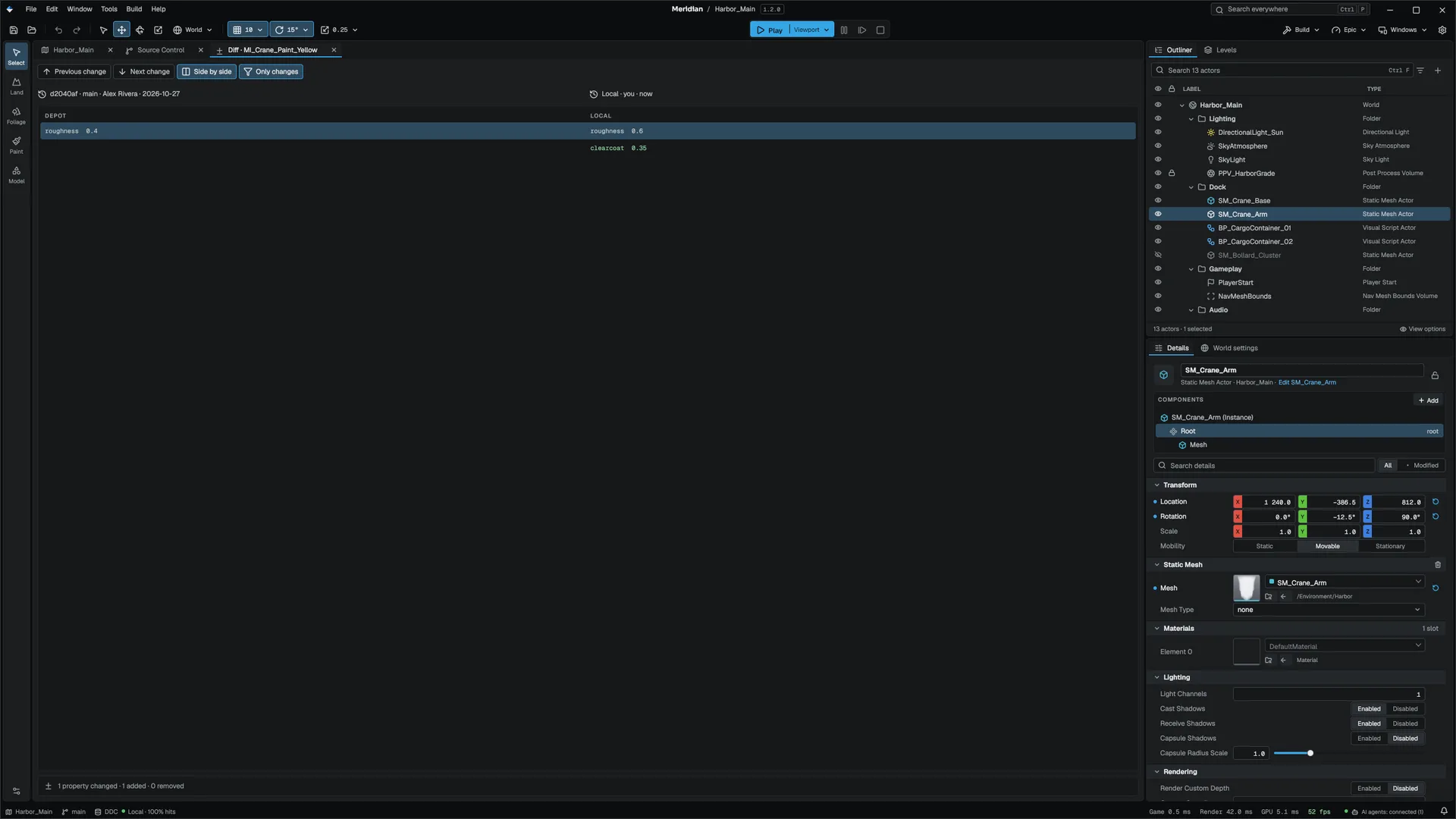
Diff opens the Diff View, a document titled Diff · <asset> that compares the depot's latest version with your working copy, one row per property. The same tab is reused for the next comparison.
| Row | Depot side | Local side |
|---|---|---|
| Changed | Old value, highlighted | New value, highlighted |
| Removed | Value in the error colour | Empty |
| Added | Empty | Value in the success colour |
- Only changes (on by default) hides unchanged properties; turn it off to read a change in context.
- Side by side (on by default) shows two columns; off, changes stack as
-and+lines like a unified diff. - Previous change and Next change jump between changed rows.
Other text files diff line by line. A binary file without a property diff does not open the view; the Message Log says so instead, and names git lfs pull when the file is still an LFS pointer.