 Mowo
Saving, undo and recovery
How Mowo Editor saves levels and assets, how undo is scoped, how autosave works, and how to restore unsaved work after a crash.
Mowo Editor writes your work when you save, when you Save All, and on an autosave timer. This page explains each one, how undo is scoped to the document you are working in, and what happens to unsaved work when a session ends badly.
Saving
| Command | Shortcut | What it saves |
|---|---|---|
| File ▸ Save | Ctrl+S | The active document. An untitled level opens Save As instead |
| File ▸ Save Scene As… | Ctrl+Shift+S | The level, to a new path you choose |
| File ▸ Save All | Ctrl+Shift+Alt+S | Every unsaved level and every unsaved asset document |
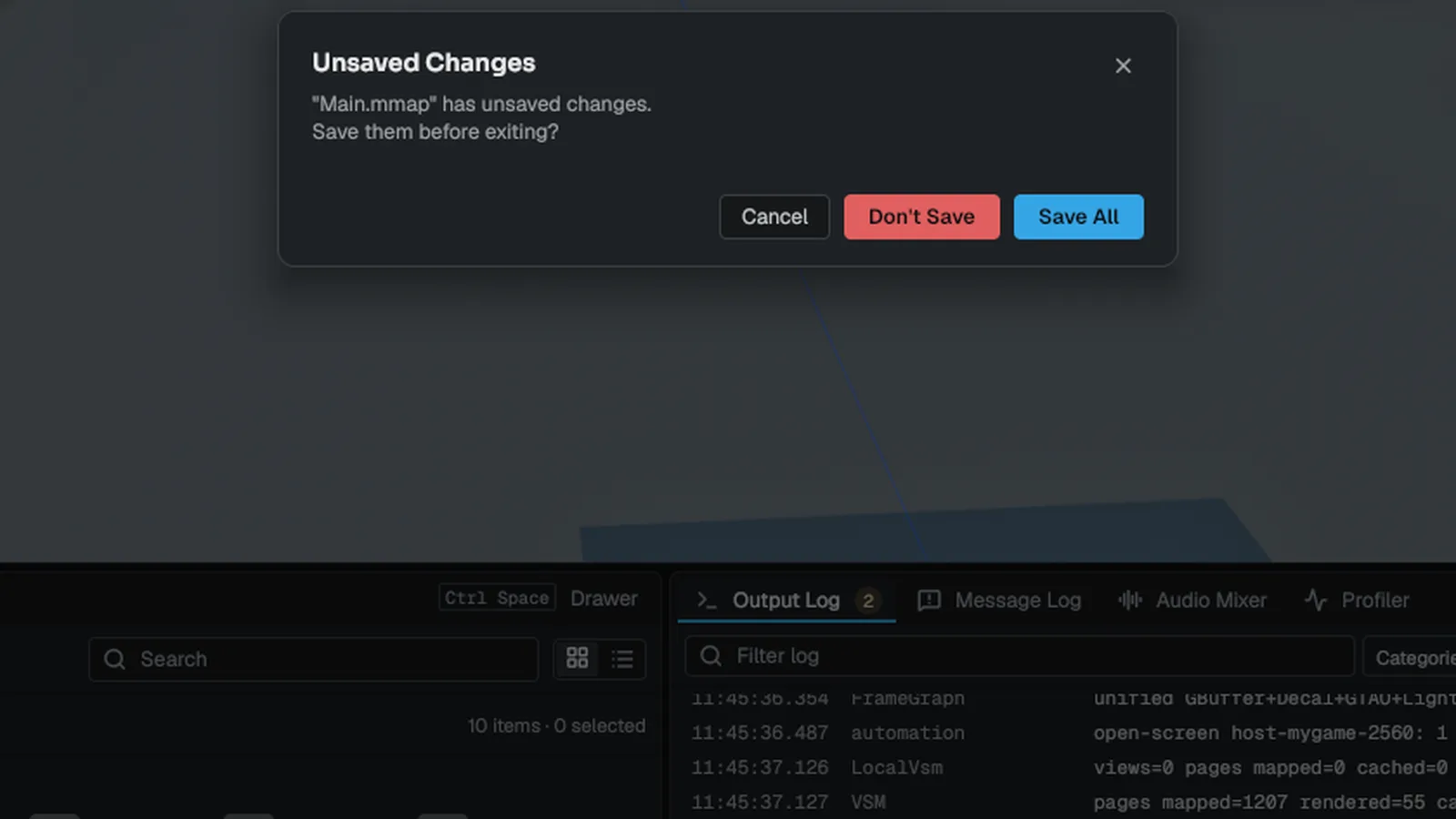
Save All is also a button in the Content Browser toolbar and an option in the quit dialog.
Ctrl+S goes to the focused asset editor first. A viewer with nothing to write passes the shortcut on to the level behind it.
Saving a new level
File ▸ New Scene creates an untitled level with no file. The first save opens a file dialog in your project's Content/ folder with the .mmap extension filled in.
- A name without an extension, or with another extension, becomes
.mmap. - A relative name is placed under
Content/. - A location outside
Content/is refused; the level stays untitled and nothing is written.
On success the tab takes the file's name and the Content Browser lists the new level. Cancelling the dialog counts as a failed save: if you were closing the tab or quitting, the tab or the editor stays open rather than discarding your work.
Undo and history
Every edit in the editor goes through one undo system, and each open document keeps its own history in it:
- Each level tab has its own history. Switching tabs keeps it; closing the tab discards it.
- Each asset document has its own history, separate from the level.
- File operations in the Content Browser (rename, move, delete) have one history of their own, which survives Play and level switches.
Ctrl+Z goes to the surface you are working in: the active asset editor first, the Content Browser's file-operation history while the pointer is over the browser, and the level otherwise. An asset editor's undo never rewinds the level, and the level's never rewinds an asset. Level and asset histories each keep up to 256 entries, dropping the oldest first.
What one entry covers:
- One gesture is one entry. A drag in the viewport or the Details panel, a multi-actor delete, a paste or a tool stroke undoes in one step, however many actors it changed.
- Property edits are recorded per property. Undoing a change to one property puts back only that property, so a change another user or a tool made to a different property of the same component since then stays.
- Undo restores the selection. Each level entry remembers what was selected before and after it. Undoing a delete brings the actors back selected, and redo shows the selection you had after the edit. Selecting actors on its own does not add entries.
- A cancelled gesture leaves nothing. A tool operation you cancel part-way, such as a modeling preview, reverts what it changed and adds no entry.
Undo and unsaved changes
Undoing back to the point where you last saved marks the document as saved again, for levels and assets alike. If you undo past the save point and then make a new edit, the saved state is no longer in the history, so the document stays marked unsaved until you save again. The same happens when a recovered autosave is opened, or when edits made during Play are replayed onto the level after Stop.
If you save and then make more than 256 edits, the point where you saved falls off the history. The document then stays marked unsaved until you save again, because the editor can no longer prove it matches the file.
The Undo History panel
Window ▸ Debug ▸ Undo History lists the active level's history and, while an asset editor is focused, that asset's history in the same list, newest first, in the order you made the edits. Asset entries start with the asset's name. Click an entry to step back to it; only the history the entry belongs to moves.
Edits that were interrupted
A property edit in the Details panel is written into the actor immediately and recorded when you commit it. If something interrupts it first (you switch levels, close the colour picker, or the selection changes), the editor commits it instead of dropping it, so it can be undone and it counts as unsaved work. The same flush runs before Save and Save All, and graph editors flush their pending edits before a save too, so an edit made in the same frame as a save is never skipped.
Play and undo
Play runs in a copy of the level. When you stop, the copy is discarded and the edits you made during play are replayed onto the level, so tuning during play survives and your earlier history stays intact. Travelling to another level or loading a save game during play turns the replay off for that session. See Play in editor.
What the game did, such as where physics settled a crate, is thrown away with the copy. To keep it, select the actors and press K (Keep Simulation Changes) while simulating, or while playing after F8 ejects you. On Stop, the captured component states are applied to the level as one undo entry. Actors and components spawned during play are skipped.
Unsaved landscape edits are part of what Play copies, so the game runs on the terrain you see. Sculpting during play does not reach the level.
Autosave
The editor autosaves every editor.AutosaveIntervalSeconds seconds; the default is 300 and 0 turns it off. Set it per user in Editor Preferences.
- Timer reaches interval
- Every unsaved level
- Every unsaved asset document
- Saved/Autosaves/<path>.autosave
On each tick the editor writes a copy of every unsaved level, including background tabs, and every unsaved asset document to:
<Project>/Saved/Autosaves/<project-relative path with / replaced by +>.autosaveFor example, Content/Levels/Rooftop.mmap autosaves to Content+Levels+Rooftop.mmap.autosave. Encoding the whole path keeps two levels with the same file name apart. An untitled level is autosaved under @Untitled+<name>.mmap.autosave.
Autosave never runs during Play or Simulate and never opens a dialog. The file is written on a background thread, so autosave does not stall the frame. When you save a document for real, or close an untitled level without saving, its autosave file is deleted.
The Static Mesh, Skeletal Mesh and Texture editors are not autosaved: they write import settings to sidecar files rather than to an asset file.
While the editor window is minimized, rendering stops but imports, autosave and play-session bookkeeping keep running.
Restoring after a crash
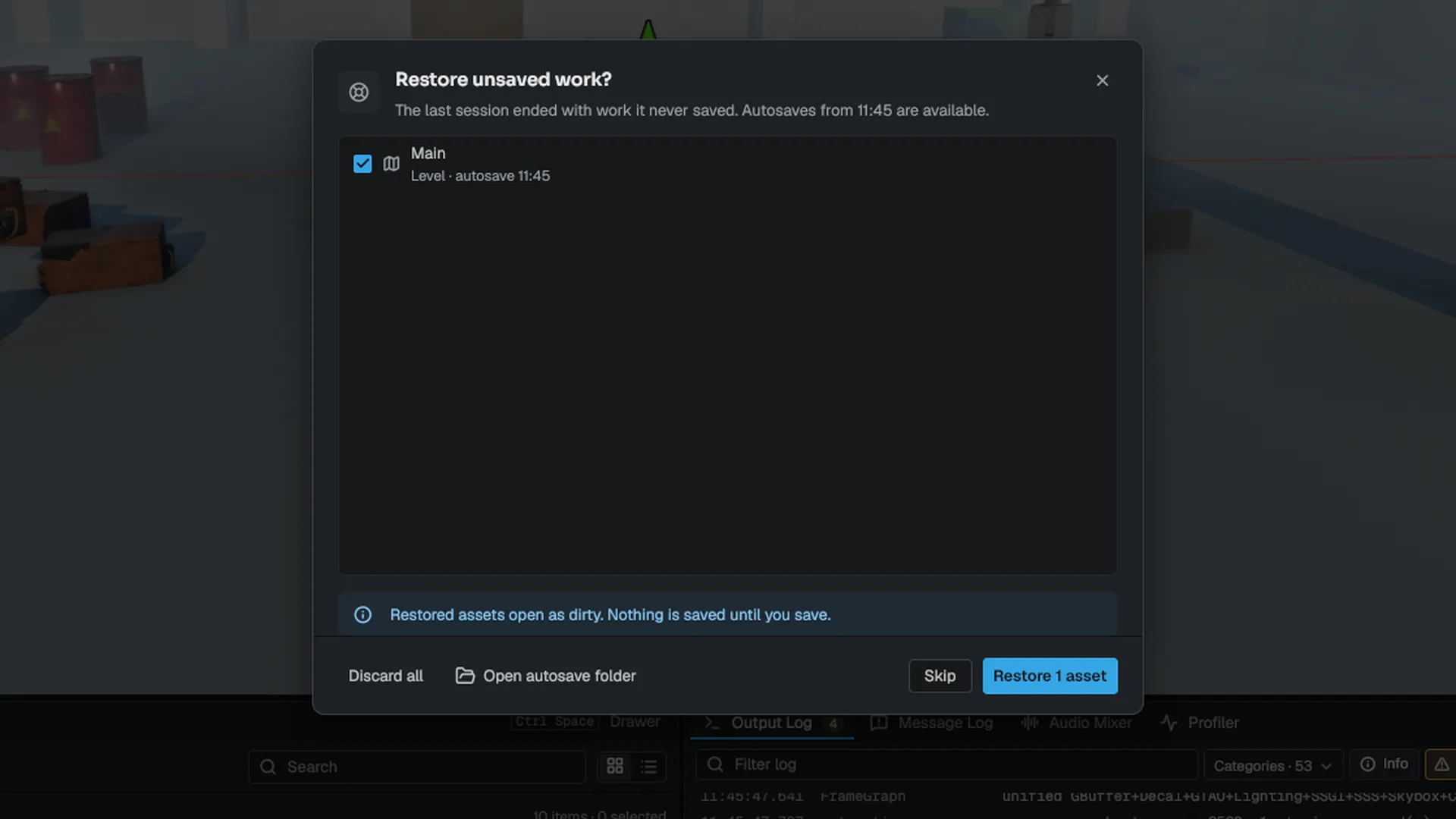
When you open a project, the editor scans Saved/Autosaves and keeps only autosaves newer than the file they shadow. If any qualify, Restore unsaved work? lists them, each ticked, with its kind and the time it was written.
| Button | Result |
|---|---|
| Restore N assets | Opens each ticked document with the autosaved contents and marks it unsaved. Your real file is untouched until you save. Unticked autosaves are offered again next time |
| Discard all | Deletes every listed autosave file |
| Open autosave folder | Shows Saved/Autosaves in the file manager; the dialog stays up |
| Skip (or Esc) | Leaves everything on disk; the dialog returns next time |
A restored untitled level opens as a new untitled tab. Scripted and automated runs skip the dialog and leave the files alone.
The World Journal
Window ▸ Debug ▸ World Journal shows the open level's world-state journal: the record of destroyed entities, modified entities and runtime spawns that world persistence keeps between sector reloads. It also shows the editor and runtime autosave status and the time of the last autosave. Clear Journal discards the recorded entries; destroyed entities respawn on the next sector reload or level load. The journal is off when world.Persistence is 0. See Gameplay.
Importing is all-or-nothing
An import is only reported as successful when the asset and its .mdfmeta sidecar both reached disk. The file is copied to a temporary name and renamed into place, so a failed copy never leaves a half-written asset in Content/. If the sidecar cannot be written, the copy is rolled back. See Content Browser.
What to commit
| Folder | Commit? | Why |
|---|---|---|
Content/, Config/, Source/ | Yes | Your assets, settings and code |
Saved/ | No | Autosaves, logs, screenshots, your layouts and local collections |
Intermediate/ | No | Caches such as thumbnails and derived data, rebuilt on demand |
See Source control for working with git from the editor.