 Mowo
Asset editors
How asset editors open and what they share - the editor frame, per-document undo, the preview scene rig and the graph canvas - with a map of every editor.
Double-click an asset in the Content Browser and it opens as a document tab in its own editor. Each editor claims one or more file types. This page explains what every editor has in common, so the second one you open already feels familiar, and maps each asset type to its editor and to the page that covers it.
Opening an asset
- Double-click asset
- Registry finds the editor for its type
- Document tab opens
- Edits go on the document's history
- Ctrl+S writes the file
- Open With. When two editors claim the same type, the first one opens on double-click and the others are on Open With in the asset's context menu. A
.vscriptfile opens the Visual Scripting editor by default and the Actor Editor through Open With. - Static or skeletal. The Static Mesh and Skeletal Mesh editors claim the same model types; a model with bones opens in the Skeletal Mesh editor.
- Asset Properties. Data assets that have no dedicated editor, such as quests, dialogues, items, recipes, music, mix snapshots, themes, physical materials and environment profiles, open in Asset Properties: a reflected property list of the asset.
- No editor. Any other text file opens in a read-only text viewer; a binary file raises a warning naming its type.
The editor frame
Every asset editor is built in the same frame: a toolbar across the top, a left panel (often a preview or a list), a central canvas, a Details panel on the right and, in some editors, a dock under the centre. Drag the gutters between panels to resize them. The toolbar ends with Find in Content Browser.
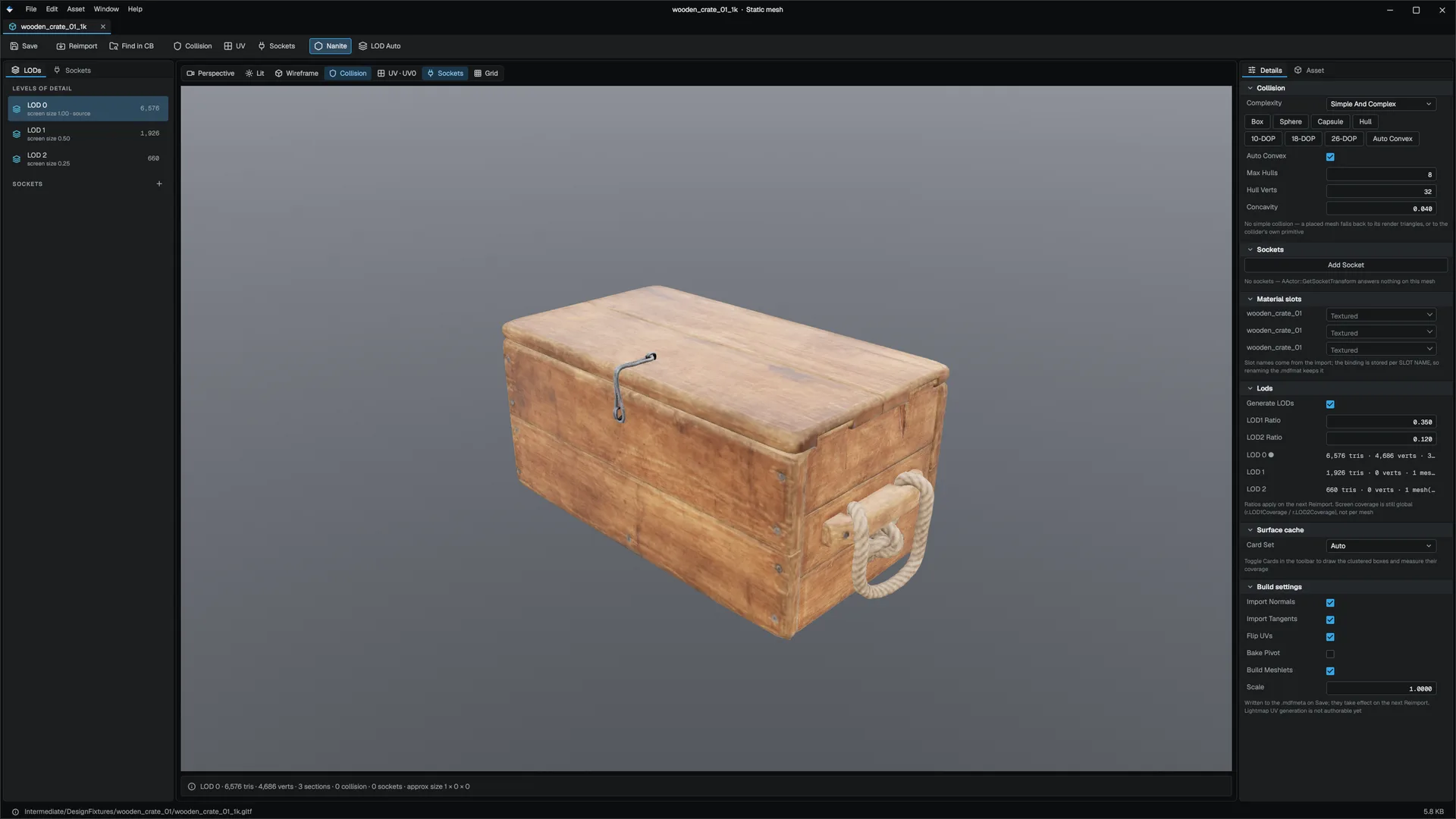
While an asset editor is in front, the main window changes with it:
| Part | Level in front | Asset editor in front |
|---|---|---|
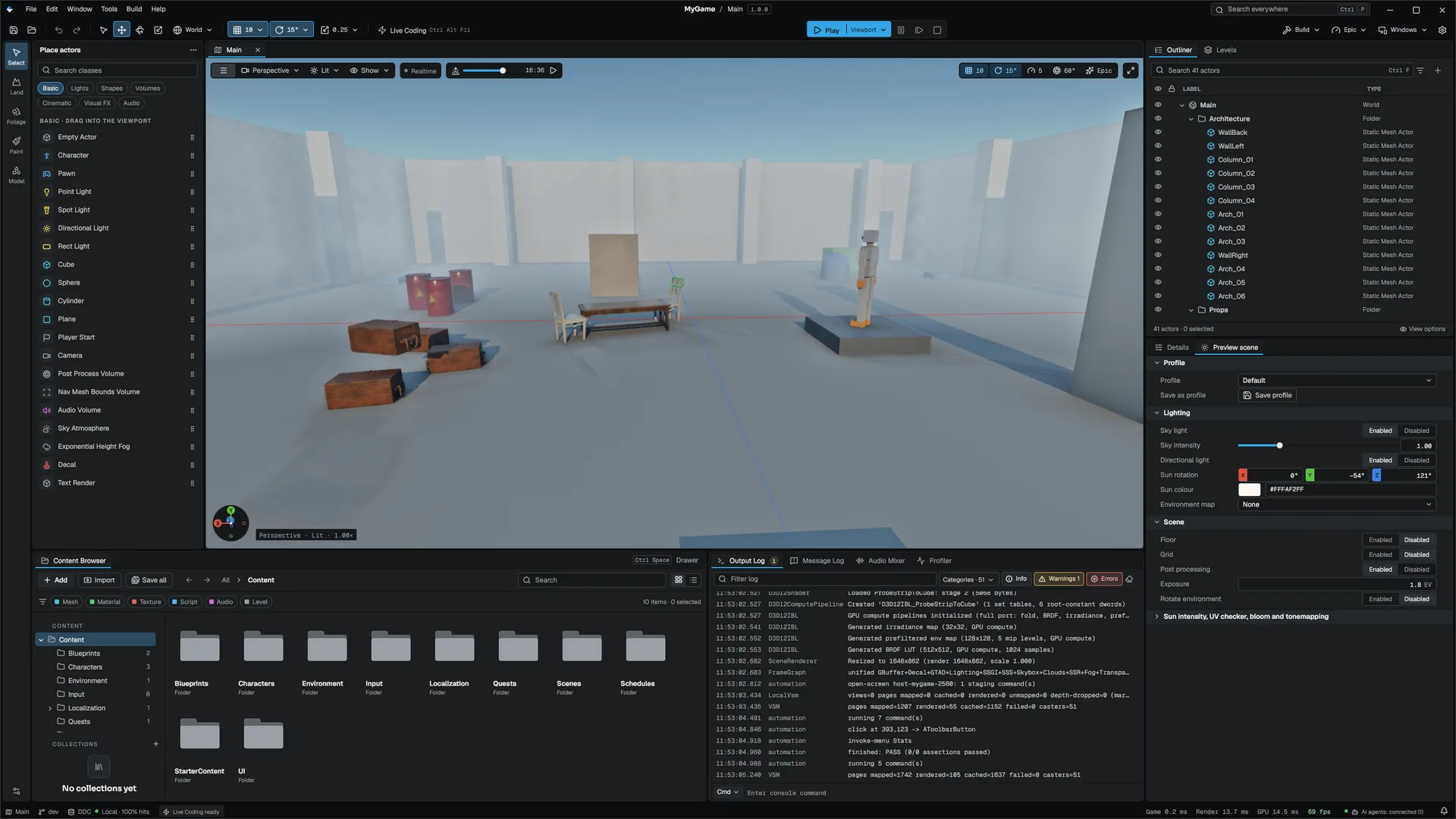
| Title bar | Project and level | <Name> · <type> |
| Menus | File, Edit, Tools, Window, Build, Help | File, Edit, Asset, Window, Help. Asset holds the editor's own commands, Find in Content Browser and Reimport |
| Level toolbar and mode rail | Shown | Hidden |
| Status bar | Level, branch, cache, frame times | The editor's own summary, such as frame count and length for an animation, or the asset's path and size |
What every editor shares
- One history per document. Ctrl+Z and Ctrl+Y inside an asset editor undo that asset, not the level. Each document keeps up to 256 entries.
- Dirty and save. A changed document shows a dot on its tab. Ctrl+S saves the focused document and Save All saves every one. Unsaved documents are autosaved. Saving a locked file goes through the source control check. See Saving and recovery.
- Empty states. An editor tab with no asset offers Open Content Browser.
The preview scene
Editors with a 3D preview share one Preview Scene Settings rig: environment, lighting, floor, grid and post-processing. Open it from the preview's Lit chip, or from Asset ▸ Preview Scene Settings… in editors without one. The Perspective chip has Frame asset (F).
| Group | Settings |
|---|---|
| Environment | None, Studio or an HDRI from the project; intensity; sky light |
| Lighting | Key light yaw, pitch, intensity and colour |
| Floor & Grid | Floor, floor height and material; grid and spacing (0 derives it from the asset's size); UV Checker, which draws the mesh with a checker texture to reveal stretched or flipped UVs |
| Post Process | Exposure, bloom, tonemapping |
The rig is remembered per editor kind, not per asset, in your user preferences: light a character in the Skeletal Mesh editor and every skeletal mesh opens lit that way. The animation editors share one kind. Reset to Defaults restores the shipped rig.
Window ▸ Preview Scene edits the shared rig that every editor kind without its own starts from, and saves named profiles. It also has Rotate environment, which turns the sky and the sun together.
The graph canvas
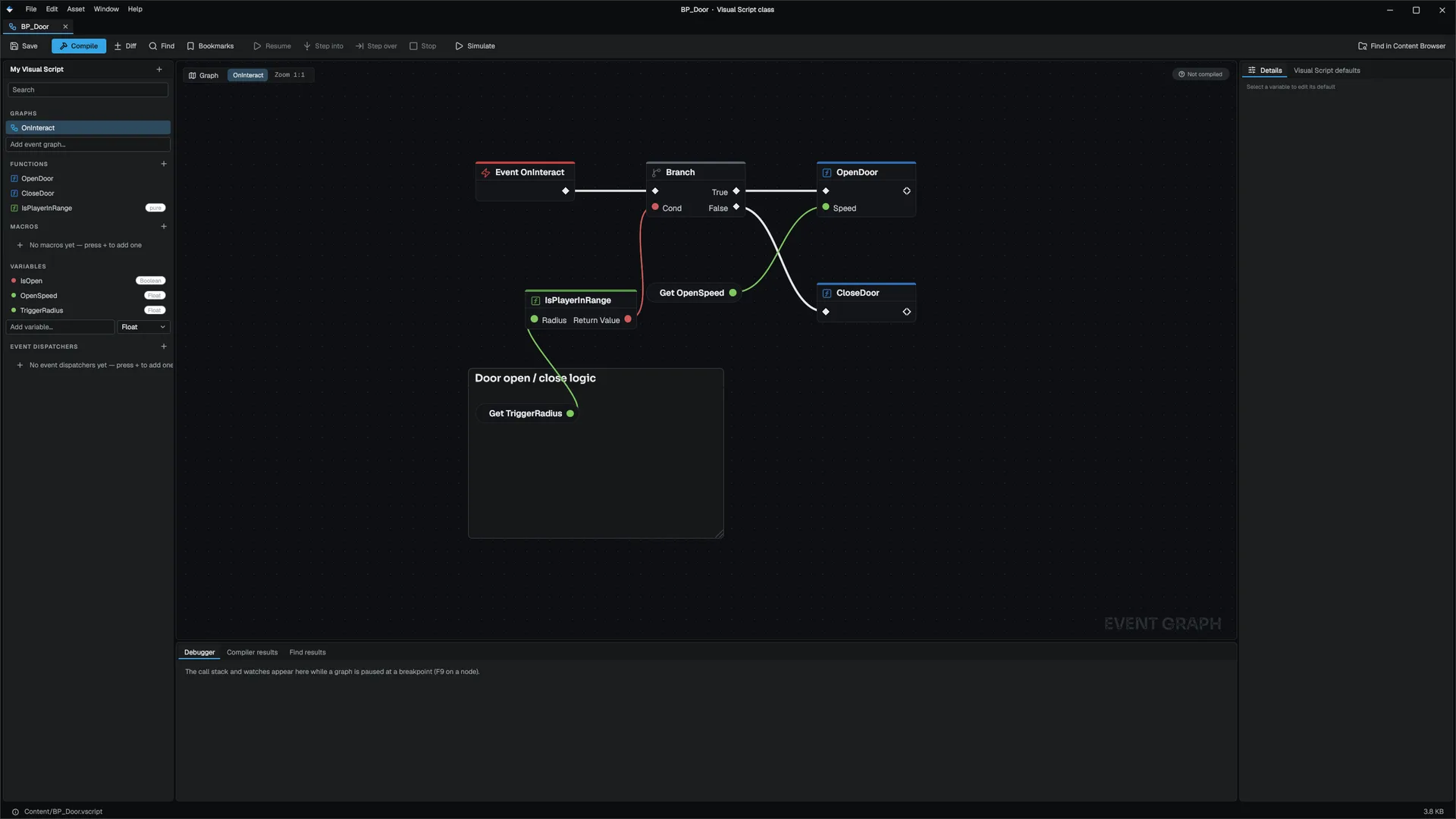
The node-graph editors (material, Visual Scripting, animation graph, behavior tree, state tree, VFX graph, PCG graph, sound cue, MetaSound, control rig) share one graph widget, so the same gestures work in all of them:
| Shortcut | Action |
|---|---|
| Ctrl+X / Ctrl+C / Ctrl+V / Ctrl+D | Cut, copy, paste, duplicate nodes |
| Del | Delete nodes |
| Shift + arrow key | Align selected nodes left, right, top or bottom |
| Q | Straighten connections |
The right-click Alignment submenu also centres and distributes nodes.
The editors
Covered in this section
| Editor | Opens | Page |
|---|---|---|
| Static Mesh, Skeletal Mesh | Source models (.fbx, .gltf, .glb, .obj) and .mmodel | Mesh, texture and physics editors |
| Texture | Source images and cooked textures | Mesh, texture and physics editors |
| Physics Asset, Fracture | .physasset, .fracture | Mesh, texture and physics editors |
| Animation Clip, Anim Montage, Blend Space, Pose Asset, IK Retargeter, Control Rig | .mmodel clips, .montage, .pose, .retarget, .controlrig | Animation editors |
| Sound, Sound Cue, MetaSound, Sound Attenuation | .sound, .soundcue, .metasound, .attenuation | Audio editors |
| Data Table, Data Asset, Curve, Input Action, Input Mapping Context, Behavior Tree, State Tree, Environment Query, AI Director Profile, Smart Prop | .datatable, .data, .curve, .inputaction, .inputcontext, .btree, .statetree, .eqs, .director, .prop, .propset | Data and gameplay editors |
Covered in other sections
These editors have their own documentation; here is how to open them.
| Editor | Opens | What you do there | Depth |
|---|---|---|---|
| Material Editor, Material Function Editor | .mat, .matinst, .matfunc | Build a material as a node graph with a live preview; saving compiles its shaders in the background with a progress card | Rendering |
| Particle System | .particle | Emitter settings and a module stack with a live preview | Rendering |
| VFX Graph | .vfx | An emitter as a node graph | Rendering |
| Volume Profile | .volume | Post-process overrides for a volume, with a blend preview | Rendering |
| Wave Spectrum | .waves | Ocean wave spectra, previewed with the same evaluator as the water | Rendering |
| Animation Graph | .animgraph | The state machine an animator runs; F7 compiles | Gameplay |
| Level Sequence | .seq | Animate actors and cameras on a timeline, and render a sequence to images or video | Gameplay |
| PCG Graph | .pcg | Procedural content generation graphs | Gameplay |
| Visual Scripting | .vscript | Event graphs, functions, macros, variables and dispatchers, with a debugger; F9 toggles a breakpoint | Visual Scripting |
| Arc Widget (UI designer) | .ui | Lay out game UI screens as a widget tree on a live canvas | UI |
Prefab editor
A .prefab opens in an isolated staging level: the viewport, Outliner, Details and undo history switch to it while the tab is in front. Edit it like a level. Saving writes the prefab and updates every instance placed in the open level. Create a prefab by dragging actors from the Outliner onto the Content Browser, or with Create Prefab… on an Outliner row.
Actor Editor
The Actor Editor (Open With on a .vscript class) edits an actor class's components: the component tree, each component's defaults, the class's own variables and its construction hook. It is how you say "this actor carries a mesh, a light two metres above it and an audio source" without placing three actors.
The window has the components tree on the left, a viewport preview in the centre and the class defaults on the right.
- The Components tree lists the class's components under the actor. Add Component opens the same picker as Details. Drag a component onto another to attach it; a drop that would create a cycle is refused. F2 renames, Delete removes (children move up to the parent), and the eye toggles the component's
enabledorvisibledefault when it has one. - The right rail shows the parent class, the class's variables with their defaults, a Construction picker for the construction hook, and the selected component's defaults. A changed default reaches placed instances that have not overridden it.
- Every change is one undo entry on the document.
- The class is placeable: drag the
.vscriptinto the level.
See Visual Scripting for classes, inheritance and the construction graph.