 Mowo
The Mowo Editor
What Mowo Editor is, how to open a project in it, how editing flows through it, and where each tool is documented.
Mowo Editor is the desktop application you use to build a game: place actors in a level, author assets, play the game in place and package it. It is built on Arc, the engine's own UI framework, so every panel, menu and asset editor is drawn by the engine itself, with the same renderer your game uses. This section covers every part of it.
Opening a project
The editor always works on one project: a folder with a .mproject file. Open it from the Mowo Project Launcher, which lists your projects and creates new ones from templates, or start the editor directly:
& ".\MowoEditor.exe" --project D:\Games\MyGame\MyGame.mproject| Option | Effect |
|---|---|
--project <path> | The project to open |
--scene <path> | The level to open, overriding the startup preference |
--no-splash | Skip the splash screen |
--no-user-config | Ignore your per-user configuration and preferences |
The editor UI is in English. See Getting started to install the engine and create your first project.
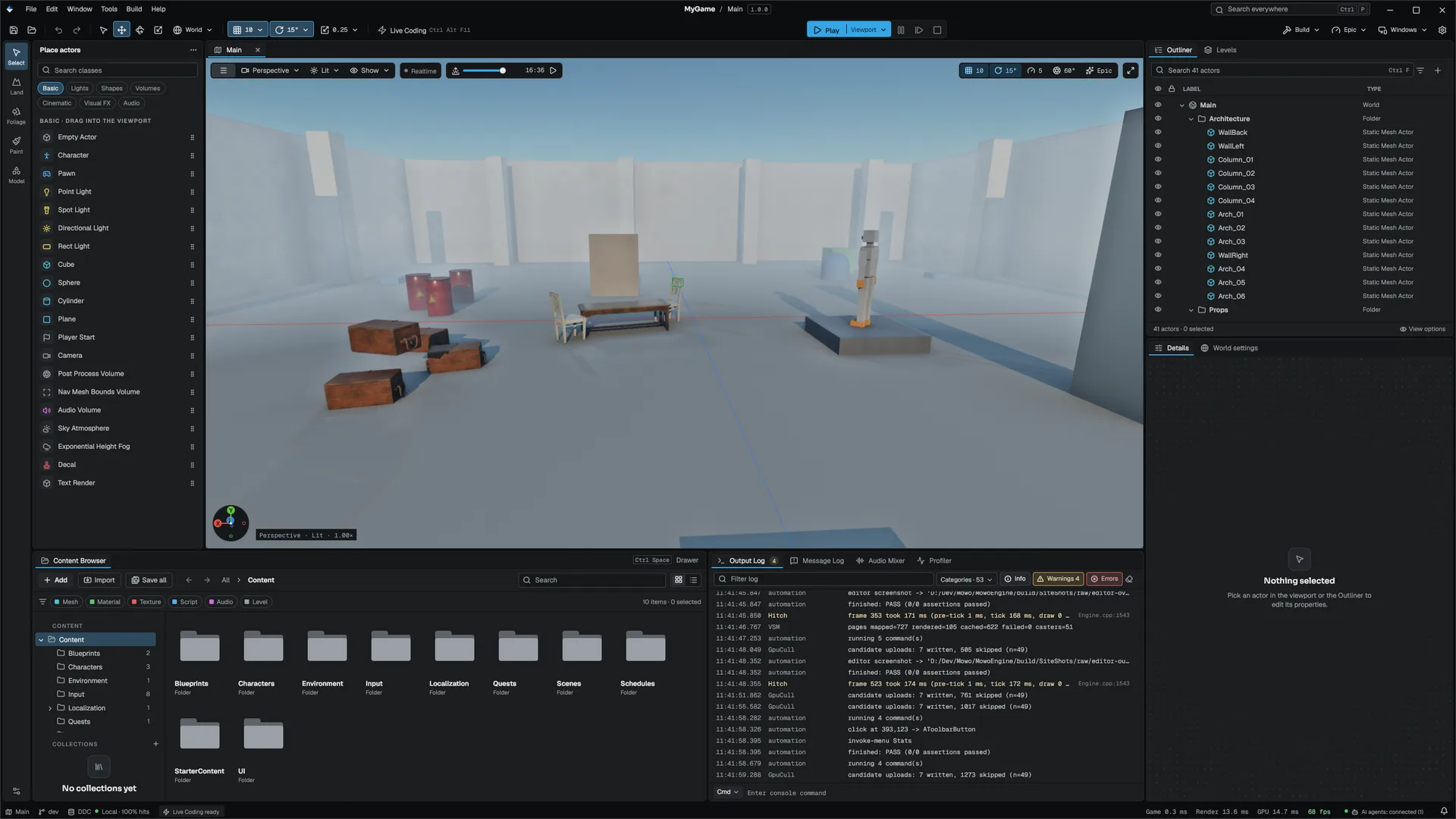
How work flows through the editor
Most editing follows the same loop: you pick something, change it, and the change goes through one transaction system so it can be undone, saved and replayed.
- Select in viewport or Outliner
- Edit in Details or an asset editor
- Transaction recorded (undoable)
- Document marked unsaved
- Save or autosave
- Each level and each asset document has its own undo history. Ctrl+Z and Ctrl+Y act on whichever one you are working in.
- An unsaved document shows a dot on its tab. Ctrl+S saves it and Ctrl+Shift+Alt+S saves everything. Autosave keeps copies for crash recovery.
- F5 plays the level in a copy, so stopping leaves the level as it was, with your play-time tweaks kept.
- Ctrl+K opens the command palette, which finds actors, assets, commands and settings.
In this section
The editor
Asset editors
Diagnostics and automation
Editor plugins extend the editor through the EditorFramework module: menu entries, toolbar buttons, Details rows, dock panels, viewport modes and agent tools FEditorExtensionRegistry. See Plugins and extensions.
Engine sources
This page describes behavior implemented in these files of the engine repository, checked against commit 3f3a08d31.
- Engine/Source/Editor/EditorFramework/Public/EditorFramework/EditorExtensionRegistry.h