 Mowo
Mesh, texture and physics editors
The Static Mesh, Skeletal Mesh, Texture, Physics Asset and Fracture editors - collision, sockets, slots, LODs, compression, ragdolls and fracture.
These editors author what a mesh, texture or physics asset carries beyond its imported data. All of them use the shared asset editor frame, keep their own undo history, and mount the shared preview scene rig where they have a 3D preview.
Static Mesh editor
Double-click a model without bones (.fbx, .gltf, .glb, .obj or a cooked .mmodel) to open the Static Mesh editor. A model with bones opens the Skeletal Mesh editor instead; Open With offers both.
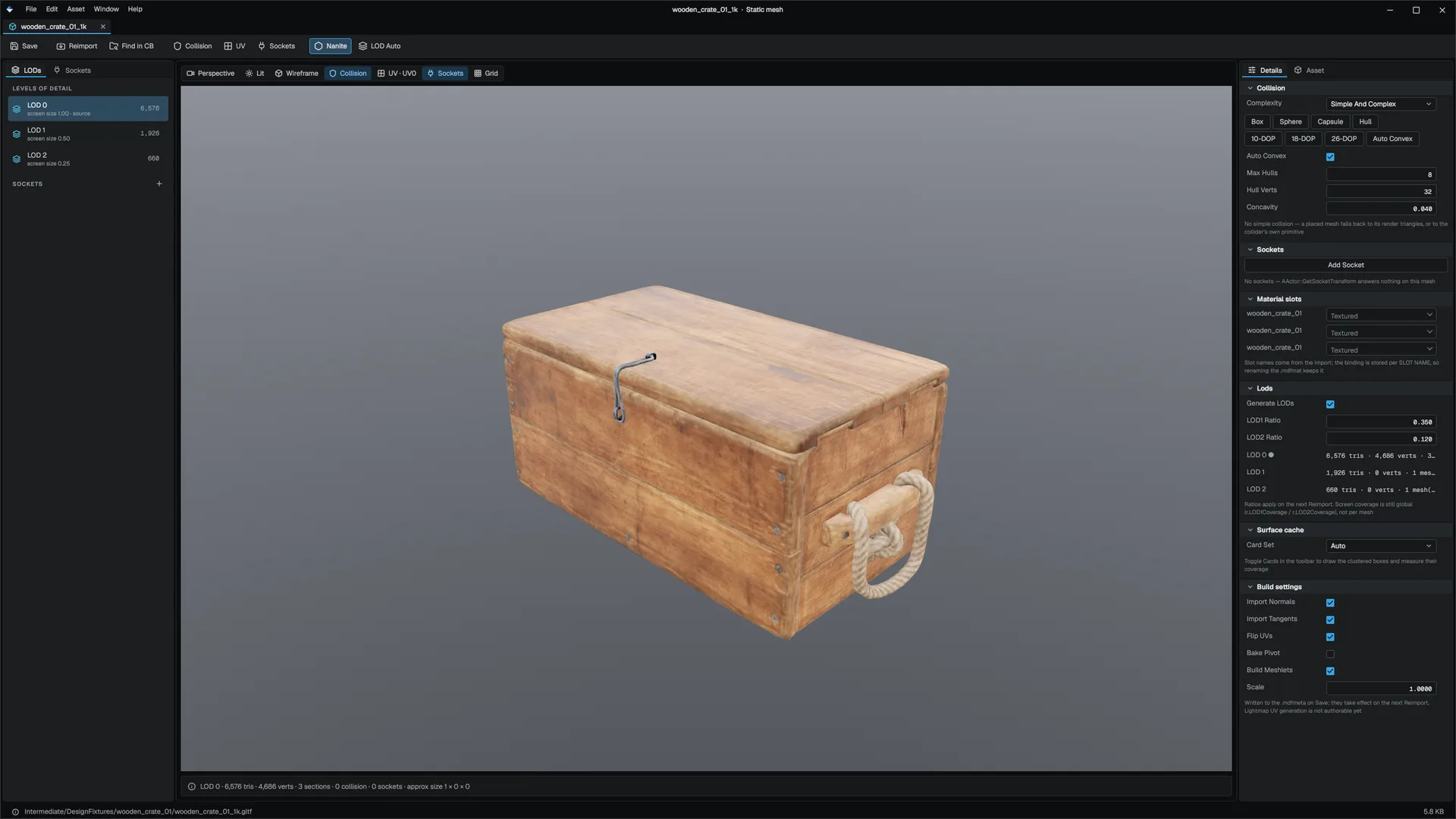
| Area | Contents |
|---|---|
| Toolbar | Save, Reimport, Find in CB; the Collision menu (add box, sphere, capsule, convex hull, 10/18/26-DOP or auto convex collision, remove a shape, show collision); UV (show UV checker); Sockets (add, remove, show); Nanite (the meshlet build); the LOD picker |
| Left panel | LODs (each level's triangles and screen size, then the sockets) and Sockets |
| Preview | View chips for perspective, lighting, wireframe, collision, UVs, sockets and grid; a foot bar with triangles, vertices, sections, collision shapes, sockets and size |
| Right panel | Details: Collision, Sockets, Material slots, LODs, Surface cache and Build settings. Asset: read-only counts and bounds |
Save writes the mesh's .mmeshmeta sidecar (collision, sockets, material slot bindings, the surface-cache setting) and the import block of its .mdfmeta (build settings). Build settings such as Nanite take effect on the next reimport.
Collision
Choose the Complexity (Simple And Complex, Use Simple As Complex, Use Complex As Simple), then generate shapes fitted to the mesh: Box, Sphere, Capsule, Hull, the K-DOPs, or Auto Convex, which decomposes the mesh into convex hulls and replaces the existing shapes. Max Hulls, Hull Verts and Concavity set the decomposition budget; it is stored on the mesh, so the cook uses the same budget for a mesh with no authored collision. Select a shape to edit its centre and size, or remove it.
Sockets and material slots
A socket is a named transform on the mesh, such as a muzzle or a door handle. Add one with Add Socket, name it and set its position and scale; its handle draws in the preview. Gameplay reads sockets with AActor::GetSocketTransform and attaches to them by name.
Each material slot picks a .mat asset. The binding is stored by slot name, so renaming the material or the mesh keeps it.
The Surface cache section sets how the mesh is represented in Global Illumination's surface cache: Auto, Off or Custom. See Rendering.
Skeletal Mesh editor
A model with bones opens in the Skeletal Mesh editor.
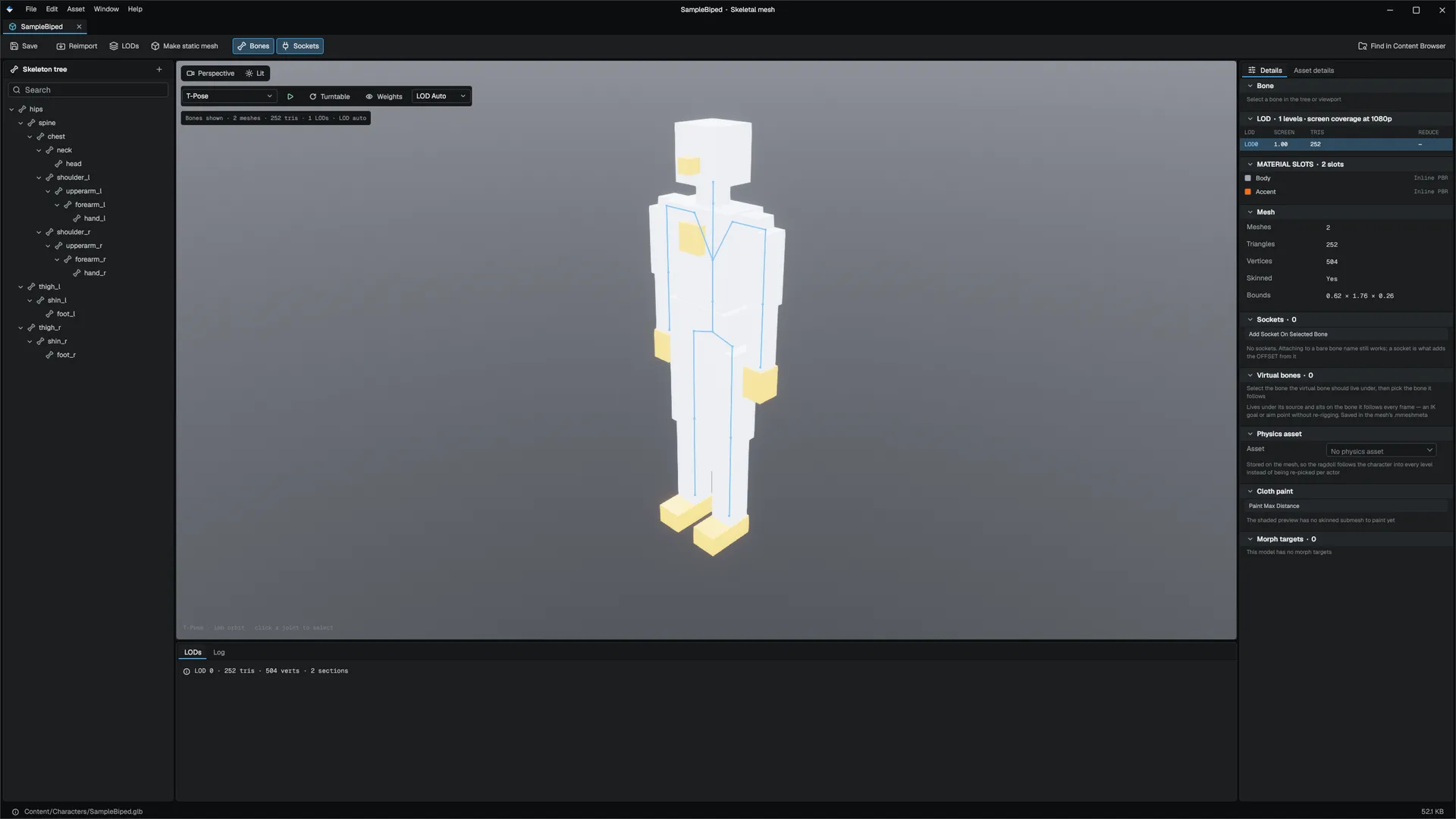
| Area | Contents |
|---|---|
| Toolbar | Save, Reimport, LODs, Make static mesh (opens the model in the Static Mesh editor, for collision and build settings), Bones, Sockets, Find in CB |
| Skeleton tree | The bone hierarchy with a search box; bones with sockets show a count, virtual bones are tagged. + adds a socket on the selected bone |
| Viewport | Preview clip (T-pose or any clip in the model), play/pause, Turntable, Weights (the selected bone's skin weights as a heat ramp) and an LOD pin |
| Dock | LODs (triangles, vertices, sections per level) and Log (the model's load log) |
| Details | The selected bone (read-only), the LOD table with screen coverage, material slots, Sockets, Virtual bones, Physics asset, Cloth paint and Morph targets |
- Sockets ride a bone with an offset. At runtime a socket name resolves before a bone of the same name, so existing attachments by bone name keep working.
- Virtual bones are added to the imported skeleton: parented to a source bone and driven onto a target bone every frame, for IK goals and aim points without re-rigging. They work in animation, the animation graph, control rig and retargeting.
- Physics asset picks the
.physassetthe ragdoll uses, stored on the mesh. - Cloth paint paints the max-distance mask a Cloth component applies per vertex, with Fill Free, Fill Fixed and Remove Mask. Each stroke is one undo entry.
- Morph targets each get a preview slider; preview weights are not saved.
Save writes sockets, virtual bones, cloth masks and LOD settings to the model's sidecar. Bone transforms cannot be edited here; retargeting is the IK Retargeter and notifies are in the Animation Clip editor.
Texture editor
Images (.png, .jpg, .tga, .bmp, .dds, .hdr, .exr) and cooked textures open in the Texture editor. Large source images decode in the background; the editor shows Decoding image until they arrive.
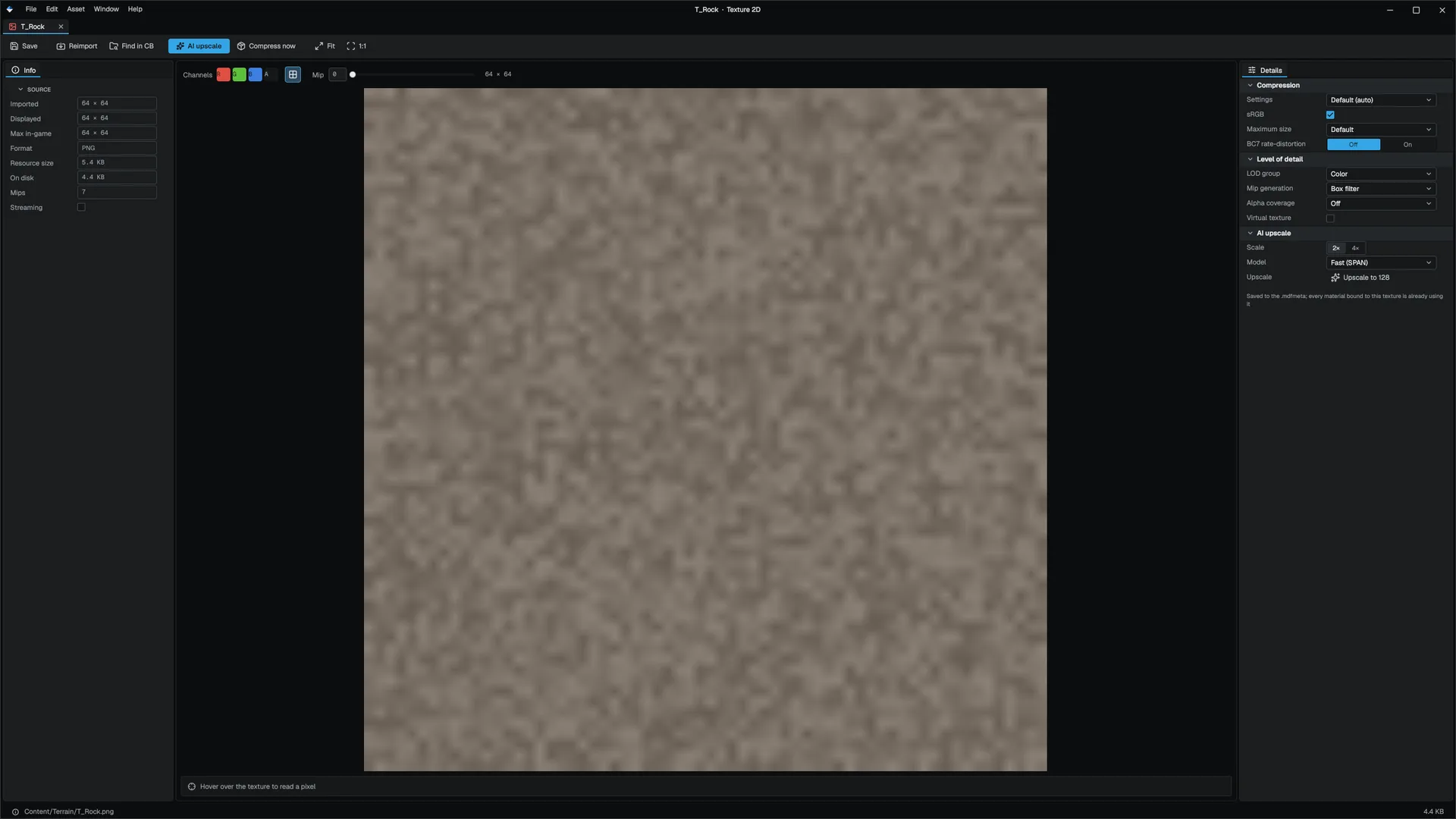
| Area | Contents |
|---|---|
| Toolbar | Save, Reimport, Find in CB, AI upscale, Compress now, Fit, 1:1 |
| Canvas | Drag to pan, wheel to zoom. R, G, B and A channel toggles, a transparency checker and a mip slider; a line under the canvas reads the texel under the cursor |
| Info | Measurements: imported and displayed size, format, GPU resource size, size on disk, mip count, streaming |
| Details | Compression, Level of detail and AI upscale settings |
| Setting | Effect |
|---|---|
| Settings (compression) | Default (auto), Uncompressed, BC1, BC3, BC4, BC5 (normal map), BC7, BC6H (HDR) |
| sRGB | The colour space the sampler decodes through |
| Maximum size | Default (unauthored), No limit, or a size from 256 to 8192 |
| BC7 rate-distortion | Re-encodes BC7 blocks so packages compress smaller; Strength sets how far |
| LOD group | Color, Normal Map, Linear / Mask or HDR. Normal Map, Linear and HDR always sample linear |
| Mip generation | Off, Box or Kaiser filter |
| Alpha coverage | An alpha-test cutoff every mip preserves, so foliage does not thin out with distance |
| Virtual texture | Also cook page tiles for virtual texture streaming |
Save writes the settings into the texture's .mdfmeta and reloads the texture in place, so every material using it updates at once. The editor decodes through the same texture cook a package uses, so what you see includes the compression and size limits a shipped build has.
Compress now encodes BC7 twice on a background thread, with rate-distortion off and at the texture's strength, and shows quality, size on disk and encode time for both. A Compare row then switches the canvas between Source, Split (drag the handle), Compressed and Error x8.
AI upscale queues a 2× or 4× upscale with a fast or a quality model, up to 8192 on the longest edge, and reimports the texture when it finishes. It is disabled, with the reason in its tooltip, when the upscaler is not available.
Physics Asset editor
A .physasset names the collision bodies of a skeletal mesh and the constraints that wire them into a ragdoll; the runtime builds its ragdoll from exactly this file.
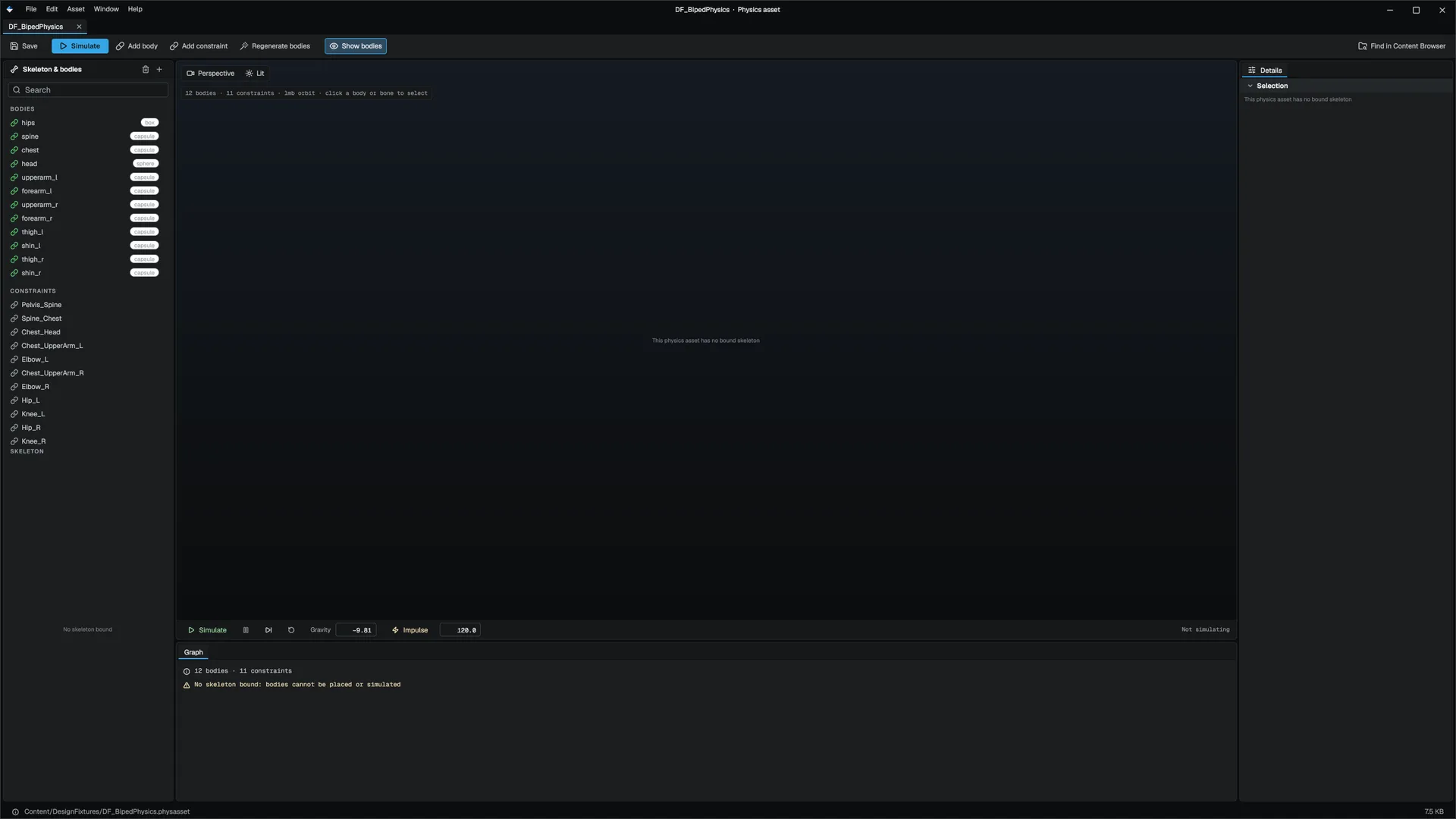
| Area | Contents |
|---|---|
| Toolbar | Save, Simulate, Add body (a capsule on the selected bone), Add constraint (to the parent bone's body), Regenerate bodies, Show bodies, Find in CB |
| Left panel | The bodies and constraints with a search box, then the skeleton tree with a marker on bones that have a body. Delete removes the selection |
| Viewport | The skinned mesh with capsule, box and sphere gizmos; the selected constraint draws its twist axis and swing cone. A body whose bone is missing draws in the warning colour |
| Simulation bar | Simulate/Stop, pause, step, reset, gravity and an impulse test |
| Details | The selected body (bone, shape, size, mass, density, collision and what it collides with) or constraint (parent, child, type, swing and twist or hinge limits) |
Simulate drops the ragdoll into a live simulation in the preview; press it again to stop. Regenerate bodies replaces all bodies and constraints with an automatically generated set.
Fracture editor
A .fracture is a bake: the pieces a volume was carved into, and the settings that carved them.
| Toolbar | Effect |
|---|---|
| Save | Writes the .fracture |
| Bake fracture | Re-carves the pieces from the settings, in the background, as one undo entry |
| Reset | Puts every piece back at rest |
| Explode | Pushes the pieces apart so each shows |
| Levels | Switches the left panel between Fracture and Outliner |
| Simulate | Lets every piece the anchors do not hold fall |
The Fracture tab picks the method; Details holds its settings, a random seed and the piece count the next bake will produce:
| Method | Cuts |
|---|---|
| Uniform | Voronoi cells seeded evenly |
| Clustered | Voronoi cells gathered in clusters: pockets of small pieces among large ones |
| Radial | Rings of cells around an impact point |
| Planar | Random planes through the volume |
| Slice | Evenly spaced, optionally tilted cuts along each axis |
| Brick | Courses of bricks in a chosen bond |
Changing a setting does not change the pieces until you bake. A plate over the preview has Colour by piece, an explode slider and Anchors. The Outliner tab lists the pieces; Details shows the selected piece and the Connectivity settings. A content hash of the pieces (the chunk set) lets multiplayer peers check they hold the same bake. See Gameplay for destruction at runtime.
Engine sources
This page describes behavior implemented in these files of the engine repository, checked against commit 08e26df3d.
- Engine/Source/Runtime/Filesystem/Public/Filesystem/ModelFormats.h