 Mowo
Lights
Directional, point, spot and area lights, physical light units, IES profiles, cookies and light functions, light channels, contact and capsule shadows.
Every light is a LightComponent on an entity, or one of the light actors that wrap it: ADirectionalLightActor, APointLightActor, ASpotLightActor and ARectLightActor. The Details panel builds its UI from the component's reflected fields, so what you see there is what this page describes. The renderer reads each light every frame; there is no light baking step.
Light types
| Type | Direction | Falloff | Shadows |
|---|---|---|---|
| Directional | The entity's forward axis | None | Cascaded shadow map, virtual shadow maps at Epic and up, optional ray-traced shadows |
| Point | — | Range window, or inverse-square with physical units | Six cube faces in the local shadow atlas |
| Spot | The entity's forward axis | Range window and cone | One tile in the local shadow atlas |
| Rect (area) | Forward, with width along the right axis | Area integral and range window | One tile in the local shadow atlas, projected from the centre |
Lights are culled into a froxel grid (clustered lighting), so a scene can hold many local lights; each pixel only evaluates the lights whose radius reaches it. Shadows are covered on the Shadows page.
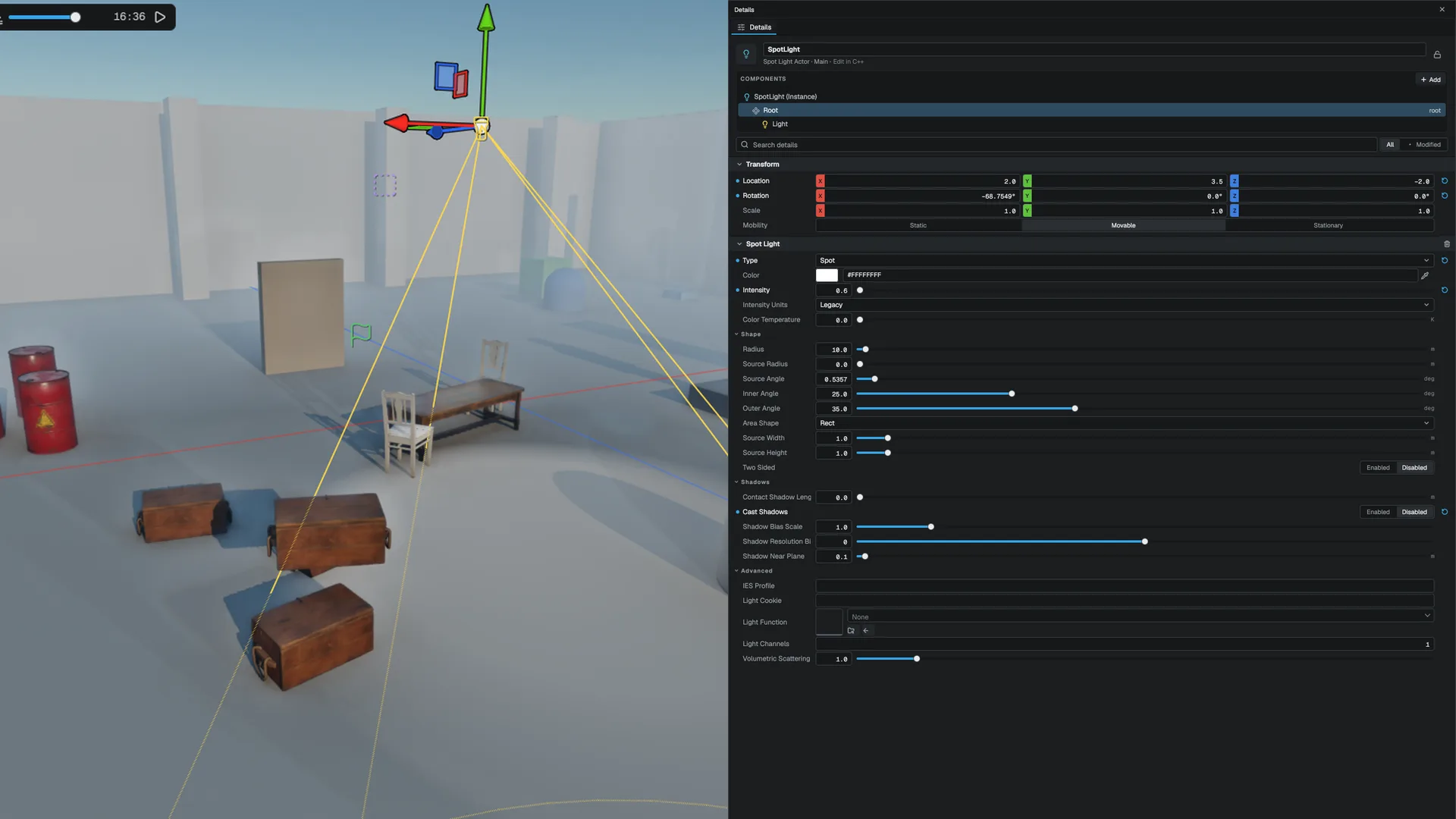
Common properties
| Property | Applies to | Meaning |
|---|---|---|
| Color, Intensity | All | Emitted color and strength. What the number means depends on Intensity Units. |
| Intensity Units | All | Legacy, Lumens, Candela, EV100 or Lux. See below. |
| Color Temperature | All | Blackbody temperature in Kelvin (1000 to 15000) that tints the color. 0 turns it off. |
| Radius | Point, spot, rect | The range of the light. The lit volume ends at the radius. |
| Source Radius | Point, spot | Physical size of the emitter. Widens the specular highlight and softens the shadow penumbra. 0 is a point. |
| Source Angle | Directional | Angular diameter of the sun disc in degrees. The default 0.5357 is the real sun. Drives the soft-shadow penumbra. |
| Inner Angle, Outer Angle | Spot | Cone angles in degrees. |
| Cast Shadows | All | On by default. |
| Contact Shadow Length | All | Length of a screen-space contact shadow ray in metres. 0 is off. |
| IES Profile | Point, spot | A photometric profile from an .ies file or a built-in preset. |
| Light Cookie | Point, spot, rect | A texture projected through the light. |
| Light Function | Point, spot, rect | A material evaluated every frame and projected through the light. |
| Light Channels | All | A bitmask that limits which meshes the light affects. |
| Volumetric Scattering | Point, spot | How strongly the light scatters in volumetric fog. 0 removes it from the fog. |
The shadow fields (bias, resolution bias, near plane) are described on the Shadows page.
Physical light units
Intensity Units decides what the intensity number means (). The default, Legacy, is an artist scale with a range-window falloff: intensity 1 is clearly visible and the light fades to zero at its radius. Any other unit is converted to radiance when the light is submitted and switches that light to inverse-square falloff, with the radius only bounding the cull range. The choice is per light, so you can mix legacy and physical lights in one scene.
| Unit | Applies to | Converts as |
|---|---|---|
| Legacy | All | Used as is |
| Lumens | Point | lm / 4π candela |
| Lumens | Spot | lm / (2π(1 − cos(outer angle))) |
| Lumens | Rect, disc, tube | Luminance from the emitter area (doubled area when two-sided) |
| Candela | Point, spot | Used directly |
| Candela | Rect | cd / area |
| EV100 | Point, spot, rect | 2^(EV100 − 3) |
| Lux | Directional only | Illuminance, used directly |
Lux on a local light, or Lumens, Candela or EV100 on a directional light, behaves as Legacy.
Physical values are large: a clear-sky sun is around 100 000 lux. Scene color stores radiance multiplied by a pre-exposure scale that follows the previous frame's exposure (r.PreExposure, on by default), so bright scenes do not overflow the HDR targets. Use auto-exposure or a matching manual exposure with physical units.
Area lights
A Rect light is an area emitter of Source Width by Source Height metres facing along the entity's forward axis. Area Shape picks the geometry:
| Shape | Geometry |
|---|---|
| Rect | A width by height rectangle |
| Disc | A disc whose diameter is the width |
| Tube | A capsule whose length is the width and diameter is the height |
Two Sided emits from both faces; a one-sided rect or disc lights nothing behind its plane. A tube always emits all round.
Diffuse and specular both integrate over the emitter's real shape with linearly transformed cosines, so a long strip light gives a long highlight and a disc gives a round one. Area-light intensity is radiance: a bigger emitter at the same intensity is brighter. Area lights also light the extended material lobes (clear coat, anisotropy, hair, subsurface).
A shadow-casting area light renders its shadow as a spot-style projection from its centre with a 120° field of view, and uses its size for the soft-shadow penumbra. Receivers outside that cone are unshadowed.
Cookies and light functions
A cookie is a texture projected through the light that tints and masks it: a window grille, leaf dapple or a logo. Spot and rect lights project along their axis; point lights map the texture by direction. The cookie multiplies the light color.
A light function is a material instead of a texture, evaluated every frame. Pick a material in Light Function:
- A material graph whose Output Domain is Light Function contributes its Emissive, evaluated over the light's projection with
Timeand the material's parameters, so it can animate. - Any other material contributes its base color times its albedo texture, like a tinted cookie.
The result is clamped to 0 to 1: a light function filters light and never adds it. A light function replaces the light's cookie; sample the texture inside the function to combine them. Directional lights ignore light functions (use cloud shadows for the sun), and lights shaded by MegaLights render without theirs.
Light channels
Light Channels on a light and on a mesh (MeshRendererComponent::lightChannels) are bitmasks. A light only affects a mesh that shares a bit with it. Use this to scope a torch to the player or a light rig to a set piece. Four channels (bits 0 to 3) are enforced per pixel. The default on both sides is 1, channel 0; a mask of 0 means all channels.
Channels scope direct light only. Ambient light, sky lighting, Global Illumination and reflections are not gated, and forward-lit translucent surfaces ignore channels.
Contact shadows
Set Contact Shadow Length to march a short ray through the depth buffer toward the light. It grounds small details such as feet, prop bases and cube edges that the shadow map's resolution or bias misses. It works for every light type. On the sun it is skipped when ray-traced shadows are on, because the traced ray is already exact at contact. The number of steps comes from the tier, and r.ContactShadowSteps overrides it.
Capsule shadows
A shadow map is too coarse to ground a character, and the sky light under a crouching body is untouched. Turn on Capsule Shadows on a skeletal mesh to let its skeleton cast soft capsule shadows (MeshRendererComponent::castCapsuleShadows, with Capsule Radius Scale beside it). Each frame the posed skeleton becomes capsules, one per bone long enough to count, and a fullscreen pass evaluates them:
- Indirect: each capsule occludes sky and Global Illumination light beneath it.
- Sun: a cone toward the sun gives a penumbra that is sharp at contact and softer further away.
Local lights are not capsule-shadowed. The settings are on Project Settings > Engine > Shadows:
| Variable | Default | Meaning |
|---|---|---|
r.CapsuleShadows | 1 | 0 turns capsule shadows off everywhere |
r.CapsuleShadows.IndirectStrength | 0.8 | How much a capsule occludes indirect light |
r.CapsuleShadows.DirectStrength | 0.85 | How much a capsule shadows the sun |
r.CapsuleShadows.SoftnessAngle | 12 | Half-angle in degrees of the sun cone; wider is softer |
r.CapsuleShadows.MaxDistance | 4 | Distance along the sun ray over which the shadow fades out |
Lights from code
Lights are components, so you add and change them like any other component. The actor classes expose them through GetLightComponent():
#include "SceneTypes/Components/LightComponent.h"

Mowo::LightComponent light = Mowo::LightComponent::CreatePoint(Mowo::Vec3(1.0f, 0.8f, 0.6f), 800.0f, 12.0f);
light.intensityUnits = Mowo::ELightIntensityUnits::Lumens;
light.colorTemperature = 3200.0f;
light.contactShadowLength = 0.2f;

(void)light;
API reference
- SceneTypes module:
LightComponent,MeshRendererComponent - Renderer module:
FLightUnits,ELightIntensityUnits,EAreaLightShape - Game module:
ADirectionalLightActor,APointLightActor,ASpotLightActor,ARectLightActor,MPointLightComponent - SceneRenderer module:
FCapsuleShadows
Engine sources
This page describes behavior implemented in these files of the engine repository, checked against commit 5922e6e5e.
- Engine/Source/Runtime/SceneTypes/Public/SceneTypes/Components/LightComponent.h
- Engine/Source/Runtime/SceneTypes/Public/SceneTypes/Components/MeshRendererComponent.h
- Engine/Source/Runtime/Renderer/Public/Renderer/Light.h
- Engine/Source/Runtime/SceneRenderer/Public/Renderer/LTCTables.h
- Engine/Source/Runtime/SceneRenderer/Public/Renderer/CapsuleShadows.h
- Engine/Source/Runtime/Game/Public/Game/APointLightActor.h
- Engine/Source/Runtime/Game/Public/Game/MPointLightComponent.h