 Mowo
Sign in and activate your license
Sign in with your Mowo ID in the Project Launcher, get the free Personal (Beta) license and activate up to three computers for the installed editor.
The installed Mowo Editor, the one you get from mowoengine.com, starts only on a computer that is signed in with a Mowo ID and activated under a license. During the beta the license is Personal (Beta) and costs nothing. You sign in and activate once, in the Mowo Project Launcher; after that the editor starts online or offline.
See What happens without a license for what the editor and the launcher do on a computer that is not activated.
Sign in
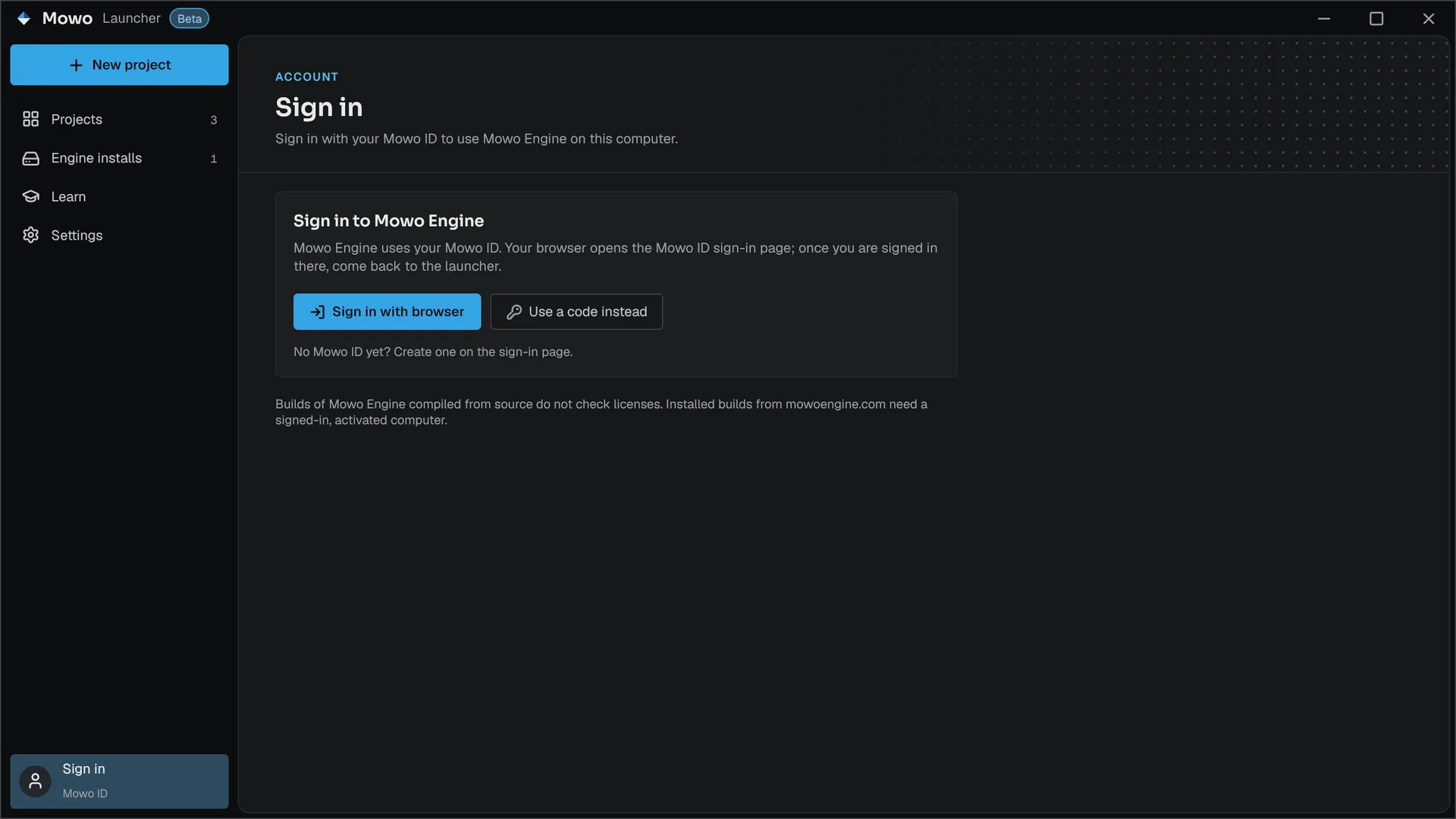
The account row sits at the bottom of the launcher's sidebar. Signed out, it reads Sign in; click it to open the Account page.
- Sign in with your browser
Click Sign in with browser. Your browser opens the Mowo ID sign-in page. Sign in there (or create a Mowo ID), then come back to the launcher. If the browser tab was closed, Open the browser again reopens it; Cancel stops waiting.
- Or use a code
If the browser cannot reach the launcher, click Use a code instead. The launcher shows a short code and a web address. Open the address on this or any other device, sign in and enter the code. Open sign-in page opens the address with the code filled in. The page shows how many minutes the code has left.
Once you are signed in, the account row shows your handle and a license chip. The launcher keeps you signed in: your Mowo ID session is stored in the operating system's credential store under Mowo Engine, and the installed editor reads the same session.
Get the Personal (Beta) license
A new Mowo ID has no license. The License card says None, the chip reads No license, and Get a license opens mowoengine.com/account/license/. Accept the Personal (Beta) terms there, return to the launcher and click Refresh.
Activate this computer
Click Activate this computer. The launcher sends a hash of this computer's ID together with its name, operating system and engine version, and receives a signed lease that it stores on disk. Only the hash leaves the computer; the name and OS are what you see in your device list.
When it works, This computer reads Activated and the chip shows Personal (Beta). The card also shows Works offline until (the date the lease runs out) and how many computers are in use.
Up to three computers
A license can be active on three computers at once. A fourth activation fails with a message that names the limit and a Manage devices link to mowoengine.com/account/devices/, where you remove a computer you no longer use. Then activate again. A computer you removed there can be activated again later; it counts as a new one.
Messages you may see
| Chip or message | What to do |
|---|---|
| Activate | Signed in, but this computer has no lease yet. Click Activate this computer. |
| No license | Get the license at mowoengine.com, then Refresh and activate. |
| Accept terms | The license terms changed. Accept the new ones on your license page. |
| Already active on 3 computers | Remove a computer under Manage devices, then activate. |
| Offline | The launcher could not reach mowoengine.com and there is no valid lease yet. Connect and click Refresh. |
| mowoengine.com is under maintenance | Wait. A lease you already have keeps working until it expires. |
| Expiring in N days | The lease is close to its end and has not been renewed. Go online; it renews by itself. |
Working offline and renewal
A lease is valid for 14 days from the moment it is issued. The launcher and the editor renew it silently whenever it is more than a day old and they are online: the launcher after you sign in and then every hour while it is open, the editor once in the background after it starts. So a computer can stay offline for up to 14 days.
When fewer than three days are left and renewal is not possible, the editor shows a notification: "Your license lease expires in N days. Connect to the internet to renew it." It never closes a running session; the check happens only when the editor starts.
The lease is the file License.lease in the engine's user config folder, %LOCALAPPDATA%\MowoEngine\Config on Windows. The launcher and the editor read and write the same file. It is bound to your Mowo ID, to this computer and to the engine's major version: copying it to another computer or using it with another account does not work.
What happens without a license
The installed build checks the license:
- The launcher opens the Account page with an explanation instead of opening a project, creating one or launching an engine version, until this computer has a valid lease.
- The editor checks the lease before it shows its splash screen. When the lease is missing or no longer valid and it is signed in, it tries to renew online for up to ten seconds. If that fails it shows a message with Open Project Launcher, Get a license and Close, and exits with code
3without loading the engine.
Sign out
On the Account page, click Sign out… and confirm. The launcher first removes this computer from your account, which frees its slot, and then signs you out. If the computer cannot be removed (for example because you are offline), you are still signed out, and the launcher links to Manage devices so you can remove it on the website. After you sign out, the installed editor does not start on this computer until you sign in and activate it again.
Related
Engine sources
This page describes behavior implemented in these files of the engine repository, checked against commit 3f3a08d31.
- Engine/Source/Editor/MowoLicensing/Public/MowoLicensing/LicenseService.h