 Mowo
The main window
The editor frame - title bar, menus, toolbar, mode rail, status bar - and how to dock, float, save and reset panel layouts.
This page walks around the editor frame: what each strip of the window holds, how panels dock, and how to get a lost layout back. The individual panels have their own pages in this section.
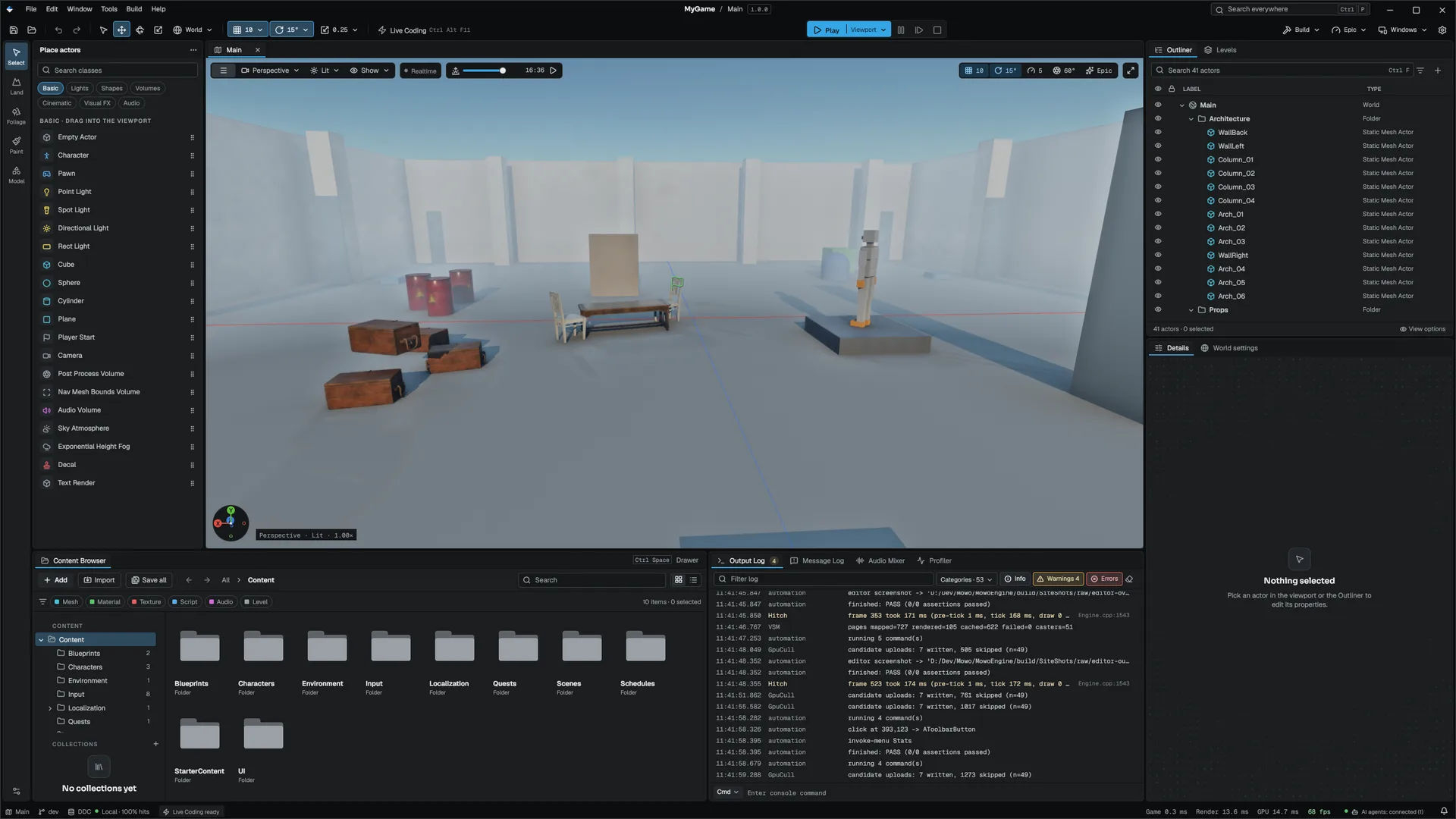
The frame
From top to bottom the window has four strips:
| Strip | Contents |
|---|---|
| Title bar | The Mowo mark, the menus, the project name with the open level or asset, an unsaved dot, the Search everywhere field and the window buttons |
| Toolbar | Save and Content Drawer; Undo and Redo; Select, Move, Rotate, Scale and the World/Local toggle; grid, angle and scale snaps; Live Coding; the Play controls; Build, Scalability, Platforms and Settings |
| Dock | The mode rail, then every panel and document |
| Status bar | Level, branch, cache, tasks and frame-time readouts (see below) |
The window is borderless; the editor draws its own frame and title bar. Drag the empty part of the title bar to move the window and double-click it to maximize. On Windows 11, rest the pointer on the maximize button to pick a snap layout.
Click Search everywhere to open the command palette. Its key caps show the palette's current shortcut, Ctrl+K unless you rebound it in Editor Preferences ▸ Keyboard Shortcuts.
Menus
The main menu reads File, Edit, Window, Tools, Build, Help. With one menu open, pointing at another title switches to it; Left and Right walk the titles from the keyboard.
| Menu | What it holds |
|---|---|
| File | New Scene, Open Scene, Recent Scenes, Save, Save Scene As, Save All, Exit |
| Edit | Undo and Redo; Cut, Copy, Paste, Duplicate, Delete; Group, Ungroup, Lock and Unlock Group, Merge Actors, Snap to Floor; Select All and Deselect All; Project Settings and Editor Preferences |
| Window | Viewport; the panels, grouped in submenus (see Documents and panels), and a Plugins submenu with panels that plugins add; New Viewport / Content Browser / Details / Outliner; Content Drawer, Close All Documents; Layouts, Save Layout and Reset Layout |
| Tools | New C++ Class, Open IDE, Live Coding, Source Code Editor; Multi-User Editing (Host, Join, Leave, Who Is Here); Command Palette; Viewport and High Resolution screenshots; Plugins; Crash Reporter; a Debug submenu with Widget Reflector, Arc Widget Gallery and Force Garbage Collection |
| Build | Launch Standalone Game, Compile Game Module, Package Project, Cook Content, Map Check, Bake GI Fallback |
| Help | Show Log Folder, Report a Bug, About Mowo Engine (see Help â–¸ About and Report a Bug) |
An asset editor that runs in its own window has a smaller menu bar of its own: File, Edit and Asset.
Help â–¸ About and Report a Bug
About Mowo Engine opens a dialog with the engine version and build, your platform, CPU, renderer and GPU with its driver, the credits, and the licence of every third-party library the editor ships. Click a library to read its licence text; Back returns to the list. The Mowo Project Launcher's Help menu opens the same dialog.
Report a Bug opens a dialog that already holds the version, platform and GPU in a read-only summary, with a box for your description and a Show logs folder button that opens the folder with the editor's log files. Send opens your email app with a message to [email protected], subject and body filled in; attach the newest log file if you can. There is no web form: the message only leaves your computer when you send it from your mail client.
Toolbar
The transform tools and snap buttons mirror the viewport's own controls (Viewport). A snap is a split button: click the body to toggle it and the chevron to pick the increment. Grid and rotation snapping start on and the gizmo starts in World space; the editor remembers your choice after that.
Play is a split button too: the body starts a session in the current play mode, the chevron picks the mode (viewport, new window, simulate, standalone) and the multiplayer options. While a session runs the button shows the elapsed time and Pause, Step and Stop become active. See Play in editor.
The right-hand group opens the Build menu, the scalability card (render quality presets for the editor viewport), the platform menu for packaging and cooking, and the settings windows.
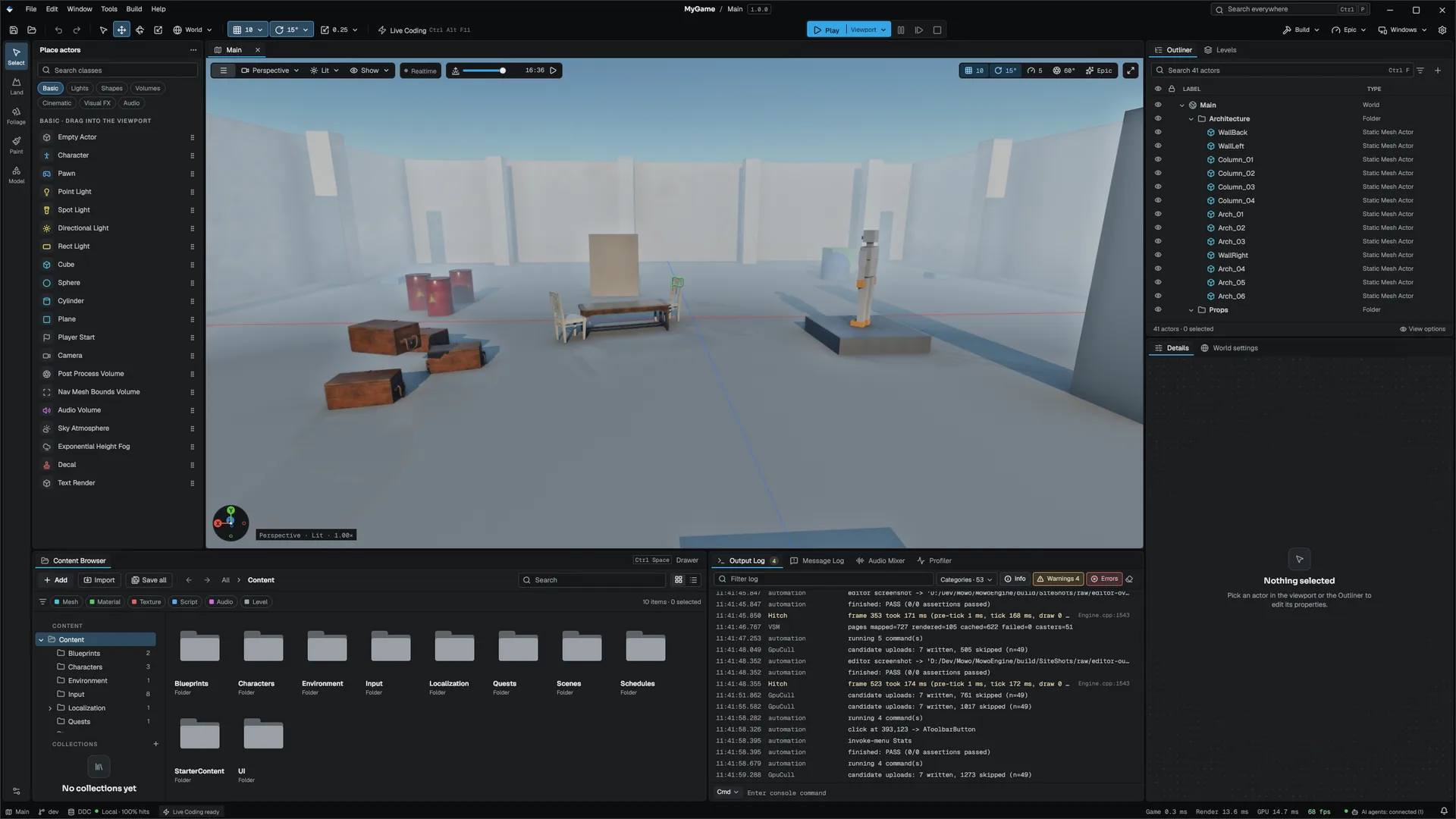
Mode rail
The column on the far left switches the viewport's tool mode: Select (Place actors), Land, Foliage, Paint and Model, with mode settings at the bottom. It is not a dock tab, so no layout change can lose it. The panel beside it takes the name of the active mode. Modes are covered on the viewport, world building and geometry tools pages.
Place actors lists the placeable classes one category at a time, with Basic first. Click a row to place it in front of the camera or drag it into the viewport. A search lists matches from every category.
Status bar
Left to right, the status bar shows:
- the open level, with its saved state in the tooltip;
- the git branch of the repository that holds the project, refreshed every few seconds;
- the derived-data cache with a state dot and hit rate;
- the running background task with a progress bar, or the imports still in flight;
- Live Coding, when the project has a game module;
- the Multi-User session and its participant count, when you are in one;
- the Message Log tally.
On the right sit Game (game-thread tick time), Render (the frame's draw on the CPU), GPU (GPU time of the last resolved frame), the frame rate, the AI agents item and the notification bell.
When the editor holds its frame rate down on purpose, the frame-rate item names the cap instead of a measured rate: an idle cap shortly after your last input, an unfocused cap while another window is in front, or the battery saver. Input, focus, a realtime viewport or a playing preview lifts the cap.
When the editor is idle and nothing a level viewport shows has changed, the viewports keep their last image and stop rendering until something wakes the editor. editor.IdleSceneSettleFrames sets how many idle frames to keep rendering first so temporal effects settle, and editor.IdleSkipSceneRender 0 turns the behaviour off. Play sessions always render.
The Live Coding item follows the compile: ready, compiling with a file count, patched, failed with an error count, or restart required when a class layout changed. Click it for a popover with the shortcut, the files in flight, the last patch and an Open log link. See Working with C++.
The AI agents item appears while the MCP server runs. It reads listening or connected with a client count; its popover shows the endpoint, the masked token, each client and a Stop button.
Progress cards and notifications
Long tasks (imports, cooks, shader compiles, a hot reload, a GI or navigation bake) show a progress card in the bottom-right corner, above the status bar. A card shows the task, a live line, a progress bar and, when the task can stop, Cancel. When two or more tasks run, a Background tasks card lists all of them. Notifications stack in the same corner; the bell in the status bar keeps their history.
Documents and panels
Every surface in the editor is a dock tab, and each tab has one of two roles:
- Documents are the things you edit: a level, a material, a Visual Scripting graph, an animation. They open in the central document well. Switch between them with Ctrl+Tab and Ctrl+Shift+Tab. A document tab always shows its close button and an unsaved dot when it has changes.
- Panels are tools that work on the active document: Outliner, Details, Content Browser, logs, profilers and debug views.
Window ▸ Panels opens every panel, grouped in submenus:
| Submenu | Panels |
|---|---|
| Level | Outliner, Details, World Settings, World Partition, Data Layers, Navigation |
| Modes & Tools | Modes, Landscape, Modeling, Water, UV Editor |
| Content | Content Browser, Reference Viewer, Size Map, Asset Audit, Asset Manager, Data Validation, Property Matrix, Class Viewer, Localization Dashboard |
| Play & Preview | PIE Session, Preview, Preview Scene, Audio, Generate Motion |
| Logs & History | Output Log, Message Log, Undo History, World Journal, Source Control |
| Debug & Profiling | Profiler, Frame Timeline, Perf Trends, Render Debug, Network Debug, Automation |
| Plugins | Panels that plugins add (only when one does) |
Some tools, such as the Profiler, Asset Audit, Reference Viewer and Property Matrix, open as tool documents: a tab in the document well, with the Outliner and Details column kept beside it. Every panel also has an Open <panel> command in the command palette, so typing a panel's name finds it without opening the menu.
No level and the Welcome tab
When no level and no asset is open, the document well shows a No level tab with Open level…, New level and your most recent levels. It closes as soon as a level or asset opens. You can close every level tab, including the last one.
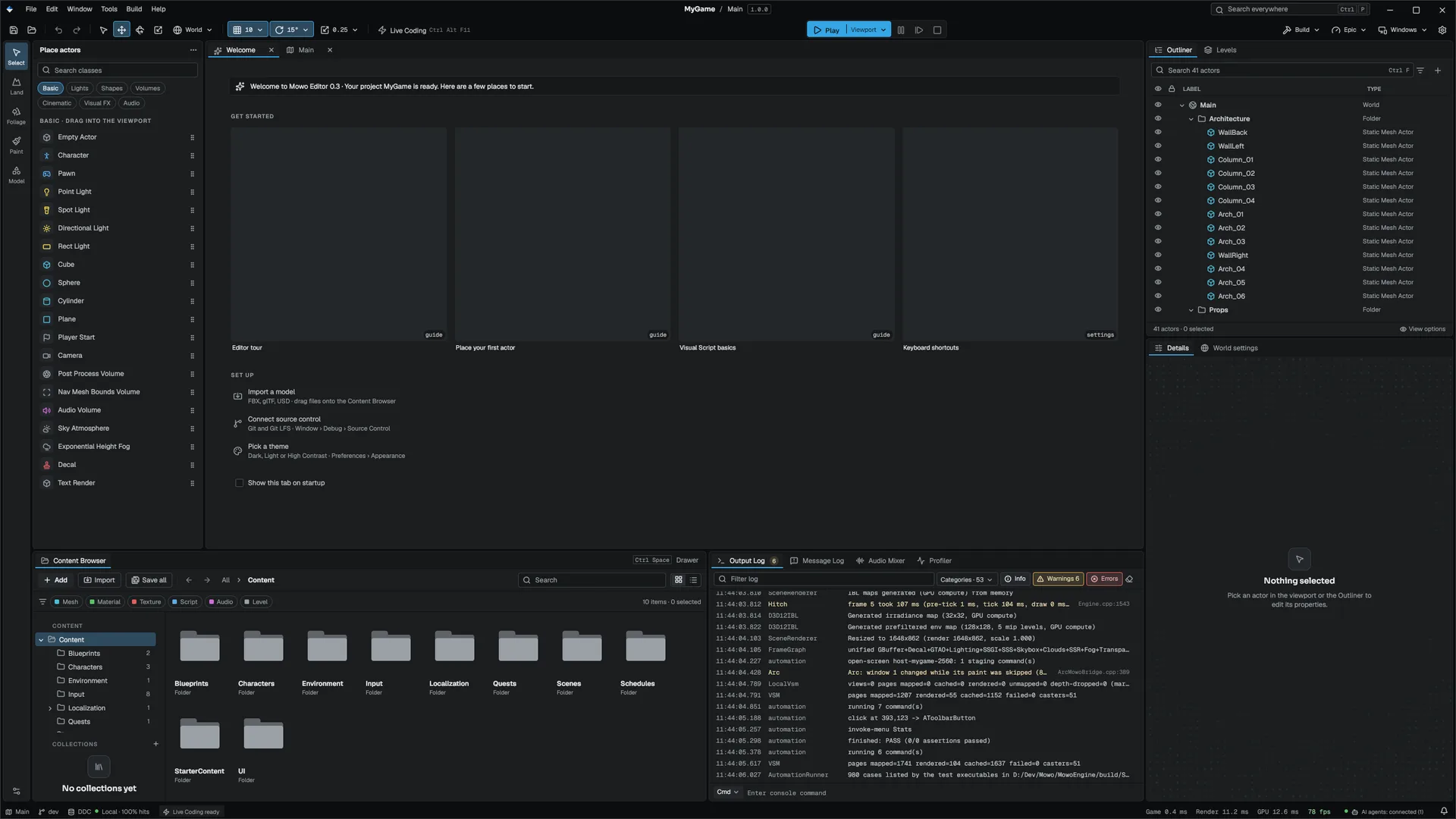
The Welcome tab opens the first time you launch each editor version on a project. It links the editor tour, placing your first actor, the Visual Scripting basics and the keyboard shortcuts page, each as a tile with its own thumbnail, and offers set-up rows to import a model, connect source control and pick a theme. Tick Show this tab on startup, or Editor Preferences ▸ Show Welcome on startup, to see it every launch.
Docking
Tabs live in wells: a tab strip plus the body under it. Splitters arrange the wells. Drag a tab by its title to move it into another well, or out of the window to float it.
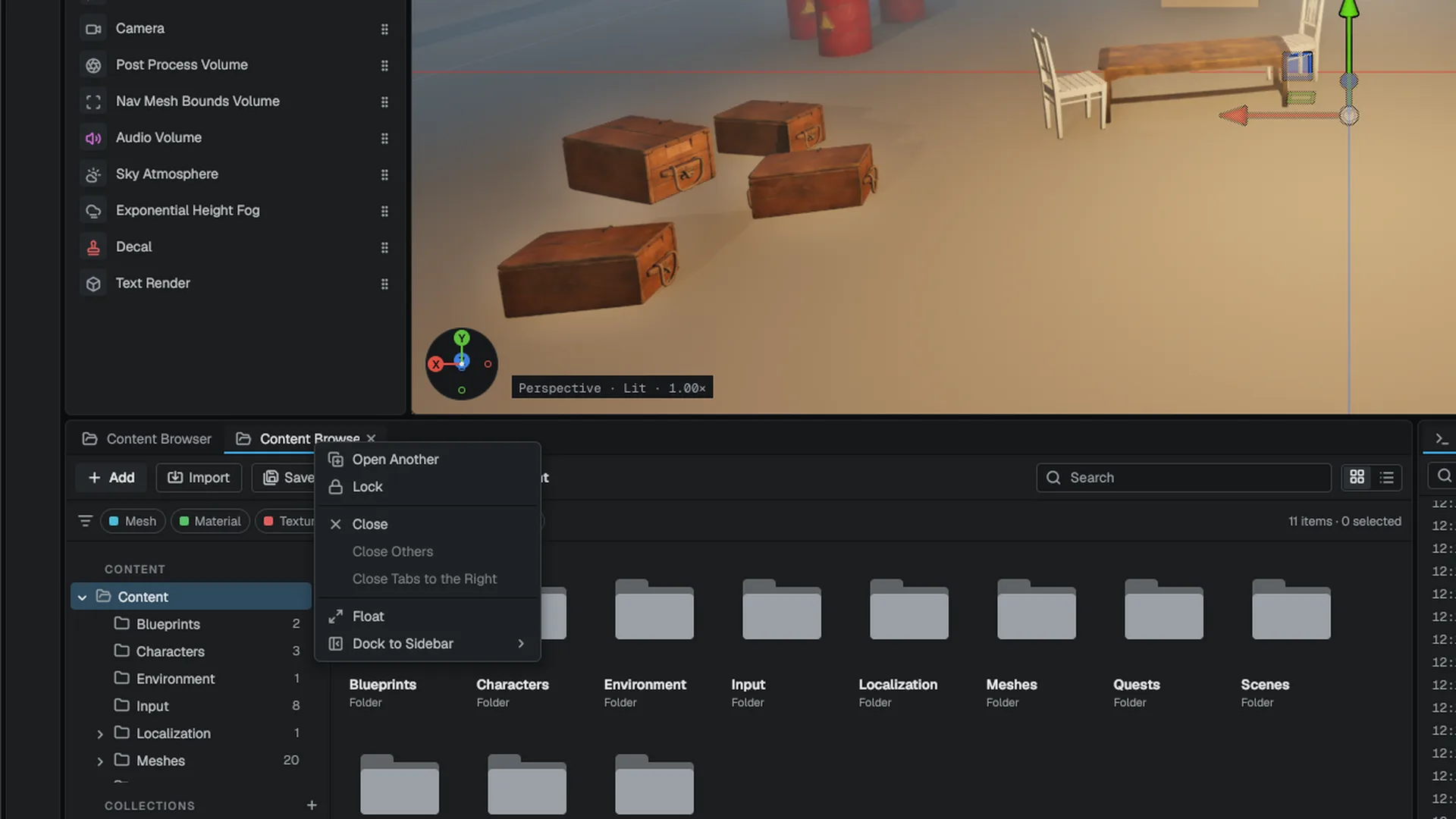
Right-click a tab to see what it supports:
| Tab menu entry | What it does |
|---|---|
| Close, Close Others, Close Tabs to the Right | Closes tabs in the well |
| Close All Documents | Closes every document tab |
| Float | Tears the tab off into its own OS window |
| Dock to Sidebar | Parks the tab on a window edge as a slide-out drawer |
| Open Another | Opens a second instance of the same panel |
| Lock | Stops an extra instance from following the rest of the editor |
Floating windows and sidebars
A floated tab becomes its own OS window. Drop it on one of the dock's drop zones to put it back. Menus opened inside a floating panel open in that window. When a layout restores a floating window whose monitor is gone, the window is moved onto the monitor it overlaps most.
A tab parked on a sidebar shows as a tab on the window edge. Click it to slide the panel out as a drawer over the layout; Esc or a click outside closes it. The Content Browser has its own drawer shortcut, Ctrl+Space.
Multiple instances
The Content Browser, Details, Outliner and Viewport can each run up to four instances. Open one with Window ▸ New Content Browser, New Details, New Outliner or New Viewport, or with Open Another on a tab. A new instance docks next to where the first one is now, and is titled with its number (Content Browser 2).
An extra instance has a Lock entry on its tab menu:
- A locked Content Browser stays on its folder when another part of the editor reveals an asset.
- A locked Details panel keeps showing the actor it was pinned to and ignores selection changes.
Each instance remembers what it was showing across sessions. A Content Browser keeps its folder, search, filters, sort, view and lock; a Details panel keeps its lock but comes back empty; an extra viewport keeps its camera, layout, view mode, snaps, show flags and camera bookmarks. An extra viewport docks in the document well, beside the level viewport.
Layouts
The editor saves the layout per project, a moment after each change, to Saved/Config/Editor/EditorLayout.mdfb.
| Command | What it does |
|---|---|
| Window ▸ Save Layout | Stores the current arrangement as a named preset |
| Window ▸ Layouts… | Lists your presets: apply, rename, delete, Import… and Export… |
| Window ▸ Reset Layout | Returns to the default layout |
A layout saved by an older editor version is migrated rather than reset: wells keep their tabs and seams you moved keep their size FEditorLayoutMigration.
If a panel seems to have disappeared, it is usually parked on a sidebar or floating behind the main window. Window ▸ Reset Layout is the quickest way back to a known state.
The command palette
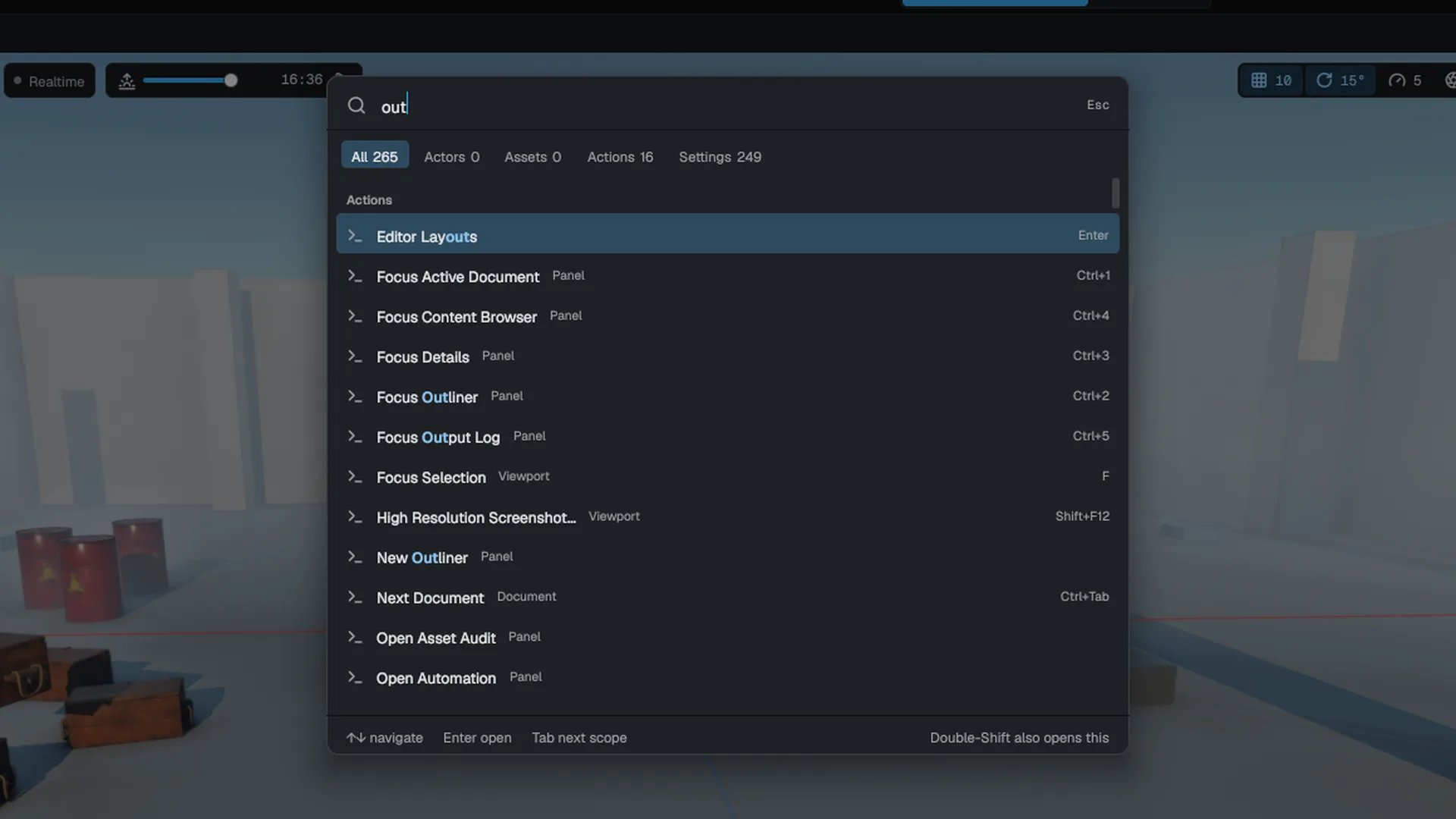
Press Ctrl+K, click Search everywhere in the title bar, or press Shift twice to open the command palette. Scope tabs narrow the search:
| Scope | What it finds |
|---|---|
| All | Everything below, with recent scenes first |
| Actors | Named actors in the open level; Enter selects the actor and frames it |
| Assets | Assets in the project; Enter opens the asset in its editor |
| Actions | Every registered editor command, with its shortcut |
| Settings | Every row of Editor Preferences and Project Settings; Enter opens the window on that row |
Start the search with > to search actions only. Every dockable panel has an Open <panel> action, so the palette reaches panels that have no shortcut. When nothing matches, the palette suggests a wider scope or a close spelling.
Keyboard shortcuts
These are the default bindings. Rebind them in Editor Preferences ▸ Keyboard Shortcuts (Settings).
| Shortcut | Command |
|---|---|
| Ctrl+K | Command palette |
| Ctrl+S / Ctrl+Shift+S / Ctrl+Shift+Alt+S | Save / Save Scene As / Save All |
| Ctrl+Z / Ctrl+Y | Undo / Redo |
| Ctrl+Tab / Ctrl+Shift+Tab | Next / previous document |
| Ctrl+1 | Focus the active document |
| Ctrl+2 … Ctrl+6 | Focus Outliner, Details, Content Browser, Output Log, Message Log |
| Ctrl+Space | Content Drawer |
| F5 / Alt+S | Play / Simulate |
| F8 / F10 | Eject or possess / Frame step during play |
| F11 / F12 | Immersive viewport / Viewport screenshot |
| Ctrl+Alt+F11 | Live Coding |
| Ctrl+Shift+R | Widget Reflector |
Actor and viewport shortcuts are listed on the viewport page.
Editor language
The editor, the Project Launcher and the crash reporter are English-only. This does not affect your game: game text localization works as before, and the Localization Dashboard manages it.
Startup
With the splash screen on (any launch without --no-splash), the main window stays hidden until its first frames are on screen, and the splash shows each startup step, including pipeline compilation for the project's recorded pipeline cache. If the first frames never complete, the window appears after 30 seconds anyway. The log records the timeline as [EditorStartup] lines.
Frames that run long log themselves: [Hitch] lines above t.HitchLogMs and [Stall] lines above t.StallLogMs, with the phase of the frame that took the time. See the console variables reference.
Engine sources
This page describes behavior implemented in these files of the engine repository, checked against commit 32a6c827c.
- Engine/Source/Editor/EditorFramework/Public/EditorFramework/EditorLayoutMigration.h