 Mowo
Output Log, console and Message Log
Read and filter every log line, jump to the source that printed it, run console commands, and work through the Message Log's actionable issues and Map Check.
The editor has two logs. The Output Log is what the engine and your game printed, in order, with the console at the bottom. The Message Log is the curated list of problems you need to act on, each with a link to the asset, actor or source it is about.
The Output Log
Open it with Window ▸ Output Log, Ctrl+5, or the error and warning chip in the status bar. Its tab shows a count of errors (or warnings) since you last looked.
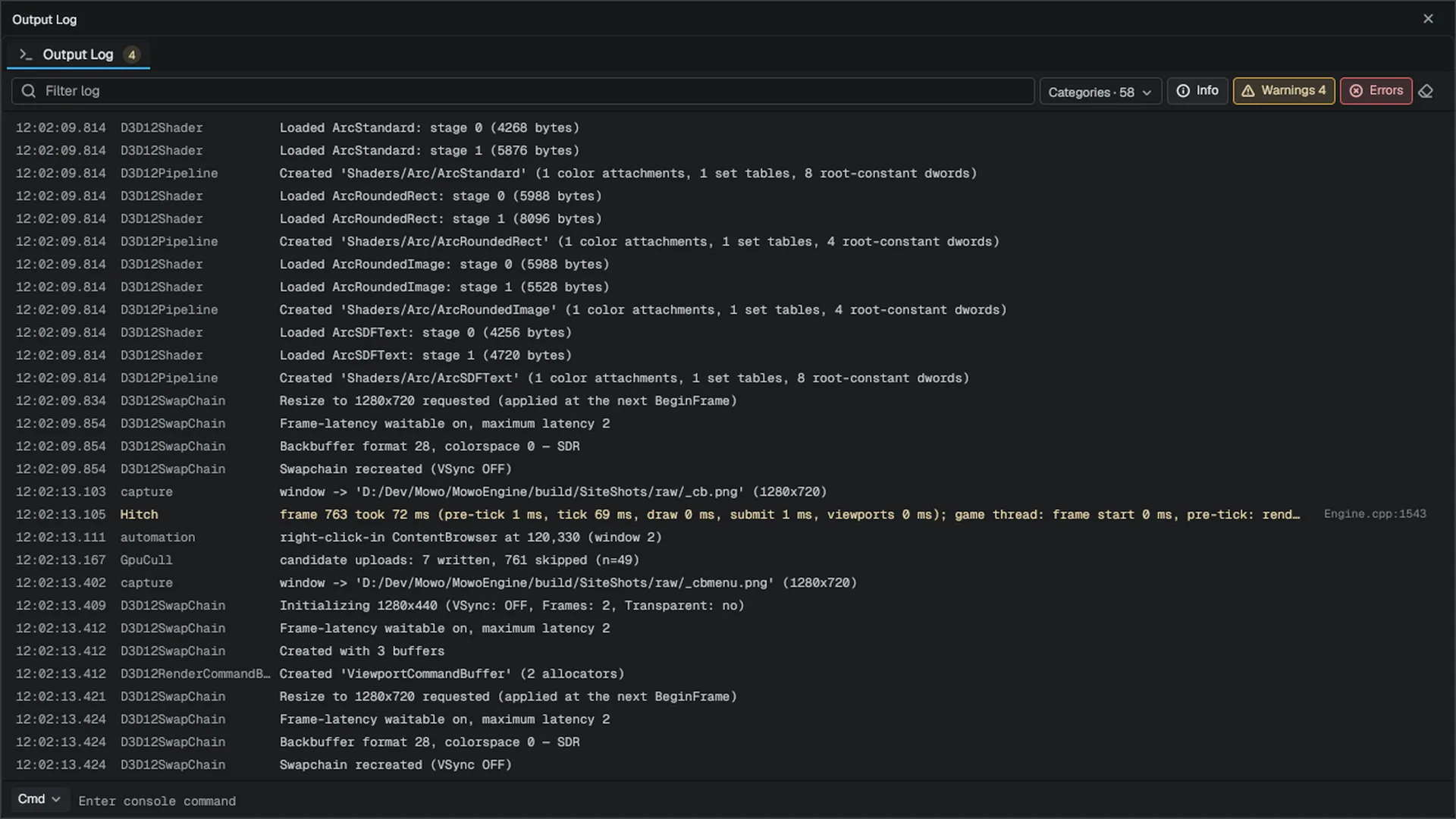
Each row shows the time, the category and the message. The category is the module's log category, or a leading [Tag] in the message.
What it shows by default
Like Unreal's, the Output Log keeps the engine's own detail out of your way. By default it shows:
- every warning and error;
- Display lines, the few the engine writes for you: the project opened, a level opened or saved, Play started, paused or stopped, a game module compiled, an import finished;
- every line from your own categories at Log and above: your game module's (
LogGameunless you declare your own), and what your scripts print (Print, Wolang output and Visual Scripting logpoints, underLogScriptUser); - the answer to a console command you type here.
The engine's Log-level lines (startup, device and subsystem detail) still go to the log file, where a bug report needs them. Turn on Show engine logs in the options menu to see them here too. Verbose lines reach neither the panel nor the file until you lower a category (see Log verbosity).
Identical consecutive lines from the same place fold into one row with a ×N count (Collapse repeats, on by default).
- Source links. Warnings and errors end with the source file and line that printed them, such as
ADoorActor.cpp:42. For a file of your project, click it or use Open Source on the row menu to open your IDE at that line. Source link on every row shows links on all lines.
Filtering
| Control | What it does |
|---|---|
| Filter log | Case-insensitive search over message and category |
| Categories · N | A checklist of every category seen this session, with counts, plus the options below |
| Info, Warnings, Errors | Show or hide each severity; the counts are live |
| Eraser | Clears the view |
The options menu also holds Show engine logs, Collapse repeats, Pause on error (freeze the view on the first error), Clear on Play and the verbosity threshold (Verbose, Log, warnings and errors, errors only). Your choices and hidden categories are saved per user, for each project, under Saved/.
Log verbosity
Every category has a verbosity: VeryVerbose, Verbose, Log, Display, Warning, Error or Fatal. Each starts at Log. Lowering a category to Verbose writes its Verbose lines to the file and shows them in the Output Log even with engine logs hidden; raising it to Warning silences its Log and Display lines everywhere.
| Where | How | Lasts |
|---|---|---|
| A row's menu | Verbosity of LogRender ▸ Verbose, or Reset | This session |
| The console | log LogRender Verbose, log LogRender reset, log global Warning, log to list every category | This session |
| Command line | --logcmds="LogRender Verbose, LogAsset Warning" (Unreal's -LogCmds= also works) | This run |
| Engine.ini | A [Core.Log] section, below | Every run |
[Core.Log]
LogRender=Verbose
LogAsset=Warning
global=Log
The command line applies after the INI and wins. A category your game module or a plugin declares takes its level when the module loads.
The console
The line at the bottom of the Output Log runs console commands and variables. Typing shows matching variables in a popup: Up/Down move, Tab completes, Enter runs, Esc closes the popup. With the popup closed, Up/Down recall history.
name prints a variable's value; name value or name=value sets it; a console command such as log or stat runs with its arguments. The command and its result are echoed into the log under [Cmd]. Variables marked as cheats are refused when cheats are off, and read-only variables are refused everywhere. Every variable and command is listed in the console variables and console commands references.
The Message Log
Open it with Window ▸ Message Log, Ctrl+6, or the message badge in the status bar. It can also come forward as a tool document beside the level.
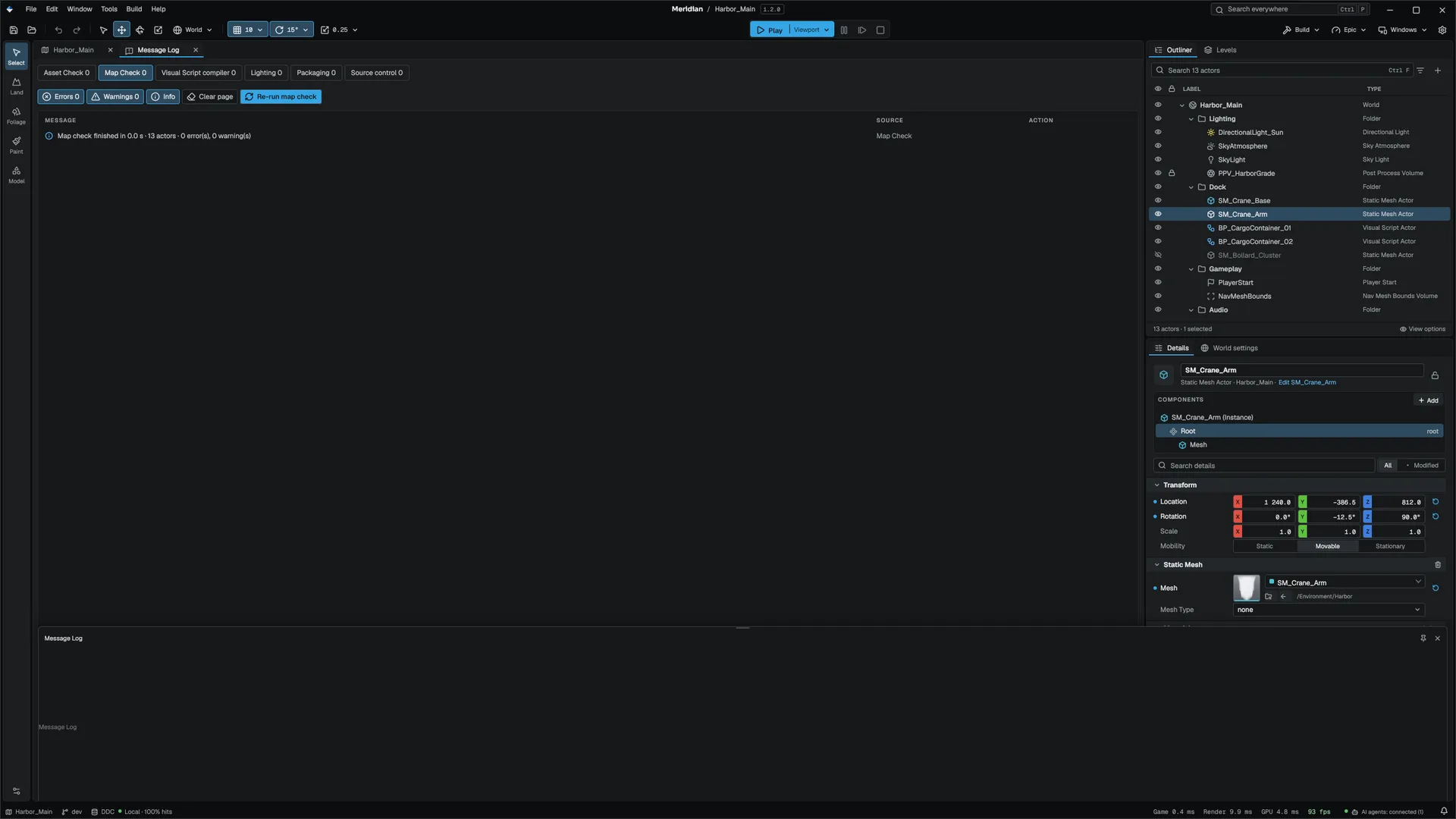
One page is in front at a time. Each page is one producer's report:
| Page | What reports there |
|---|---|
| Asset Check | Validation issues after a save, and the Content Browser's Validate |
| Map Check | Build ▸ Map Check |
| Visual Script compiler | Visual Scripting compile diagnostics, one row each |
| Lighting | Reserved for lighting builds |
| Packaging | Cook and package warnings and errors |
| Source control | Git errors and refused saves |
| Load errors | Levels or assets that failed to load, open or save, and failed imports (shown only while it has messages) |
| Play in editor | Multiplayer launch failures, server exits and travel failures (shown only while it has messages) |
The filter row toggles Errors, Warnings and Info for the page, Clear page empties it, and a page that can re-run its check (such as Re-run map check) has that button. The Play in editor page clears when Play starts, Packaging when a cook starts, and Map Check is replaced by each run.
Acting on a message
The table's columns are Message, Source and Action. The action does the one thing the row is about:
| The row is about | Action | What it does |
|---|---|---|
| An asset | Open | Reveals it in the Content Browser and opens its editor |
| An actor | Focus | Selects the actor and frames it in the viewport |
| A group of actors | Select actors | Selects all of them |
| A source file | Open source | Opens the file in your IDE at the line |
| A command | (the command's name) | Runs the editor command |
Enter or a double-click runs the selected row's action; Ctrl+C copies the row. The row menu also has Copy page, Dismiss (hides the row in the view only) and Clear page.
Open on new error (editor.MessageLog.OpenOnNewError, on by default, also in Editor Preferences) brings the log forward on a new error's page. Turned off, a new error raises a notification with an Open Message Log button instead.
Map Check
Build ▸ Map Check checks the open level as a save would write it, and reports to the Map Check page:
- meshes or prefabs the level references that no longer exist;
- actors sharing a UUID, for example after a hand merge;
- children whose parent is gone;
- transforms that are not valid numbers.
Each run ends with a summary line, so you can tell the page is current.