 Mowo
Outliner, Details and World Settings
Find and organize actors in the Outliner, edit reflected properties in Details, bulk-edit with the Property Matrix and set per-level World Settings.
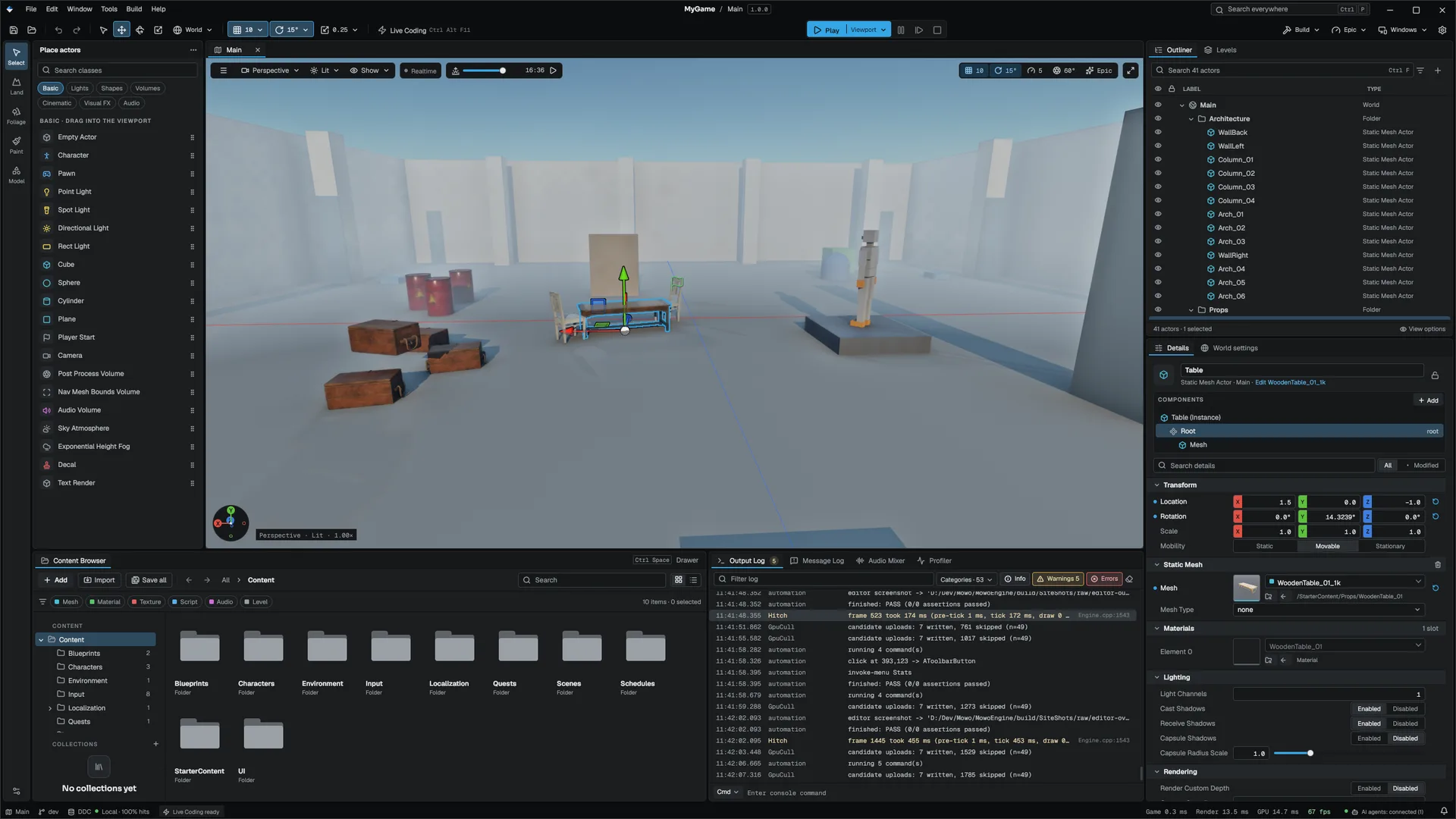
The Outliner and the Details panel sit on the right of the default layout and work as a pair. The Outliner lists every actor in the open scene; the Details panel shows the properties of whatever you select. Both read the same selection as the viewport, so a click in any of the three updates the other two.
The Outliner
The Outliner shows one row per actor, nested by attachment. Engine-internal entities that no actor backs are not listed, so what you see is what you authored.
Columns
A header above the tree holds the columns. Drag a column edge to resize it, click a title to sort, and use the gear in the footer to choose which columns appear.
| Column | Shows | Shown by default |
|---|---|---|
| Label | Type icon and the actor's name | Always |
| Type | Friendly type, such as Directional Light | Yes |
| Actor Class | The class name, native or Visual Script | No |
| Layer | The actor's layer from Project Settings ▸ Layers | No |
| Tags | The entity tag | No |
| Mobility | Static or Movable | No |
| Pinned, Visibility, Lock | Toggles | Yes |
The column set is defined at. Sorting orders siblings only, so the tree stays a tree.
Searching
The search box takes plain words and a few prefixes. Terms combine with AND and match case-insensitively.
| Query | Matches |
|---|---|
crate | Actors whose name contains crate |
"wooden crate" | The name, including the space |
type:light | The Type column |
class:AVisualScriptActor | The actor class |
layer:water | The layer, by name or slot number |
tag:prop | The entity tag |
folder:props | The folder path |
-barrel | Excludes matches |
A filter never flattens the tree: parents of a match stay visible (dimmed), children of a match stay reachable, and pinned rows always show.
Folders
Folders group top-level actors. They are editor metadata saved with the scene; they do not change transforms or anything at runtime.
- Create a folder
Right-click empty space in the Outliner and choose New Folder, or select actors and use Move to Folder ▸ New Folder.
- Nest it
Press F2 on the folder and type a path such as
Props/Rocks. The folder moves with everything in it, as one undo step. - Fill it
Drag actors onto the folder row.
Deleting a folder never deletes actors; they move up to the parent folder.
A folder with no actors in it is kept only in your own editor state, not in the scene file. It becomes part of the scene when the first actor moves into it.
Selecting and reparenting
Click selects, Ctrl+click toggles, Shift+click selects a range. Drag rows onto another row to attach them; dragging a selected row moves the whole selection as one undo step. The Outliner refuses a drop that would attach an actor under its own child.
Two drags cross into the Content Browser:
- Drag actor rows onto the Content Browser to save them as a prefab (
.prefab). - Drag an asset onto an actor row to spawn it attached under that actor.
Keyboard and row menu
| Key | Action |
|---|---|
| F2 | Rename |
| Del | Delete |
| Ctrl+C / Ctrl+X / Ctrl+V / Ctrl+D | Copy, cut, paste, duplicate |
| Space | Toggle visibility |
| Enter | Frame the row in the viewport |
| Arrow keys, Home, End | Move through rows; left and right collapse and expand |
The actor clipboard chords are registered at. The row context menu adds Add Child Actor, Add Component, Pin to Top, Select All of This Class, Create Prefab…, Move to Folder, Layer, and Edit … in C++ or Edit … Script to jump to the actor's class source.
Visibility and lock
The eye column hides an actor in the editor. The flag is saved with the scene and is undoable, but it only affects editing: the game and a packaged build draw the actor normally. The lock column stops an actor from being selected in the viewport.
The Details panel
The Details panel is driven by reflection. Every property a component declares through the reflection macros appears as a row, grouped into one collapsible section per component, with no editor code needed for it. Adding a reflected field to a component is enough to make it editable.
- Component declares reflected field
- MowoHeaderTool emits TypeDescriptor
- Details builds row and widget
- You edit the value
- One undo entry per edit
The header
At the top you see the actor's type tile, its editable name and the lock. The line under the name says what the actor is and ends in a link: a mesh actor's opens its mesh (Edit SM_Crate), a Visual Scripting actor's opens its .vscript class, and a C++ actor's opens its header in your IDE. A C++ class from the project's Source/ tree wins over an engine class of the same name. When the source cannot be found, the link is greyed out with a tooltip saying why.
Below the header the Components box lists the actor, its root component and the components under it, with Add in its heading. Shift-click a section header to fold or open every section.
Adding components
Add opens the component picker, the same one the Outliner's row menu and the Actor Editor use. It lists every reflected component the actor does not already have, as Favourites (star a row to keep it there), Recent (your last picks this session), then by category. Each row has a one-line description. Type to filter by label, type name or category; Up/Down and Enter pick, Esc closes. Adding a component is one undo entry.
The list also offers the project's own C++ component classes (any concrete MActorComponent subclass that is not an engine ECS-mirrored one) under C++ Classes. Adding one attaches it to this actor only, in a section of its own with a remove button; the level saves the component's class and name with its property values, so it comes back on load, in Play and after a hot reload. Removing it is also one undo entry, and undoing a removal puts the component back in its old place in the list. A class that derives from an engine ECS-mirrored component is not offered, so a removed component cannot leave mirrored data behind; keep OnRegister of such a class free of effects outside the component, because there is no unregister hook.
C++ actor and component properties
The rows above come from the ECS components on the actor's entity. The MPROPERTY fields you declare on your own AActor and MActorComponent classes get their own sections below them: one for the actor, named for its class, and one per component, named for the component. A field marked EditAnywhere is editable and one marked VisibleAnywhere is read-only; Category= groups them, Tooltip= and ClampMin=/ClampMax= shape the row, and a field without either marker stays out of Details. The widget follows the type: a check box for bool, a number field for integers and floats, one field per axis for Vec2/Vec3/Vec4, a text box for std::string, a drop-down for an enum and a searchable class picker for a TSubclassOf<T> (a class that is not loaded shows as Missing: Name and is kept in the level until you pick another). Arrays, maps and structs show a one-line summary and are edited in code or by the script that owns them.
A field that differs from its class default has an emphasized label and a reset arrow, and the Show only modified filter finds it. Every edit is one undo entry, and the value is saved with the level and carried into Play. A tool or a script that needs to react to an edit (rerunning construction, for one) can subscribe to the property-changed event, which names the actor, the component and the property and also fires for undo and redo.
Fields of the engine's own ECS-backed components, and of AActor, MActorComponent and MSceneComponent, are not repeated here; they are edited in the reflected sections above.
Widgets
The panel picks a widget from the property's type and annotations:
| Property | Row widget |
|---|---|
| Vector | Colored X/Y/Z numeric fields |
Ranged number (MOWO_RANGE) | Slider clamped to the range |
Color (MOWO_COLOR) | Swatch that opens a color picker |
Asset reference (MOWO_ASSET_TYPE) | Asset picker filtered to that asset type |
Layer mask (MOWO_LAYER_MASK) | Dropdown of named layers |
| Enum | Combo box or segmented control |
| Array | Expandable list with add, duplicate, remove and drag-reorder |
| Nested struct | Expandable group of the struct's own fields |
The annotations are declared in Engine/Source/Runtime/Reflection/Public/Reflection/Reflect.h. See the reflection API: PropertyInfo and TypeDescriptor.
Units
A number annotated with MOWO_UNITS shows its unit after the value and converts where needed Engine/Source/Runtime/Reflection/Public/Reflection/Reflect.h. A field stored in radians is shown and typed in degrees; you can type 90, 90deg or 1.5rad. A field in meters accepts 150cm. A suffix from a different dimension is ignored rather than guessed.
Categories, favorites and search
MCATEGORYgroups rows under a mini header inside a component section.- Right-click any row and choose Add to Favorites to echo it in a Favorites section at the top.
- Ctrl+F jumps to the search box. Search reaches inside collapsed arrays and structs.
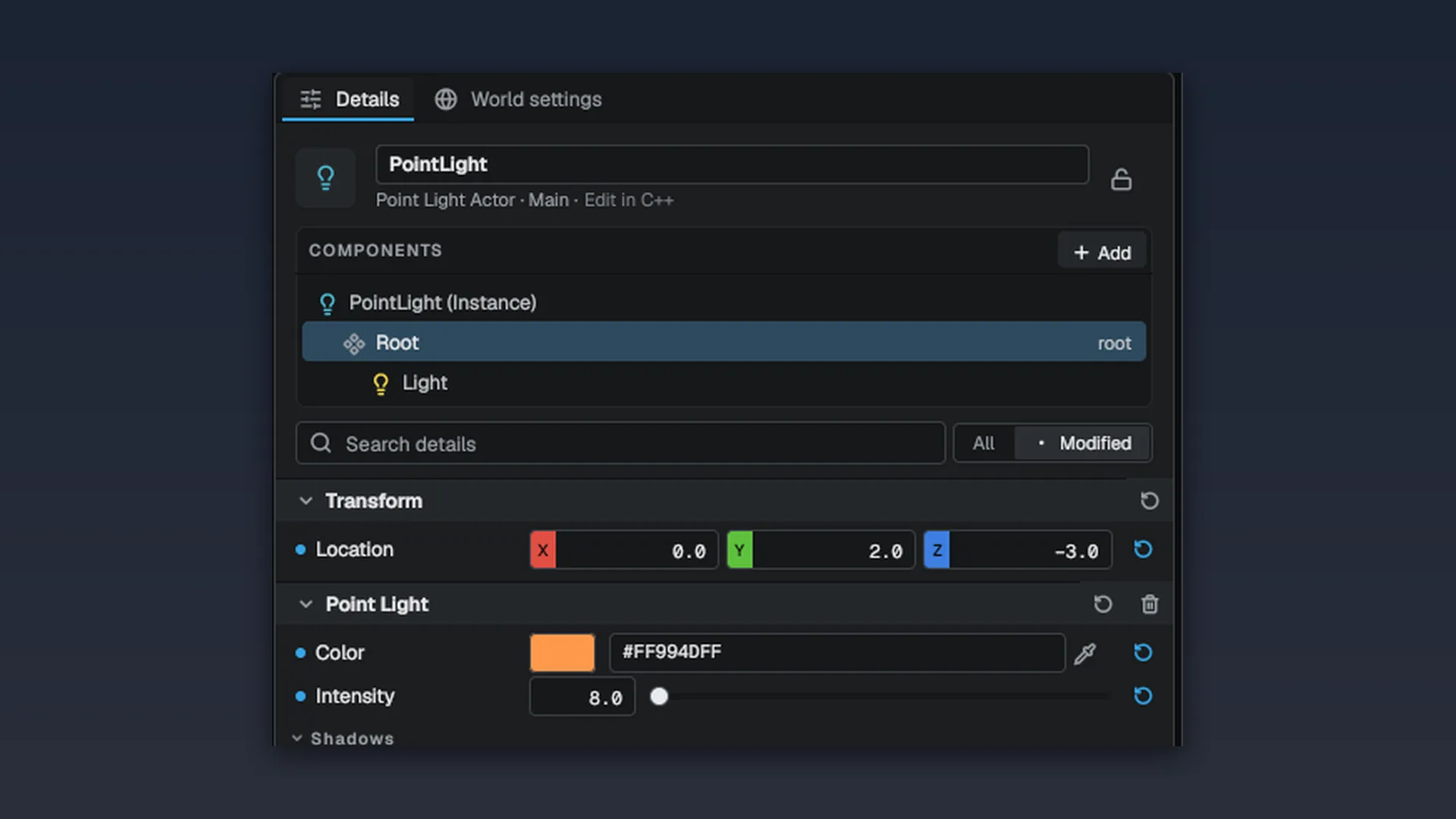
- The funnel button shows only modified rows: the properties that differ from their defaults.
With the funnel on, each section header gets its own reset arrow that resets every modified property in that component as one undo entry.
Resetting and the row menu
A property that differs from its class default has an emphasized label and a reset arrow. Click the arrow to go back to the default. The row's right-click menu offers:
- Copy and Paste of the value as text.
- Reset to Default.
- Revert to Prefab Value, on a property that differs from its prefab.
- Add to Favorites / Remove from Favorites.
- Copy Internal Name, the property path used by the scene format.
- For array elements: insert, duplicate and remove.
Undo for every property
Each committed edit is one entry on the scene's undo history. A slider drag or a scrub is one entry for the whole gesture, not one per frame. If an edit is interrupted before it commits (the selection changes, the scene switches, the color picker closes), the panel commits it anyway, so it is both undoable and counted as unsaved work.
Editing several actors
With several actors selected, the rows come from the last actor you clicked. Committing a value writes it to every selected actor that has the same component, as one undo entry. Actors without that component are skipped.
When the selection disagrees, number fields go blank and other widgets show a dim dash. The first edit writes the new value to all of them.
Adding, removing or reordering array elements only applies to the primary actor. Element 3 on another actor is a different element, so the panel does not replay structural changes across the selection.
Custom rows
A few components, such as materials and IK, are drawn by hand through a customization registry. A customization can replace a single row or append its own rows below the reflected ones.
Editor plugins can register their own customizations for a component type through FEditorExtensionRegistry: rows appended under the component's fields, or a block that replaces them entirely. See Plugins and extensions.
Locking a Details panel
Open a second Details panel with Window ▸ New Details, select an actor, and click the padlock chip in its search row. The locked panel keeps showing that actor while the first panel follows your selection, which is useful for comparing two actors.
Script variables
A placed actor whose behaviour is a script gets one section per script below its components: Visual Script Variables for a Visual Scripting class, Script Variables (Enemy) for a Wolang class, and Health (Health) for each Wolang script component. All of them are the same rows, kept per placed instance, saved with the level, carried into Play and into prefabs, and undone like any property:
| Variable | Row widget |
|---|---|
| Bool, number, text | Checkbox, numeric field, text box; a Range bounds the field and Slider draws one |
| Vector, rotation | X/Y/Z fields; a rotation in degrees |
| Colour | Swatch with the color picker |
| Actor or component reference | Dropdown of the level's actors of that class, an eyedropper (click it, then click an actor in the viewport) and a drop target for an actor dragged from the Outliner |
| Asset reference | Asset picker filtered to the asset type, which also takes an asset dropped from the Content Browser |
| Action | A Run button that runs the method on this instance |
| Array or set of bools, numbers or text | One row per element with move up, move down and remove; + Element on the variable's row |
| Event | One row per listener: an actor, one of its functions taking nothing or one bool, number or text, and the constant argument; + Listener on the event's row |
- The declaration supplies the metadata: a tooltip, a category, a range, read-only, and ShowIf, which hides a row while the bool it names is off.
- A value that differs from the default the code declares has an emphasized label and the reset arrow, and only those values are written to the level. Raising the default in the code reaches every instance that never changed it.
- An actor reference is stored by the actor's stable id, so it survives a rename and points at the copy of the actor while playing. A reference to an actor that no longer exists reads None (missing).
- A field renamed in the code keeps its stored values through a
PropertyRedirectsline inConfig/Redirects.ini, as a C++ property does. - An action runs on the instance you see: in the edited level outside Play (its changes are one undo entry), on the running object while playing.
- Edits made while playing go into the running script at once. When Play stops, the editor asks, actor by actor, whether to keep them in the level (one undo entry) or discard them with the play session.
- Maps and containers of vectors or references are read-only here.
Add lists Wolang component classes under Scripts, for any actor; adding one is one undo entry. See Visual Scripting and Wolang scripting.
The Property Matrix
The Details panel shows one object deeply; the Property Matrix shows many objects across chosen properties. Rows are the selection, columns are reflected properties, and every cell is editable in place. Open it with Window ▸ Property Matrix; it opens as a tool document whose tab title says what it compares (Property Matrix · 6 static meshes).
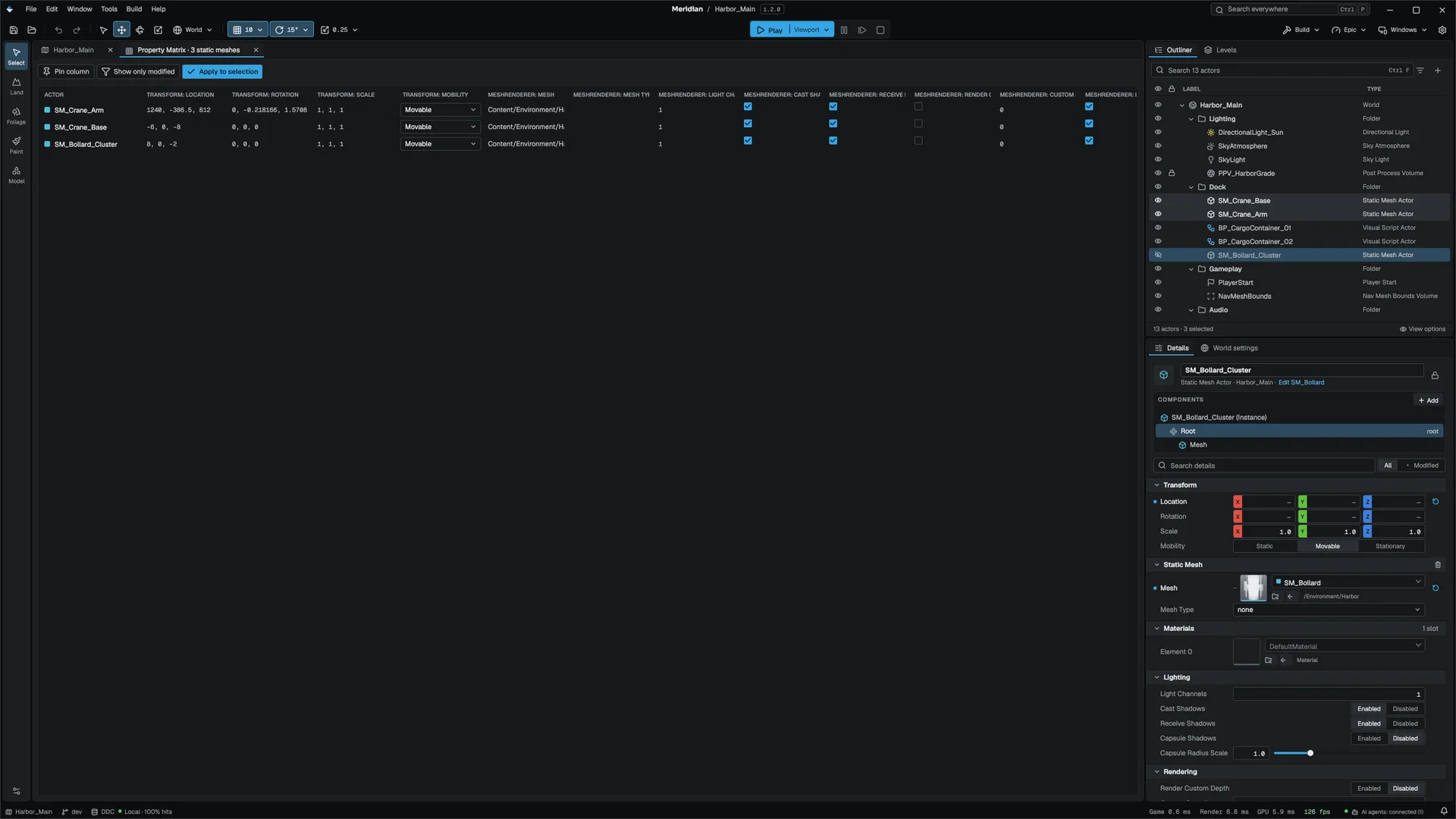
Right-click the table to choose the source and columns:
| Source | Rows | Editable |
|---|---|---|
| Selected actors | The viewport and Outliner selection | Every column |
| Content Browser selection | The selected assets | Static mesh settings only: Cast Shadows, Mobility, LOD Group, Nanite and Lightmap Res, written to the mesh's .mdfmeta sidecar (not undoable) |
A property becomes a column when its type has a one-line editor: booleans, numbers, strings, asset references, vectors and enums. Structs and arrays are not offered. Columns… chooses columns and pins them to the left; Only components every row has hides components only part of the selection carries. Rows that lack a component show a dash.
Editing:
- Arrow keys move the cell cursor; Shift+arrows or Shift+click extend a selection rectangle.
- Committing a value in a cell inside the selection writes it down that column into every selected row, as one undo entry. The value never spreads sideways into other columns.
- Apply to selection copies the focused cell's value down its column without retyping.
- A value that does not parse is refused.
Click a column header to sort, drag its edge to resize, use Filter rows… to narrow by name, Show only modified to hide columns where every row agrees, and Copy as CSV to put the visible table on the clipboard.
World Settings
World Settings (Window ▸ World Settings, beside Details by default) edits the open level's own settings. Most rows save with the level file, so opening the level elsewhere brings the same setup back; a few rows set console variables. Each row is one undo entry and has a reset arrow when it differs from its default.
| Section | Rows |
|---|---|
| World | Kill Z: simulated bodies and characters below it are destroyed during play. Game mode: the level's override of the project's game mode, used by Play in editor, the packaged game, the server and travel |
| Physics | Gravity Z, applied when Play or Simulate starts; Async physics tick; Default volume |
| Global illumination | Method, fallback, Bake GI fallback with progress and Cancel, probe spacing |
| Navigation | Build on load (bake when the level opens with no navigation mesh beside it) and Runtime generation |
| Debris | Piece budget, maximum spawns per frame, lifetime |
| Advanced | Fog, sky, ambient light, shadows, the AI director, the post-process baseline, streaming collision proxies and time of day |
The post-process baseline is what a camera renders with outside any post-process volume, and the starting point volumes blend on top of: tonemapping, physical camera, auto exposure, bloom, ambient occlusion, reflections, anti-aliasing and colour grading. With Physical Camera on, the image is exposed from f-stop, shutter and ISO instead of the exposure value. Lower Max EV to keep a dark interior dark. See Rendering for what each effect does.
Time-of-day rows appear only when the level has a day-night entity.
Levels
The Levels tab shares the Outliner's area. It lists every open level document, marks the active one, and switches to a level when you click it. For streaming sub-levels and data layers, see World building.
Related
- Viewport for selecting and transforming in 3D.
- Components and Objects and GC for the C++ side of reflected properties.
- Content Browser for asset pickers and prefabs.
Engine sources
This page describes behavior implemented in these files of the engine repository, checked against commit 38224a3a8.
- Engine/Source/Runtime/Reflection/Public/Reflection/Reflect.h