 Mowo
Play in editor
Test your level in the editor with Play, Play in New Window, Simulate and Standalone Game, and run local multiplayer with a dedicated or listen server.
Play in editor (PIE) runs your game inside Mowo Editor so you can test a change seconds after making it. Play runs in a copy of the level, so the level you edit is never touched by the game, and stopping returns you to it as it was. The editor offers several ways to play and a multiplayer mode that runs a local server with extra clients.
The play modes
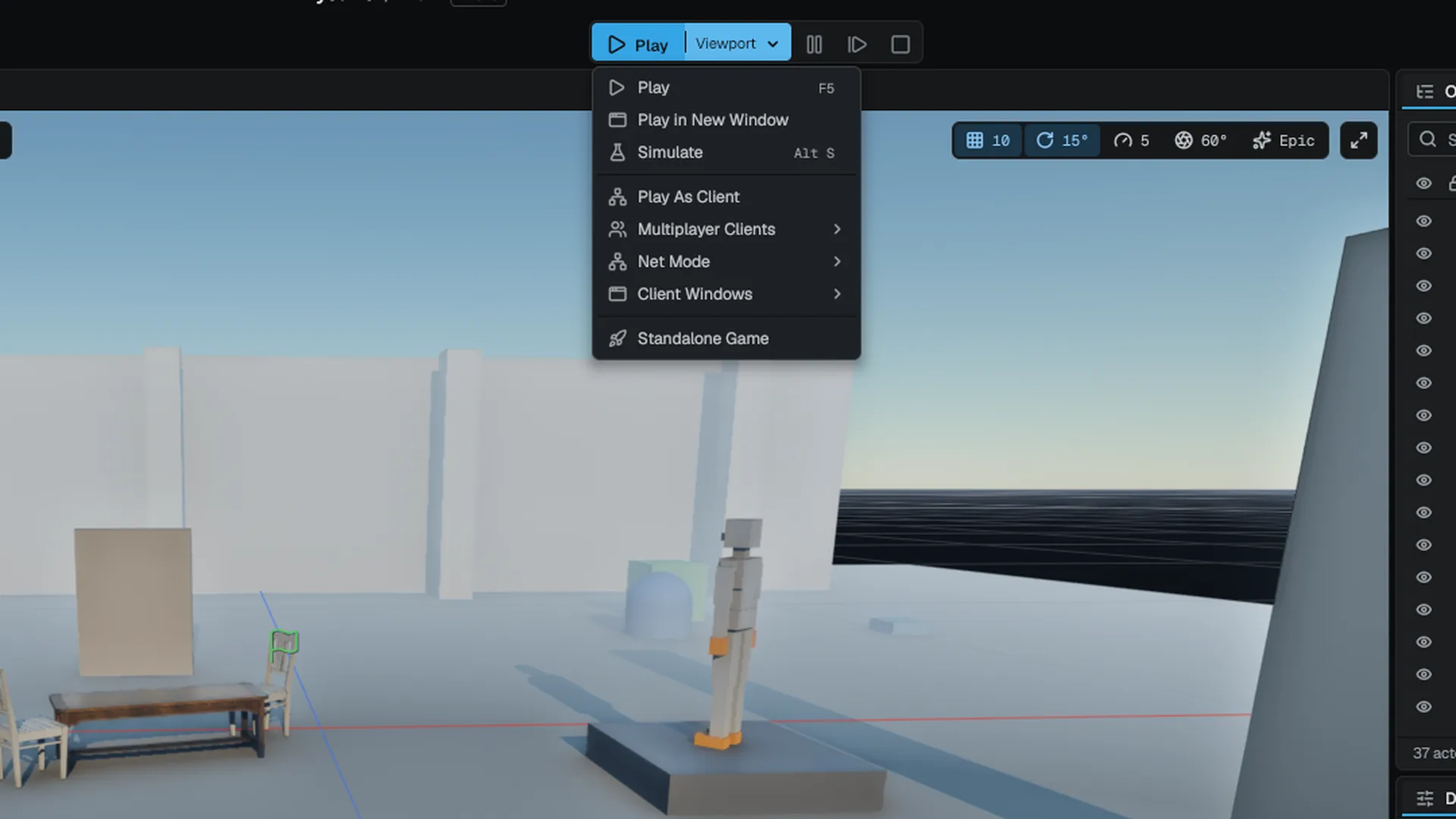
The chevron on the Play button lists every mode.
| Mode | Shortcut | What runs |
|---|---|---|
| Play | F5 | The game in the level viewport, with the project's game mode and a game camera |
| Play in New Window | The game in a separate window, with the editor still visible | |
| Simulate | Alt+S | The world ticks (physics, AI, animation) but the game mode does not start; you keep the editor camera |
| Play As Client | A multiplayer session; see Multiplayer sessions | |
| Standalone Game | A separate MowoGame process, loading the level from disk |
The viewport's context menu also has Play From Here, which starts Play with your pawn at the clicked point (Viewport).
What happens when you press Play
- Copy the level
- Mark the undo history
- Start game mode and camera
- Playing / Paused
- Stop: discard the copy
- Replay live edits onto the level
- The editor makes a play copy of the level, including unsaved terrain edits, and marks the undo history.
- Asset hot reload pauses so a file change cannot free data that live actors are using.
- The game starts. In Play mode the project's game mode spawns the player.
When you stop:
- The play copy is discarded. The level you edit was never ticked, so it is exactly as before.
- Edits you made in the editor while playing are replayed onto the level, which is marked unsaved. Your undo history from before Play is kept.
- Changes captured with Keep Simulation Changes are applied as one undo entry.
The Message Log clears its play page each time you press Play.
Controls while playing
| Shortcut | Action |
|---|---|
| Esc | Stop |
| F8 | Eject from the game camera to the editor camera, and possess again |
| F10 | Advance one frame, while paused |
| Shift+F1 | Free the mouse from the game; press again or click the game view to give it back |
| K | Keep Simulation Changes for the selected actors, while simulating or ejected |
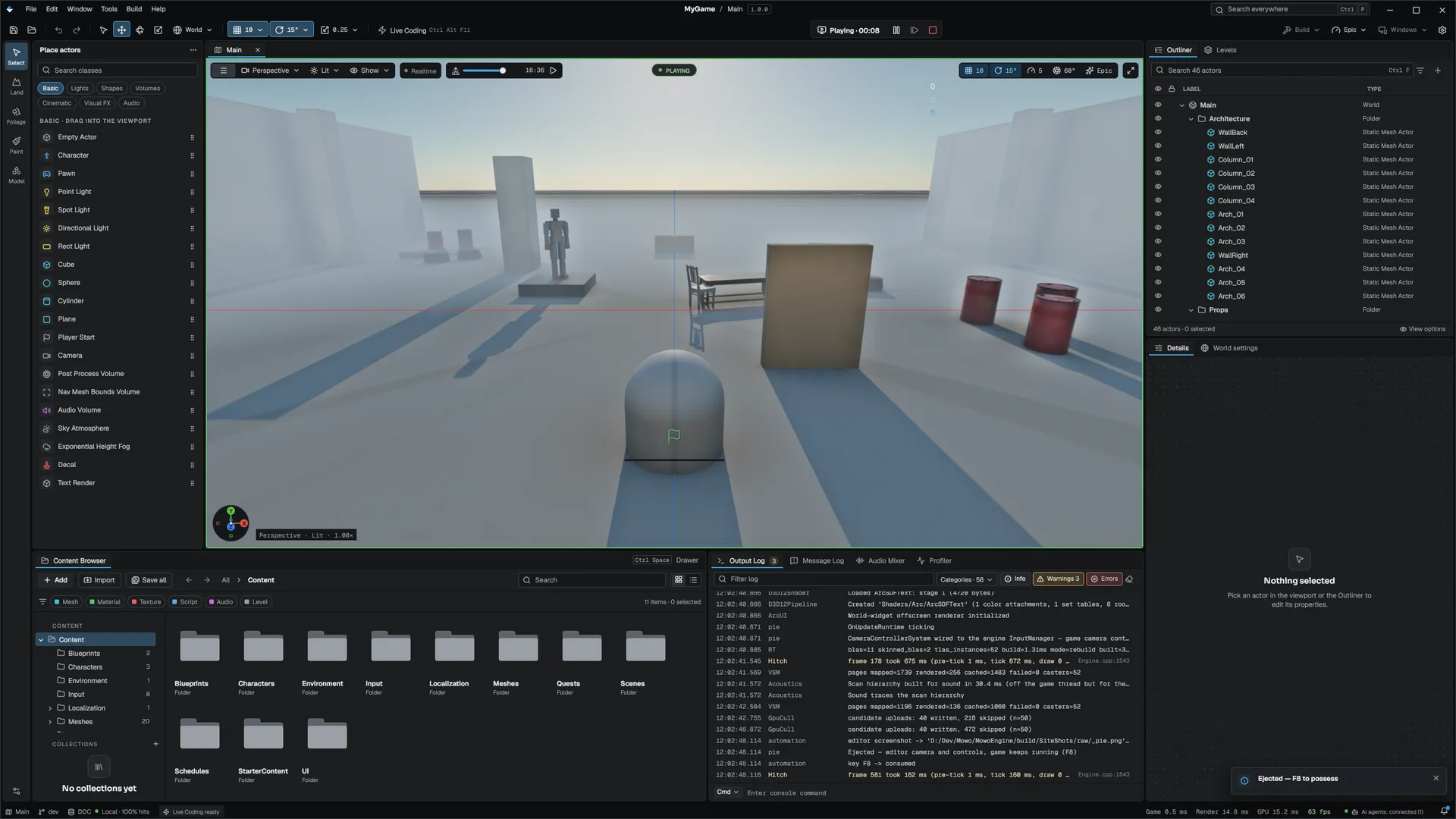
The toolbar shows the elapsed time and Pause, Step and Stop buttons while a session runs.
Mouse capture
In the viewport, the game takes the mouse only if it asks for it, the same way the packaged game does. Click in the viewport to hand the cursor to the game; Shift+F1 frees it again. The viewport shows a hint line with these keys while you play.
Ejecting and keeping changes
Press F8 during Play to get the editor camera back while the game keeps running. You can select actors, inspect their live values in Details and fly around. Press F8 again to return to the game camera.
What the game itself did, such as where physics settled a crate, is discarded on Stop. To keep it, select the actors and press K while simulating or ejected. Pressing K again on the same actor replaces its earlier capture. Actors and components spawned during play are skipped.
Editing during play
Property edits you make while the game runs are recorded and replayed onto the level when you stop, so tuning a value during play keeps it.
Session-only commands and file operations are not replayed. If the game travels to another level or loads a save game, the replay is off for that session and Stop only clears the play-session history.
Multiplayer sessions
Play As Client starts a real networked session on your machine. Configure it from the Play menu:
| Submenu | Choices |
|---|---|
| Multiplayer Clients | How many clients in total |
| Net Mode | Dedicated Server: a headless MowoServer process loads the level and the viewport connects as the first client. Listen Server (viewport hosts): the editor's own play world hosts and the extra clients connect to it |
| Client Windows | Inside the Editor: extra clients draw in floating windows inside the editor. Separate Windows: each extra client opens its own OS window |
Extra clients are MowoGame processes. With Inside the Editor, each client window has a tab strip with the client's number, its net role, frame rate and round-trip time, and a close button. Click a window to give it keyboard and mouse input; close it to make that client leave.
- Save the level
Servers and extra clients load the level from disk, so it must have a file.
- Pick the setup
Choose the client count, net mode and client windows from the Play menu.
- Start
Choose Play As Client. The editor picks a free loopback UDP port, starts the processes and connects.
- Watch the session
The PIE Session panel lists each child process and streams the server's output.
While a session runs, the editor watches Content/: a changed Visual Scripting class or material is reloaded and every client follows.
The child processes are tied to the editor: on Windows and Linux they end if the editor exits without stopping the session. On macOS they are ended from the editor's own shutdown and crash paths only, so a force-quit editor can leave a server holding the port.
MowoServer (for a dedicated server) and MowoGame (for extra clients) must be built and sit next to the editor executable. If one is missing the session does not start and the Message Log says which.
Network debugging
Window ▸ Debug ▸ Network Debug inspects a multiplayer session. Its tabs are Overview (session and transport), Actors (replication), RPCs, Bandwidth (connections and the network simulation) and Rewind.
Rewind lays the session's recordings on a timeline, one lane per peer with the bytes it moved each frame, and marks frames where a client diverged from the server (desync) or corrected its own prediction. At the cursor frame, a table compares entities between the server and one client, and the viewport draws them. While Play is paused, the frame is put back onto the play world. See Multiplayer for replication and prediction.
Standalone Game
Standalone Game (also Build ▸ Launch Standalone Game) runs MowoGame with --project and --scene pointing at your project and the open level. It is the closest thing to a packaged game without cooking. Because it loads the level from disk, the editor asks whether to save first when the level has unsaved changes.
Troubleshooting
| Symptom | Check |
|---|---|
| No player spawns | Simulate does not start the game mode. Use Play, and check the game mode in World Settings or the project settings |
| The game ignores the mouse | Click in the viewport to give it the cursor |
| An error toast says the game mode was not found | The class named in the project settings or World Settings is not registered, usually because its game module failed to load. The Output Log line has the module's reason |
| A fixed error still shows | The Message Log's play page clears on the next Play |
Related
- Viewport for the editor camera and selection.
- Gameplay for game modes, player controllers and pawns.
- Saving and recovery for how Play interacts with undo and autosave.