 Mowo
Uploading to Steam
Upload a finished package to Steamworks with mbt steam-upload, map platforms to depots, preview a build and set a branch live.
mbt steam-upload takes a finished mbt package output and uploads it to Steamworks. It writes the steamcmd build scripts for your app and depots, then runs steamcmd. It never builds or packages anything itself.
The upload tooling, script generation and the DRM wrap are in place. The two-machine live Steam test, which checks lobbies, invites, tickets, cloud saves, achievements, presence and Steam Input outside the editor, has not been run yet. Run it yourself before you rely on those features in a release.
How an upload flows
- mbt package
- optional --drm-wrap
- mbt steam-upload
- app + depot scripts
- steamcmd run_app_build
- Steamworks build
Set up the project
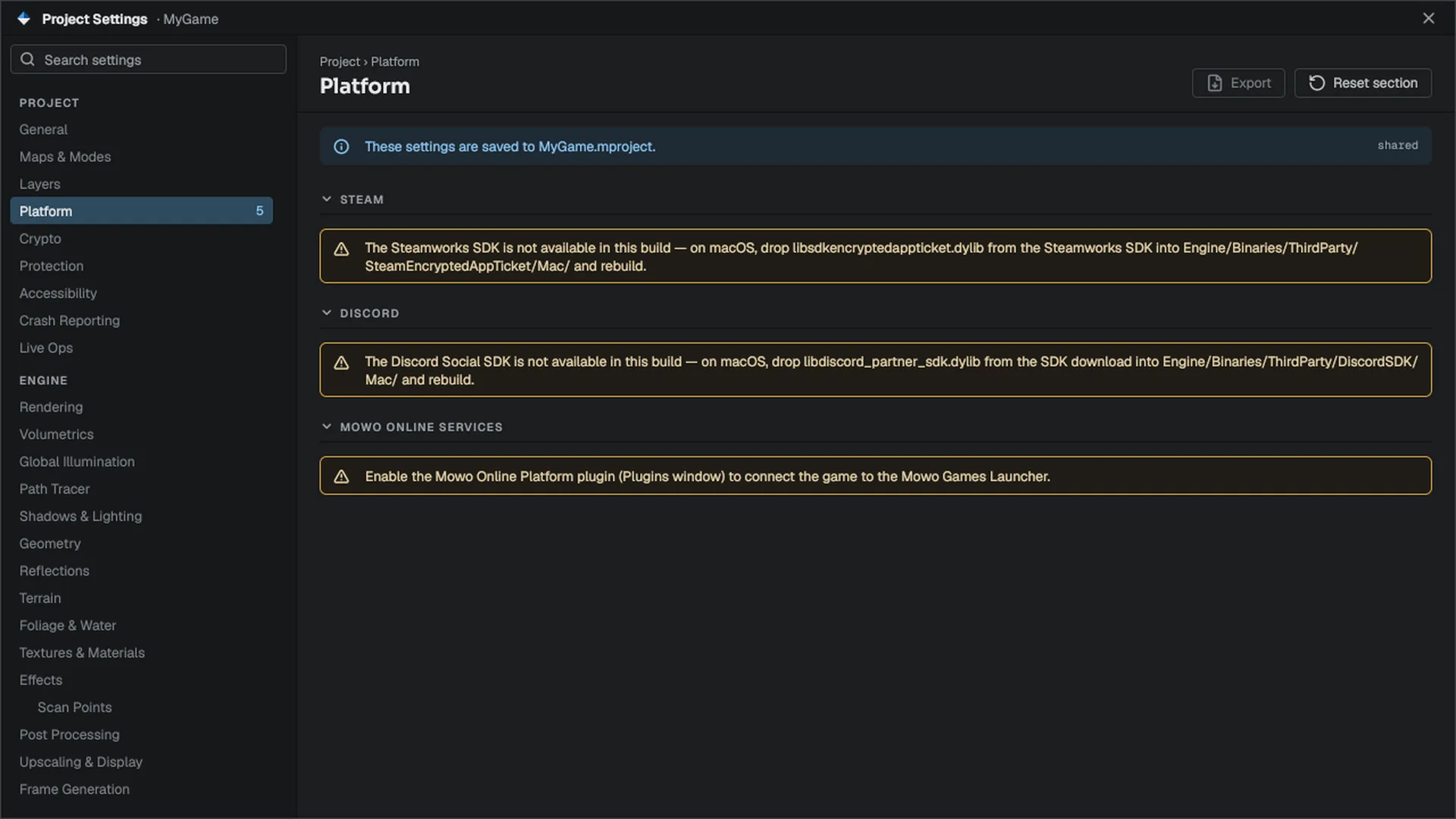
Steam settings live in the .mproject, under platform. In the editor they are in the STEAM section of Project Settings: Enable Steam, Steam App ID, Require Ticket Auth and the lobby defaults.
{
  "platform": {
    "steamEnabled": true,
    "steamAppId": 480,
    "steamDepots": { "win-x64": 481, "osx-arm64": 482 }
  }
}steamEnableddecides whether the Steam runtime libraries ship at all. Without it, the package carries no Steam code.steamAppIdis the app the upload targets, the same key the packager and the DRM wrap read.steamDepotsis optional. It maps package platform folder names (win-x64,osx-arm64,linux-x64; the olderWin64,MacandLinuxspellings still read) to depot ids. Without it, the depot is the app id + 1 forwin-x64, + 2 forosx-arm64and + 3 forlinux-x64, the ids Steamworks creates for a new app.
The numbers above are examples; use the ids from your Steamworks partner page.
Point the depot's install script setting at the package's installscript.vdf. It runs the bundled Visual C++ redistributable once per machine.
Upload a build
- Install steamcmd and log in once
mbt steam-uploadfindssteamcmdthrough theMOWO_STEAMCMDvariable, thenPATH, then conventional install locations. The password is never an option, because it would land in the process list and shell history. Log in once by hand sosteamcmdcaches the credentials:PowerShellsteamcmd +login mybuildaccount +quit - Package the gamePowerShell
./mbt.cmd package --project D:/Projects/MyGame/MyGame.mproject --sign D:/Secrets/MyStudio.pfxAdd
--drm-wrap --steam-user mybuildaccountif you want Steam DRM. The wrap runs before signing; see Installers and code signing. - Preview the uploadPowerShell
./mbt.cmd steam-upload --project D:/Projects/MyGame/MyGame.mproject --package D:/Projects/MyGame/Saved/Packaged/MyGame --username mybuildaccount --preview--previewmakessteamcmdscan the content and log what it would do, uploading nothing.--dry-runstops one step earlier: it writes the scripts and never startssteamcmd. - Upload
Run the same command without
--preview. The build lands in Steamworks unset. Set it live from the Steamworks dashboard, or pass--branchto set a beta branch live as soon as the upload succeeds. The command warns when--branchis set, because that is the half of the upload you cannot take back.
The command refuses a --package folder that does not look like mbt package output, because Steam would accept a depot full of build intermediates without complaint. Pass --package explicitly: the default is Saved/Packaged/<Product> under the directory mbt treats as its root, which is the engine tree, not your game project.
Several platforms in one build
A cross-platform multiplayer game should ship every platform in one Steam build. If the Windows depot goes live minutes before the Mac one, players on the two cannot join each other in between. Use --depot once per platform:
./mbt.cmd steam-upload --project D:/Projects/MyGame/MyGame.mproject --depot win-x64=D:/Builds/Win --depot osx-arm64=D:/Builds/Mac --username mybuildaccount--depot replaces --platform and --package. Each platform needs its own depot id; two platforms on one depot fail the command, because Steam would let the second overwrite the first. --depot-id names a single depot, so it cannot be combined with more than one --depot; put the ids in platform.steamDepots instead.
The generated scripts
The scripts go to build/Steam/<Product>-<platform>, or build/Steam/<Product> for a multi-platform build; --out overrides it. There is one app script and one depot script per platform:
"AppBuild"
{
	"AppID" "480"
	"Desc" "MyGame win-x64 (2026-10-22 12:00 UTC)"
	"BuildOutput" "D:/MowoEngine/build/Steam/MyGame-win-x64/BuildOutput"
	"Preview" "0"
	"SetLive" ""
	"Depots"
	{
		"481" "depot_build_481.vdf"
	}
}"DepotBuild"
{
"DepotID" "481"
"ContentRoot" "D:/Projects/MyGame/Saved/Packaged/MyGame"
"FileMapping"
{
"LocalPath" "*"
"DepotPath" "."
"recursive" "1"
}
"FileExclusion" "*.pdb"
}Each depot's content root is the package folder, mapped to the depot root. *.pdb is always excluded, so symbols never reach players. --description replaces the default build description.
If steamcmd is not installed, the command writes the scripts, skips the upload and prints the steamcmd line to run by hand.
Steam at runtime
- Relaunch through Steam. A packaged run with Steam enabled asks
SteamAPI_RestartAppIfNecessarywhether it was started outside the client. If so, it exits and lets Steam relaunch it, so the overlay, cloud saves and the licence check are present. steam_appid.txt. Builds other thanreleaseandprofilewrite this file beside the executable so Steam initializes outside the client. Release builds never write it; the client provides the app id.- Relay-only hosting. A listen server with Steam running listens only through the Steam relay, which keeps the host's IP address private. Network Privacy in Project Settings,
FNetSessionSettings::directListenor thenet.AllowDirectHostconsole variable opens the direct listener as well, for LAN games and direct connections. See Hosting on both. - Achievements, presence, Steam Input, Remote Play and Workshop. See Steam features.
The mbt command reference lists every steam-upload option. Patches, chunks and DLC covers DLC that ships in depots of its own.