 Mowo
Asset tools
Trace references, measure what assets cost on disk and in memory, audit and validate content, manage primary assets and chunks, and localize game text.
These tools answer questions about your content as a whole: what uses an asset, what it costs, what is broken and what still needs translating. Most of them open as tool documents, tabs in the document well with the Outliner and Details column kept beside them.
| Tool | Question it answers | Open from |
|---|---|---|
| Reference Viewer | What uses this asset, and what does it pull in? | Asset menu ▸ Reference Viewer…, Window |
| Size Map | Where do the bytes go? | Asset or folder menu ▸ Size Map…, Window |
| Asset Audit | Which assets are big, over limits or unused? | Folder menu ▸ Asset Audit…, Window |
| Data Validation | Is the project shippable? | Window ▸ Data Validation |
| Asset Manager | Which primary assets go into which chunk? | Window ▸ Asset Manager |
| Localization Dashboard | How far along is each language? | Window ▸ Localization Dashboard |
Reference Viewer
The Reference Viewer puts one asset in the middle of a graph. Assets that reference it are in columns to the left, assets it depends on are in columns to the right. Each node is captioned selected, referencer or dependency, with · soft when a soft reference reached it.
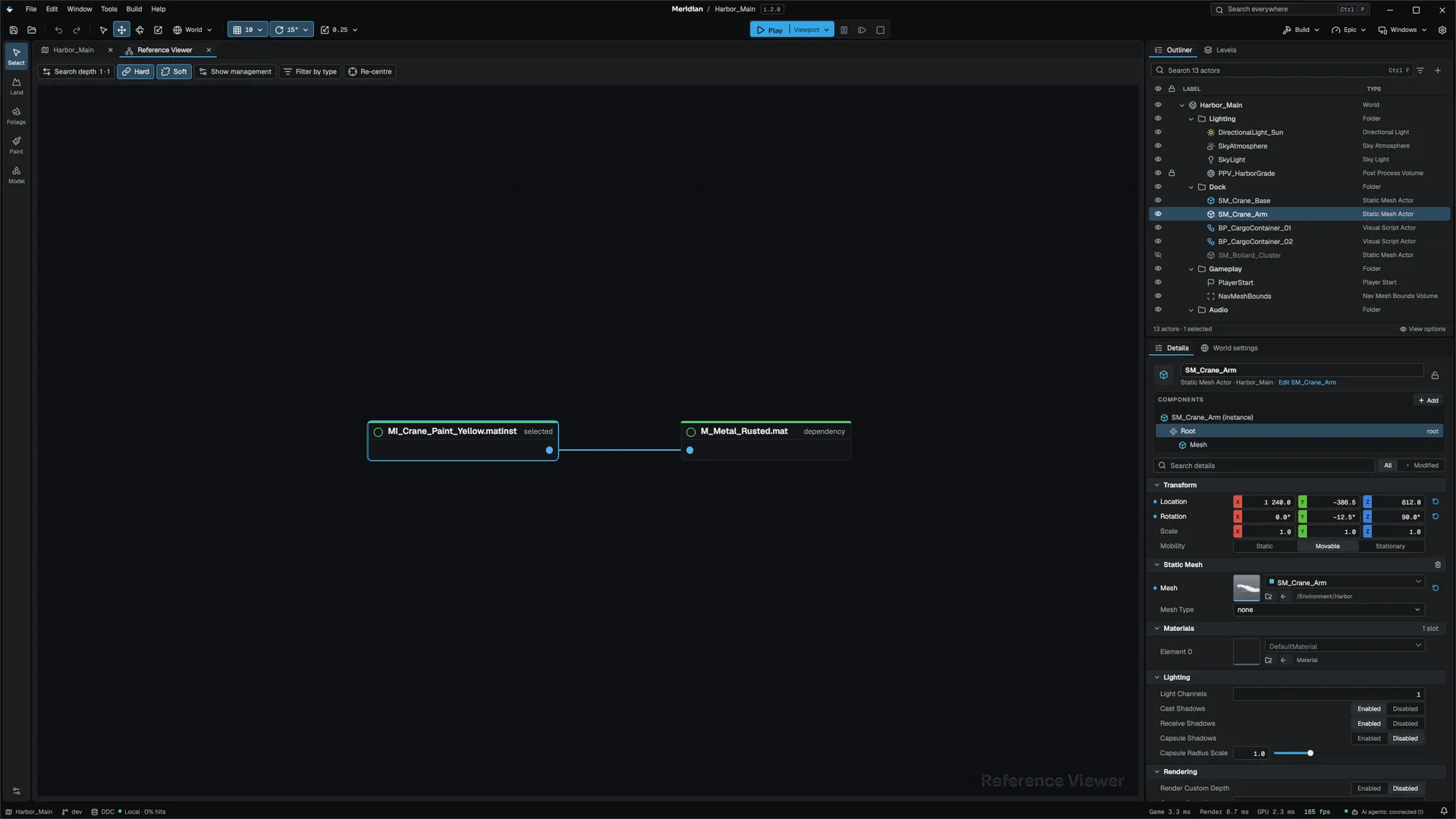
| Wire | Meaning |
|---|---|
| Coloured | A hard reference: the referencing asset always loads the target |
| Grey | A soft reference: the target is named by a path that resolves when a component spawns; a miss degrades at runtime instead of failing the load |
A column shows at most 24 nodes; a +N more node counts the rest.
The graph reads the same edges whether the editor loaded an asset or only scanned it. An asset depends on every asset its file names, by path or by id, so a material instance depends on its parent material even before you open it, and rescanning the project keeps that edge. A path to a file that is not in the project draws no edge; the log names it with imports '…', which is not in the project.
| Control | What it does |
|---|---|
| Search depth | How many steps to walk on each side, 1 to 6, set separately for referencers and dependencies |
| Hard / Soft | Show that kind of reference. Turning one off also drops the nodes only it reached |
| Show management | Only this level's assets, Filter by name… and Find in Content Browser |
| Filter by type | Show one asset type |
| Re-centre | Frame the whole graph |
Scroll to zoom and drag to pan. Double-click a node to open the asset. Right-click a node for Open Asset, Find in Content Browser and Make This the Root.
Size Map
The Size Map draws a treemap of an asset's or a folder's bytes, grouped by type: Textures, Meshes, Audio, Visual Scripts, Materials, Prefabs, Levels, Animation and Other. Click a cell to drill in. The banner states the total, the dependency count and how many figures are estimates.
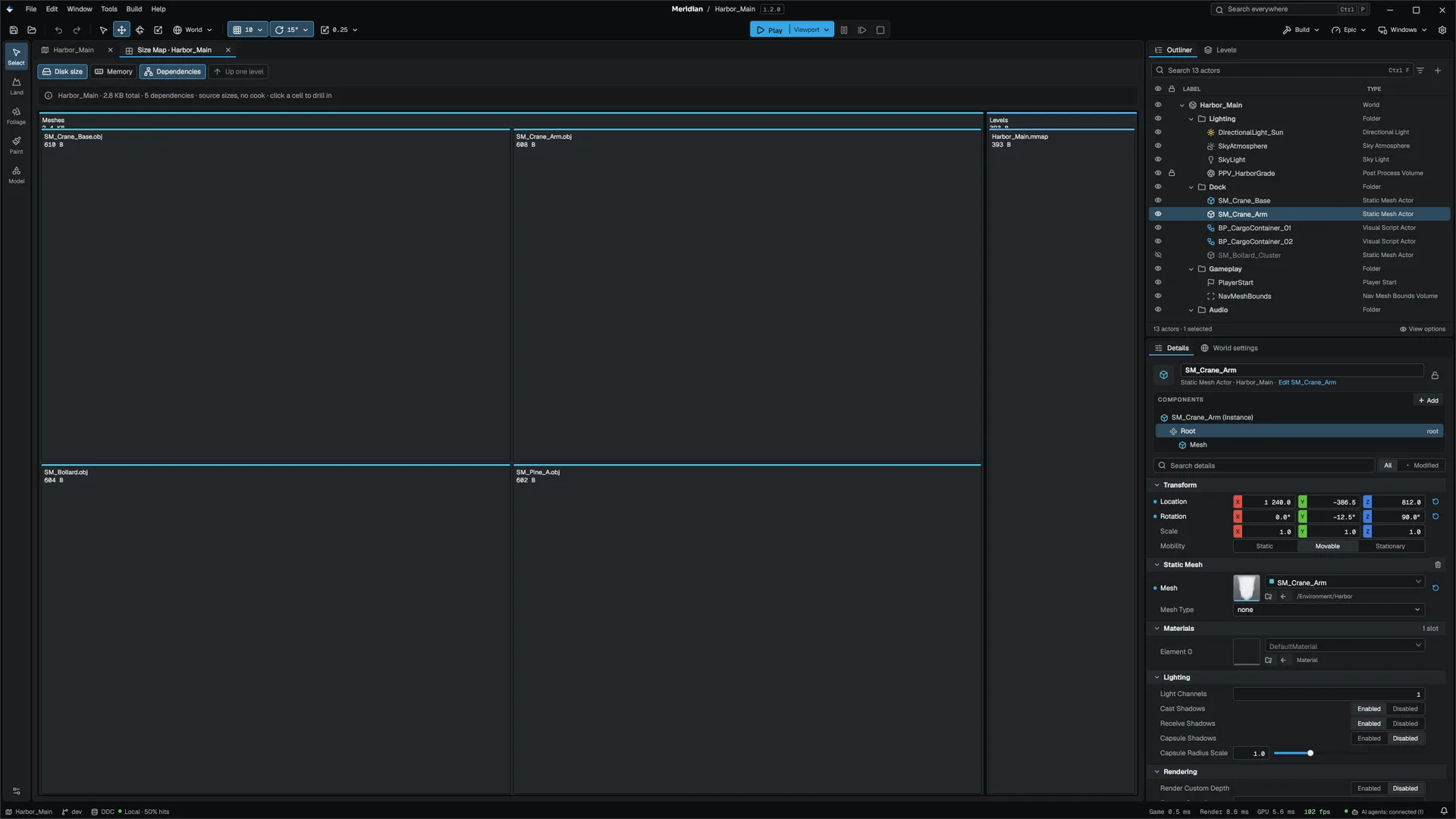
- Disk size comes from the cooked archive when one exists. Without a cook, it is the size of the source files and the banner says source sizes, no cook. Run a cook and use Re-read the cooked archive for real numbers.
- Memory is reported only where it can be established: textures with a cooked header and assets currently loaded. Everything else is marked unmeasured rather than guessed.
On an asset, the map includes the dependency closure by default and counts shared assets once. Turn off Dependencies to size the asset alone, or Follow soft references to see only what loading it costs now. On a folder, the map lists what is in the folder without following dependencies.
Asset Audit
The Asset Audit is a sortable table of the assets you add to it. It starts empty: use Add selected for the Content Browser selection, Add dependencies to add one more level of dependencies, or Audit whole project. Opened from a folder, it audits that folder.
| Column | What it shows |
|---|---|
| Asset, Type | The file and its type in words |
| Disk, Memory | The same figures as the Size Map |
| Triangles | For meshes |
| Refs | How many assets reference this one directly |
| Notes | Missing source file, a texture over the platform's maximum size, a mesh with missing textures, or Not referenced |
Platform · picks the target the audit checks against: a 4096 texture edge on Windows, Linux and macOS, 2048 on Android and iOS. The table sorts by Disk, largest first; click a header to change it. The row menu has Only unreferenced, Only missing source, Remove from audit and Clear audit.
Data Validation
Data Validation sweeps content through every registered asset validator. Validate all checks the project's Content tree; Validate selection checks the Content Browser selection and everything under selected folders. The sweep runs a slice per frame, so the editor stays responsive while the banner counts up.
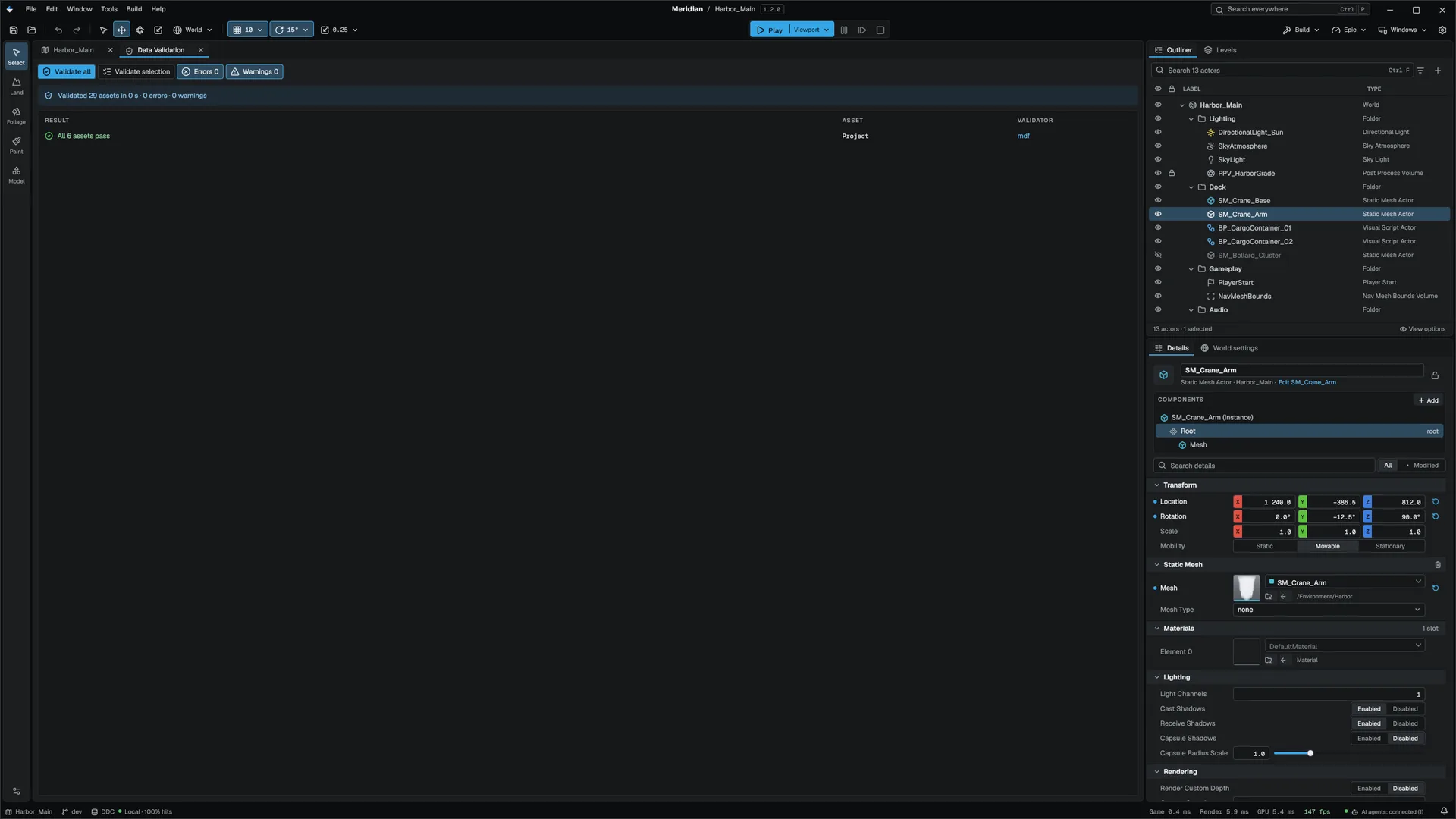
The results table lists errors, then warnings, then one pass row per validator that checked assets and found nothing. Click a validator name to narrow the table to it; Ctrl+F searches asset paths, validator names and messages. Double-click a row or press Enter to open the asset. Issues also go to the Message Log.
The built-in validators check the text formats (levels, prefabs, materials, curves, Visual Scripting graphs, themes, UI and volumes) for parse errors and dangling Content/… references. A file no validator claims, such as a .png, is counted as skipped, not passed. Games and plugins register their own validators, and the sweep runs them too. Validate on an asset in the Content Browser runs the same validators on just that asset.
Asset Manager
The Asset Manager lists every primary asset your game config declares, with its type, chunk, cook rule, bundles and how many assets its chunk carries. The rules live in the [/Script/Mowo.AssetManagerSettings] section of Config/DefaultGame.ini; the panel shows what they do without running a cook. Its action regenerates Config/Chunks.ini, the file the cook splits archives by. A hand-written Chunks.ini is never replaced. See Shipping for chunked packaging.
Localization Dashboard
Window ▸ Localization Dashboard manages your game's string tables. The editor UI itself is English-only. Tables live in Content/Localization/<locale>/<Namespace>.txt as key=value lines.
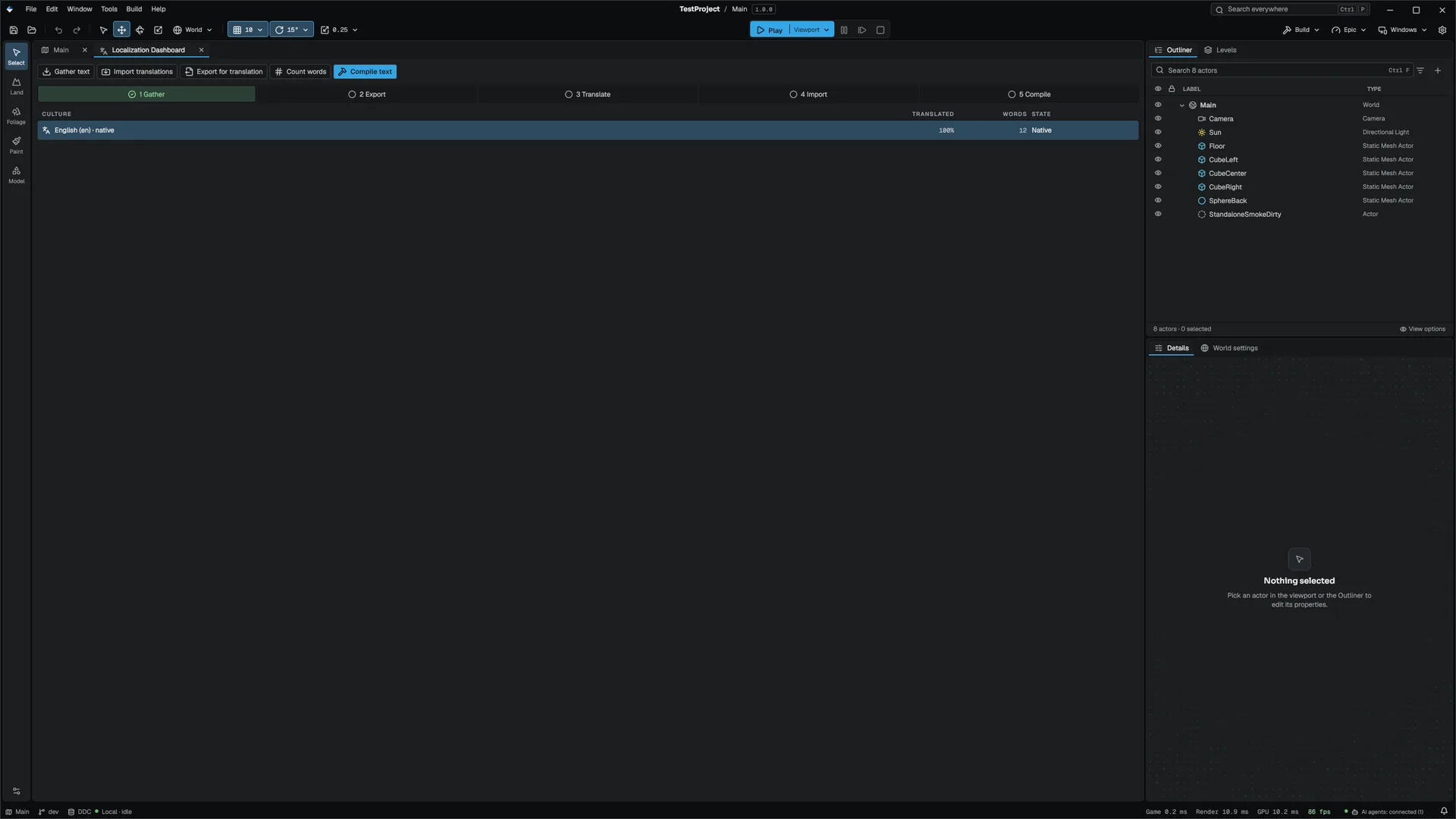
The table has a row per locale, source locale first, with how many rows are translated, how many source words they cover, and a state: Native, Complete, Needs update (the English changed since translation), Translating or Not started.
| Toolbar | What it runs |
|---|---|
| Gather text | mbt localize extract: adds new keys, marks changed English, marks vanished keys as orphans |
| Export for translation | mbt localize export for the selected culture as a PO file |
| Import translations | mbt localize import of a PO or XLIFF file into the selected culture |
| Count words | The source words each culture has to cover |
| Compile text | Loads every table into the running editor to prove they parse |
While a step runs, the foot of the dashboard shows its latest output line and a Cancel button. See the mbt CLI reference for the localize command.
Engine sources
This page describes behavior implemented in these files of the engine repository, checked against commit afef270e3.
- Engine/Source/Runtime/AssetSystem/Public/AssetSystem/AssetDependencyGraph.h