 Mowo
Installers and code signing
Version stamp and icon, the zip, MSI, self-extracting installer and disk image, Authenticode signing, and the Steam DRM wrap.
The last step of mbt package turns the staged folder into what you hand out: signed executables, a zip, an installer. Each of these rewrites or hashes shipped files, so they run in a fixed order. Each one is skipped, with a log line, when its tool is missing, so a plain mbt package still produces a runnable folder.
The finalize order
- Version stamp
- Icon
- Steam DRM wrap
- Code sign
- Module sign
- Symbol upload
- File manifest
- Zip
- Installer
The order is enforced, not just followed. A guard fails the package when a step runs at or before one that already ran. Both failures it prevents would otherwise reach players without breaking the build:
- A DRM wrap after signing strips the Authenticode signature. The log would say the package was signed while every player got an unsigned binary.
- Any rewrite after the file manifest leaves its hashes describing bytes that no longer exist.
Steps may be skipped, but never reordered or repeated.
The launcher, version info and icon
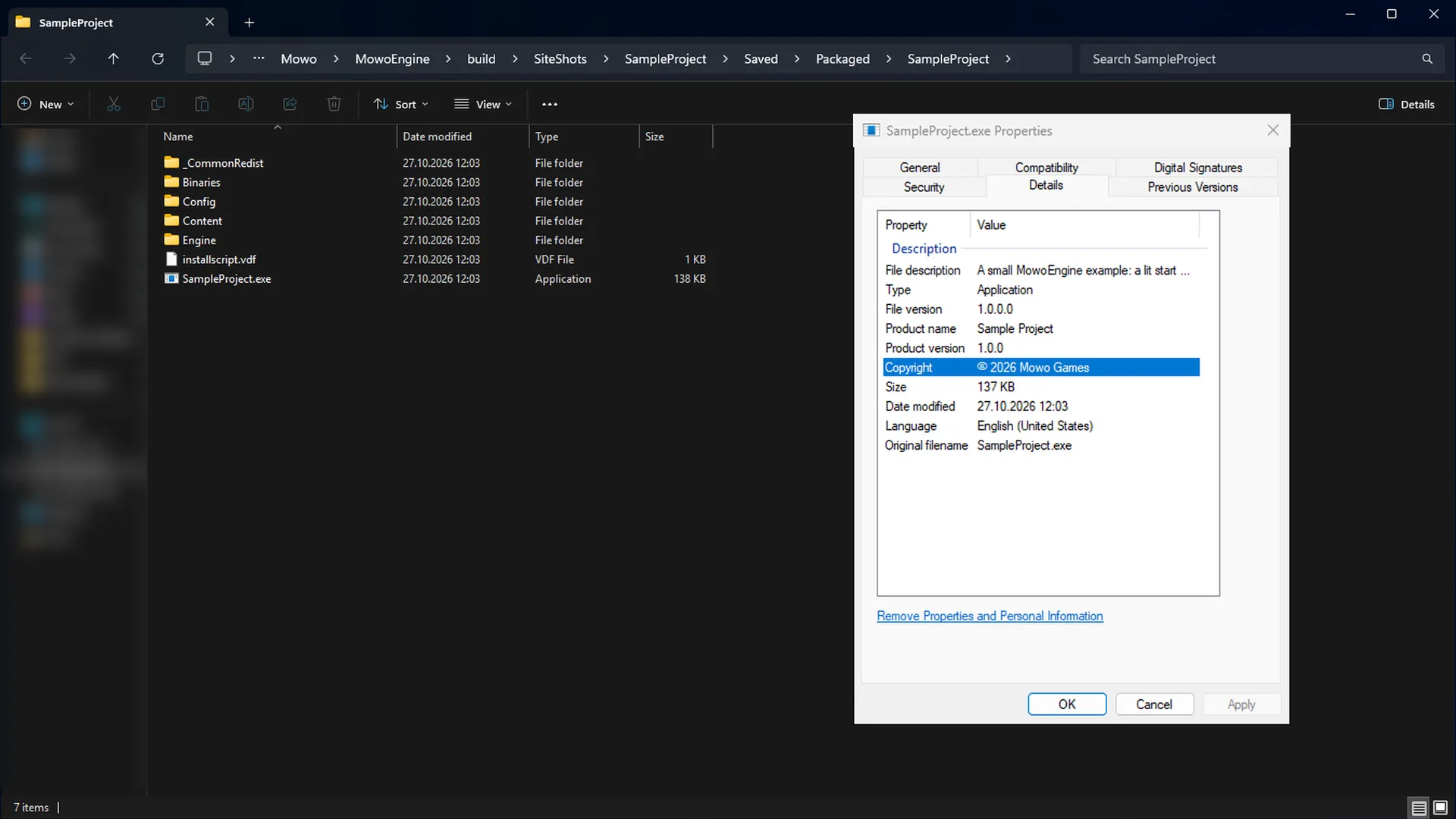
The file a player double-clicks is <Product>.exe at the package root: a thin launcher that sets the working directory to the package root, starts Binaries/<platform>/<Product>.exe, forwards the command line and returns the game's exit code. The packager compiles it at package time with the detected clang-cl and lld-link. A server package gets a console launcher.
On Windows, the packager stamps a VS_VERSION_INFO resource into the launcher: company, description, version, copyright, product name and the package's build id. The values come from player.* and project.version in your .mproject.
The icon comes from --icon, then the manifest's player.iconPath (absolute or relative to the project), then the engine's default Engine/Content/Branding/Windows/mowo-player.ico. Both .ico and .png work; a PNG is wrapped into an icon resource. Both stamps are Windows-only.
The distributable zip
--zip is on by default. The zip is named <Product>-<version>-<config>.zip and written beside the package folder. Entries are sorted and carry a fixed timestamp, so the same input produces a byte-identical zip. Pass --zip false to skip it.
Installers
--installer adds an installer beside the zip. What you get depends on the platform and the tools on the machine:
| Situation | Installer |
|---|---|
Windows host, WiX candle and light on PATH | <Product>-<version>-<config>.msi |
| No WiX | Install-<Product>.ps1, a self-extracting PowerShell installer that unpacks the zip |
macOS host, -p osx-arm64 | <Product>-<version>-<config>.dmg with a self-contained .app |
The WiX MSI
The game MSI installs per machine under Program Files, with a Start Menu shortcut to the launcher. It declares a major upgrade, so installing a newer version replaces an older one, and it refuses a downgrade.
The MSI's UpgradeCode is derived from the product name. Keep the product name stable across releases, or a new version installs beside the old one instead of upgrading it.
The self-extracting installer
Without WiX, the packager writes Install-<Product>.ps1. It expects the zip next to it, so keep --zip on. When run, it:
- Unpacks the zip to
%LOCALAPPDATA%\Programs\<Product>, or under the folder its-InstallRootparameter names. - Creates Start Menu and Desktop shortcuts to the launcher.
- Writes an
Uninstall.ps1and registers it under the current user's Uninstall key, so the game appears in Windows' installed apps.
It needs no admin rights. Ship the .ps1 and the zip together.
The macOS disk image
The .dmg holds an .app signed ad hoc only (codesign --sign -). There is no Developer ID signing, no hardened runtime, no notarization and no stapling for game packages. Gatekeeper on a buyer's Mac will not open it. The ROADMAP tracks notarization as an open blocker.
Building the .dmg needs a macOS host, because it runs codesign and hdiutil. Linux has no native installer format yet.
Code signing
Sign a Windows package with --sign, or set the MOWO_SIGN_CERT environment variable so every package is signed:
./mbt.cmd package --project D:/Projects/MyGame/MyGame.mproject --sign D:/Secrets/MyStudio.pfxThe certificate can be given three ways:
| Value | Treated as |
|---|---|
A path ending in .pfx that exists | A certificate file |
| 40 hex characters | A SHA1 thumbprint in the certificate store |
| Anything else | A subject name in the certificate store |
A hardware-token certificate installs into the user store and is addressed by thumbprint or subject; no PFX file exists for it.
| Environment variable | Purpose |
|---|---|
MOWO_SIGN_CERT | Certificate, when --sign is not given |
MOWO_SIGN_PASSWORD | Password for a .pfx file |
MOWO_SIGN_TIMESTAMP_URL | RFC 3161 timestamp server, when the default should not be used |
Signatures use SHA256 digests and are always timestamped, so they stay valid after the certificate expires. The packager signs the host, the launcher, every first-party DLL and the crash reporter. Vendor libraries keep their own vendors' signatures.
Signing needs signtool.exe from the Windows SDK and a Windows host. Without either, or without a certificate, the step is skipped and the package ships unsigned. A signtool failure is a warning and the package also ships unsigned, so read the log before you release.
Authenticode is separate from the game's own module signatures (.mowosig), which every protected package carries whether or not you pass --sign. See Content protection.
Steam DRM wrap
--drm-wrap wraps the game host with Steam DRM through steamcmd. A wrapped executable refuses to run outside a Steam client that owns the app. It is opt-in, because it also stops you from testing the package outside Steam.
./mbt.cmd package --project D:/Projects/MyGame/MyGame.mproject --drm-wrap --steam-user mybuildaccount --sign D:/Secrets/MyStudio.pfxThe wrap needs:
platform.steamAppIdin the.mproject;- a Steam account name from
--steam-userorMOWO_STEAM_USER. The password is never an option: log in once withsteamcmd +login <user>sosteamcmdcaches it; steamcmd, found throughMOWO_STEAMCMD,PATHor a conventional install location.
It wraps Binaries/win-x64/<Product>.exe in place. If steamcmd fails or writes no output, the original executable is restored and the package ships unwrapped, with a warning.
License notices
Every package carries Engine/Legal/ThirdPartyNotices.txt: each bundled third-party library with its version, license, copyright holder and the license texts its folder carries. A game package lists only the libraries it actually ships; build-only tools are left out. A package that ships auto-subtitles therefore lists ONNX Runtime and the ONNX Runtime WebGPU execution provider, whose entry carries the provider's MIT license, Dawn's BSD-3-Clause license and the license texts of the DXC that ships beside it on Windows.
The file manifest
Every game package writes <Product>-Manifest.txt beside the package folder: one line per shipped file with its sha256, its size and its forward-slash relative path, sorted. It is written after stamping, wrapping and signing, so the hashes match what players receive. Use it to verify an install or to compare two builds; the player never reads it. A server package keeps its Manifest.txt at its root instead.
Related
- Uploading to Steam
- Crash reporting, which covers the symbol upload step
- mbt command reference