 Mowo
Upscaling and anti-aliasing
Choose between TAA, TSR, FSR, DLSS, XeSS and MetalFX, let Auto pick the render resolution from the display, and use frame generation and low latency.
Mowo can render at a lower internal resolution and reconstruct the output with a temporal upscaler, or render at native resolution and resolve aliasing with TAA or FXAA. One cvar, r.Upscaler, picks the method; r.UpscalerQuality picks the render resolution, or Auto upscaling (r.Upscaler.AutoQuality) picks it from the output resolution.
The methods
r.Upscaler | Method | Kind | Needs |
|---|---|---|---|
-1 | Auto | Picked at startup, see below | — |
0 | None | No AA, no upscaling | — |
1 | TAA | Built-in temporal AA at native resolution | Any GPU |
2 | Spatial | AMD FSR1 (EASU and RCAS), no temporal history | Any GPU |
3 | FSR | AMD FidelityFX Super Resolution | D3D12 or Vulkan |
4 | DLSS | NVIDIA DLSS Super Resolution through Streamline | An NVIDIA GPU that supports it; D3D12, Vulkan or D3D11 |
5 | TSR | The engine's own temporal super resolution | Any GPU |
6 | XeSS | Intel XeSS | The XeSS runtime; D3D12, Vulkan or D3D11 |
7 | MetalFX | Apple MetalFX temporal scaler | Metal |
The values match.
Selecting a vendor upscaler is always safe. If its SDK, runtime or GPU is missing, the engine falls back to TSR, which upscales on every backend, so the frame still renders at the mode's resolution. The startup capability check decides from the GPU vendor, model and driver which vendor runtimes this machine can run, without loading any (DLSS needs an NVIDIA RTX GPU, DLSS Frame Generation an RTX 40-series, Anti-Lag 2 a Radeon RX, XeSS Frame Generation and XeLL an Intel Arc GPU); a runtime it rules out never loads. IUpscaler::IsUpscalerSupported answers whether a method can really run on this device, and the editor and the game's settings screen only offer the methods that can ().
TSR
TSR is Mowo's own temporal super resolution: two compute passes on plain RHI pipelines, with no vendor SDK and no special hardware. It runs on every backend. Tune it with these variables (also on Project Settings > Engine > Upscaling):
| Variable | Default | Effect |
|---|---|---|
r.TSR.Sharpness | 0.4 | Sharpening on the output, 0 to 1 |
r.TSR.MaxSamples | 32 | Where the per-pixel sample count saturates. Higher is steadier and slower to react. |
r.TSR.ClampGamma | 1.0 | Width of the history clamp. Lower removes ghosting and adds flicker. |
r.TSR.AntiFlicker | 2.0 | Damping for pixels whose brightness oscillates between frames |
r.TSR.Velocity.WeightClampingSampleCount | 4 | History cap for fast-moving pixels. Lower is crisper in motion. |
r.TSR.Debug | 0 | 1 history weight, 2 rejection, 3 velocity |
Spatial
Spatial is FSR1: render smaller, upsample with edge-adaptive EASU, then sharpen with RCAS. It needs no jitter, motion vectors or history, so it has no ghosting but recovers less detail. r.FSR1.Sharpness (default 0.25) controls RCAS.
Vendor upscalers
- FSR ships with the engine and runs on D3D12 and Vulkan.
- DLSS runs through NVIDIA Streamline, loaded at runtime. A missing Streamline reports DLSS as unsupported.
r.DLSS.Presetpins the network preset:0driver default,1J,2K,3L,4M. - XeSS loads the XeSS runtime when it is present. On D3D11 it uses XeSS's native D3D11 path.
- MetalFX is the Metal backend's upscaler. When the device supports it, the resolve upgrades to MetalFX's denoising scaler (
r.MetalFX.Denoised, default 1).r.MetalFX.Subsume 1then hands denoising to MetalFX and skips the engine's own per-effect temporal filters; the default, 0, keeps them.
DLSS Ray Reconstruction (r.DLSS.RayReconstruction) is in development. It replaces the engine's denoisers for ray-traced signals with NVIDIA's model while DLSS is the upscaler. Leave it off unless you are testing it.
Render resolution
r.UpscalerQuality maps to a render scale ():
r.UpscalerQuality | Preset | Render scale |
|---|---|---|
0 | Native | 1.000 |
1 | Quality | 0.667 |
2 | Balanced | 0.580 |
3 | Performance | 0.500 |
4 | Ultra Performance | 0.333 |
Only scaling methods act on it. TAA and None always render at full resolution. While Auto upscaling is on, it picks this value itself (next section) and writes the live mode back here for readers. An explicit r.RenderScale (0.25 to 1.0) wins over the preset; the Custom Percentage setting writes it. With dynamic resolution on, the render scale moves between its bounds below the preset's base scale.
While a temporal upscaler reconstructs the output, material textures are sampled with a negative mip bias so they keep output-resolution detail. r.MaterialMipBias.Auto (default 1) turns this on, r.MaterialMipBias.Offset adds to it and r.MaterialMipBias.Min (default -2) limits it.
Auto upscaling
Auto upscaling picks the quality mode from the output resolution, the way Unreal Engine 5.1 and later derive the screen percentage from the display. The output is measured as the height of a 16:9 frame with the same pixel count, so an ultrawide pays for its pixels rather than its rows:
| Output (16:9 equivalent height) | Examples | Mode | Rendered |
|---|---|---|---|
| up to 900 | 720p, 1280x800, 900p | Native | as output |
| up to 1200 | 1080p, 1920x1200 | Quality (0.667) | about 720p |
| up to 1600 | 1440p, 2560x1600 | Balanced (0.58) | about 835p |
| up to 2400 | 4K, 3440x1440, 5120x1440 | Performance (0.5) | about 1080p |
| above | 5K, 8K | Ultra Performance (0.333) | about 960p at 5K, 1440p at 8K |
Up to 4K the rendered image stays between roughly 720p and 1080p, which is the range temporal upscalers are tuned for. The tier shifts the mode toward Performance: Low by two steps, Medium by one, High by none, and never past Performance unless the resolution alone asks for Ultra Performance. At 1080p this lands on the mode each tier fixed before (Low Performance, Medium Balanced, High Quality), so a 1080p player sees no change; at 1440p and 4K the frame stops paying for pixels the upscaler would reconstruct anyway.
r.Upscaler.AutoQuality | Meaning |
|---|---|
-1 (default) | Follow the tier: on at Low, Medium and High; Epic and Cinematic keep their fixed mode |
1 | On at every tier |
0 | Off: r.UpscalerQuality decides |
Auto works with every upscaler that scales: TSR, FSR, DLSS, XeSS, MetalFX and Spatial each map the mode to their own render scale. It is re-evaluated every frame, so resizing the window or the viewport across a band changes the mode once and resets the temporal history at that point. The live mode is logged: [Upscaler] auto quality 2 for 2560x1440 output (TSR, render scale 0.580).
Turn it on or off per project with Project Settings > Rendering > Auto Upscaling. Players get an Auto Resolution row in the game's Graphics settings; picking a fixed Screen Percentage there means turning it off.
How the default is chosen
When r.Upscaler is -1, the auto-tier fills it at startup ():
- The quality mode comes from the tier. Low, Medium and High upscale automatically (Auto upscaling above); Epic uses Quality and Cinematic Native.
- Vendor upscalers are picked only when
r.AutoQuality.VendorUpscalersis 1. Then an NVIDIA GPU whose runtime reports DLSS gets DLSS, AMD with FSR gets FSR, Intel with XeSS gets XeSS, and Apple with MetalFX gets MetalFX. The pick waits at most about one frame for the vendor runtimes to answer (next section). Without an answer it starts on TSR and switches to the vendor upscaler when the answer arrives, unless config, the settings screen or the console setr.Upscalerin the meantime. - At a fixed Native mode (Cinematic) the choice is TAA.
- Otherwise the choice is TSR.
Which vendor technologies this GPU runs
Only the vendor runtimes can say whether this GPU runs DLSS, DLSS Ray Reconstruction, FSR, XeSS, MetalFX, a frame-generation backend or a low-latency runtime. Asking them is slow on some machines: Streamline loads and signature-checks its plugins and queries the driver, which can take several seconds on an NVIDIA GPU. So the engine asks once, on a background thread, after the graphics device exists, and keeps the answer for the session. The log line [VendorProbe] answered in … ms lists what the runtimes reported.
- The editor starts the check while the project loads. Until it finishes, the vendor rows on Project Settings > Rendering and Project Settings > Engine > Frame Generation read checking this GPU's vendor runtimes…, and their controls stay disabled. An open settings window updates when the answer arrives. The viewport's Upscaling menu marks those methods (checking…).
- A game starts the check only when something needs it: the upscaler auto pick with
r.AutoQuality.VendorUpscalers 1, or the first time the player opens the settings screen. Until the answer arrives, that screen offers every method the graphics API allows. It then drops the ones this GPU cannot run, unless the player has unsaved changes on it; in that case the list updates the next time the screen opens. - Low latency starts after the answer arrives. While the check runs, NVIDIA Reflex, Anti-Lag 2 and XeLL get no per-frame calls and a frame-rate cap uses the engine's own limiter.
- The check never holds up a frame. Frame generation only talks to its runtime once a frame-generation swapchain exists, so the editor keeps presenting while Streamline sets up the device.
Changing the graphics API at runtime asks again for the new device.
Vendor upscalers are opt-in for the automatic case because their SDKs sit between the engine and the graphics API and install their own process-exit handlers. TSR hooks nothing, so it carries the automatic case, and DLSS, FSR and XeSS stay one setting away.
The editor viewport resolves exactly as the game does: the same tier, the same upscaler and Auto upscaling from the viewport's own size, so the frame rate it shows is the one a player on that tier gets. The viewport toolbar's Upscaling chip shows what the viewport runs (for example Auto · TSR 58%) and overrides it for the session: Auto (from output resolution), a fixed mode from Native to Ultra Performance, or another method (methods this GPU cannot run are greyed). The override does not touch the project's settings. The Quality popover's Upscaler row and the Screen Percentage override store the same choice in your editor configuration.
Choose an upscaler
- Per project
Open Project Settings, the Rendering page, section ANTI-ALIASING & UPSCALING. Set Anti-Aliasing Method (Auto, the default, lets the device pick TSR or, when allowed, the vendor upscaler), Auto Upscaling, and with Auto Upscaling off a Screen Percentage or Custom Percentage. A method the graphics API cannot host is not listed; one this GPU cannot run stays listed with the note that it applies to players' hardware, because the setting ships with the game.
- From code
Check support first, then set the cvars. The renderer applies the change at the next
BeginScene. Read support fromFVendorCapabilityProbe, which never blocks.IUpscaler::IsUpscalerSupportedasks the runtime on the calling thread and can take seconds the first time, so do not call it on the game thread. - For players
The game's settings screen has Anti-Aliasing Method, Auto Resolution, Screen Percentage and Custom Percentage rows in the Graphics category, and lists only the methods this GPU can run.
#include "Core/IConsoleManager.h"
#include "RHI/VendorCapabilityProbe.h"
#include <string>

Mowo::FVendorCapabilityProbe::Start();

Mowo::FVendorCapabilities caps;
const bool dlss = Mowo::FVendorCapabilityProbe::TryGet(caps) && caps.SupportsUpscaler(Mowo::UpscalerType::DLSS);
const Mowo::UpscalerType type = dlss ? Mowo::UpscalerType::DLSS : Mowo::UpscalerType::TSR;

Mowo::IConsoleManager::Get().SetByName("r.Upscaler", std::to_string(static_cast<int>(type)));
Mowo::IConsoleManager::Get().SetByName("r.Upscaler.AutoQuality", "0");
Mowo::IConsoleManager::Get().SetByName("r.UpscalerQuality", std::to_string(static_cast<int>(Mowo::UpscalerQuality::Quality)));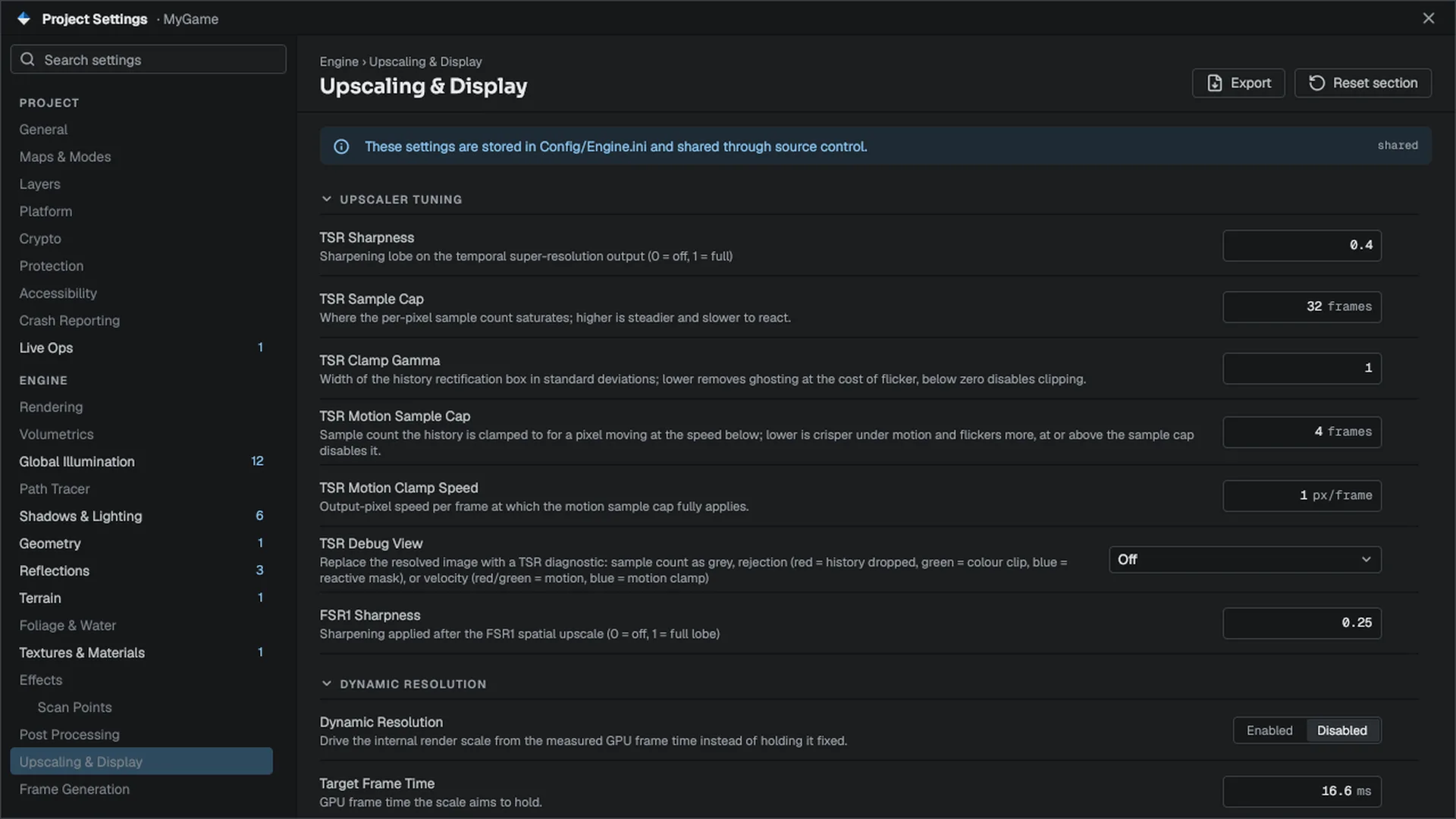
The scene's AA setting
Each scene also has an anti-aliasing mode, AntiAliasingMode: None, FXAA (the default) or TAA. It is a fallback: an active upscaler owns anti-aliasing, including the TAA the auto-tier picks at Native, and the scene setting is then ignored. FXAA runs only when no temporal resolve runs that frame.
Where each resolve sits in the frame:
- Temporal upscalers (TSR, FSR, DLSS, XeSS, MetalFX) resolve before tonemapping, on linear HDR.
- Built-in TAA runs after tonemapping, before lens flare.
- Spatial runs after tonemapping.
- FXAA, or contrast-adaptive sharpening (
r.Sharpness, 0 to 100 percent; -1 uses the scene setting), runs in the final pass.
See Frame pipeline.
Frame generation In development
Frame generation is written for D3D12, Vulkan and Metal, but the paths have not been verified on the hardware they target. Treat it as in development and test it on each GPU family you ship for.
| Variable | Default | Meaning |
|---|---|---|
r.FrameGeneration | 0 | 1 inserts generated frames between rendered ones. The swapchain is rebuilt when it changes. |
r.FrameGeneration.Backend | 0 | 0 auto (prefer DLSS-G, then FSR3), 1 FSR3, 2 DLSS-G, 3 XeSS-FG |
r.FrameGeneration.Multiplier | 2 | Presented frames per rendered frame, 2 to 6, clamped to what the backend reports |
r.FrameGeneration.Dynamic | 0 | Let DLSS-G vary the multiplier to hold r.FrameGeneration.TargetFps |
r.FrameGeneration.AutoHold | 1 | Under VSync, hold generation off while the game already renders at the display refresh |
Which backend each API can host:
- D3D12: FSR3, DLSS-G and XeSS-FG.
- Vulkan: FSR3 and DLSS-G. XeSS-FG only exists as a DXGI proxy swapchain and can never run on Vulkan.
- Metal: the MetalFX frame interpolator.
- D3D11: none.
Frame generation is a project switch, off for a new project: turn on Project Settings > Rendering > Features > Frame Generation (r.FrameGeneration.EnableForProject 1) first, or r.FrameGeneration is ignored and the player's settings screen leaves the rows out. It engages only while the game owns the presented swapchain. The editor never enables it, because its viewport is a texture inside the editor UI. Set it per project on Project Settings > Engine > Frame Generation; players get Frame Generation, Backend, Multiplier and Dynamic Frame Generation rows that list only what their GPU reports.
Low latency
r.LowLatency reduces input latency with whichever vendor runtime the GPU runs: 0 off, 1 on, 2 on plus boost. r.LowLatency.Backend picks one: 0 auto, 1 NVIDIA Reflex, 2 AMD Anti-Lag 2, 3 Intel XeLL. An unsupported pick falls back to auto.
| Runtime | Backends |
|---|---|
| NVIDIA Reflex | D3D12, Vulkan, D3D11 |
| AMD Anti-Lag 2 | D3D12 |
| Intel XeLL | D3D12 |
A running DLSS-G or XeSS-FG keeps low latency on.
API reference
- Renderer module:
AntiAliasingMode - SceneRenderer module:
FQualityAutoTier(AutoUpscalerQuality,IsAutoUpscalingOn)
Engine sources
This page describes behavior implemented in these files of the engine repository, checked against commit 280634744.
- Engine/Source/Runtime/RHI/Public/RHI/IUpscaler.h
- Engine/Source/Runtime/RHI/Public/RHI/FrameGeneration.h
- Engine/Source/Runtime/RHI/Public/RHI/VendorCapabilityProbe.h
- Engine/Source/Runtime/RHI/Public/RHI/RendererAPI.h
- Engine/Source/Runtime/Renderer/Public/Renderer/RenderFrameData.h