 Mowo
Create a project
Start a game project from a template in the Mowo Project Launcher, or scaffold one on the command line with mbt init, and open it in the editor.
A Mowo project is a folder with a .mproject manifest, a Content/ tree for assets, a Config/ tree for settings and, when it has gameplay code, a Source/ tree with a C++ game module. You can create one in two ways:
- Mowo Project Launcher, which copies one of the 10 templates and opens the editor on the result.
mbt init, a command that writes a minimal project with an optional C++ module and no level.
Use the launcher for your first project. Every template except Blank is playable as soon as it opens.
The Project Launcher
- Start the launcher
Open Mowo Project Launcher from the Start Menu. The Projects page lists the projects you or the editor opened before.
- Open the wizard
Click New project. The wizard has two steps: Template and Project settings.
- Pick a template
Each card shows the template's name and one-line subtitle. Language above the cards narrows them to what the gameplay is written in: C++ (a game module), Visual Scripting (graphs and the engine's classes) or Wolang (scripts). The preview column shows its image, description and tags; templates you can play without building code carry the Playable tag. Click Next. Templates describes each one.
- Fill in the settings
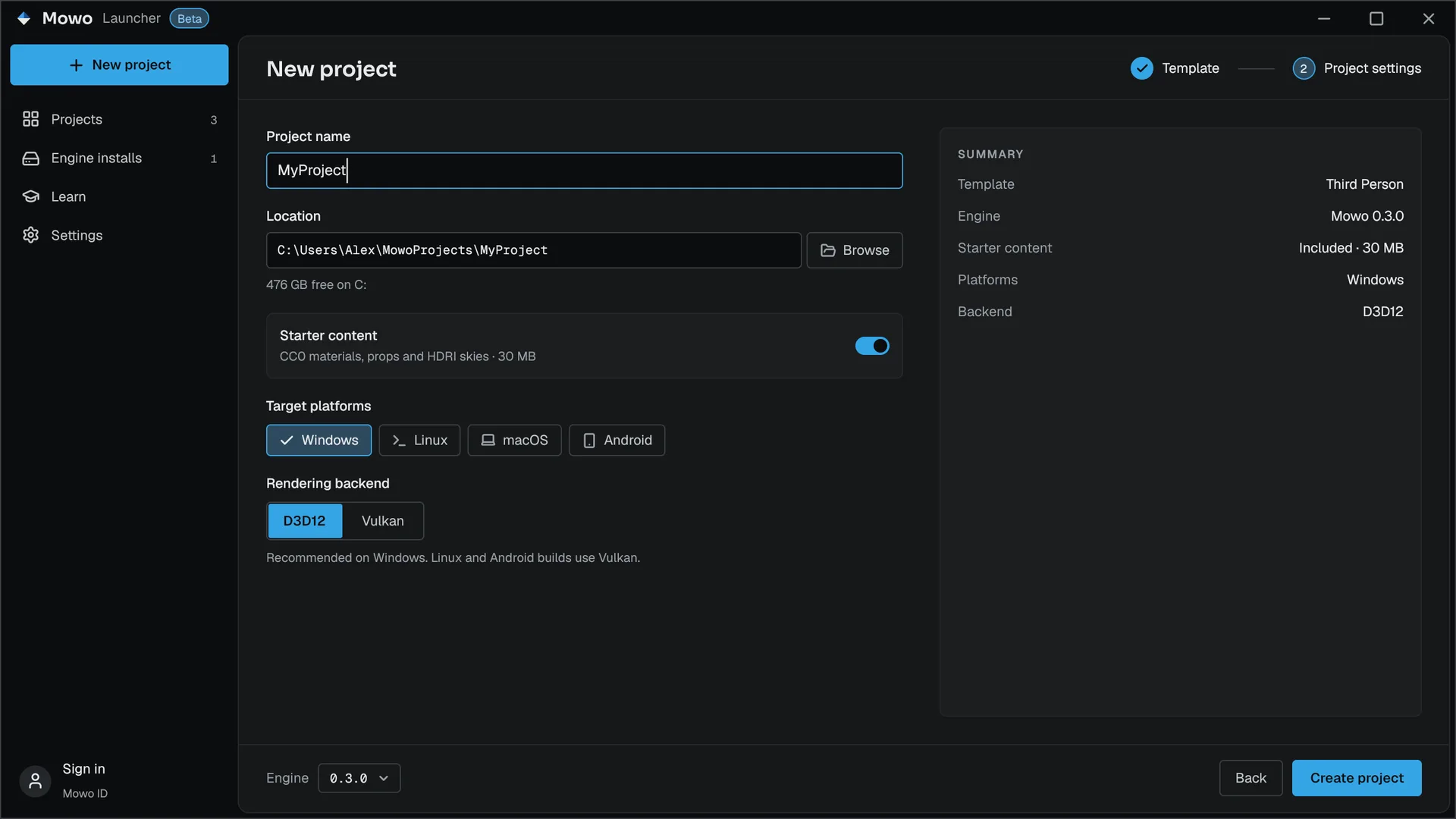
Enter a Project name and a Location. The location defaults to a
MowoProjectsfolder in your home directory, and you can change the default under Settings. Choose Starter content, the Target platforms and the Rendering backend. The Summary on the right follows every choice. - Create
Click Create project. The launcher writes
<Location>/<Name>/, adds it to the recent list and opens it in the editor.
Wizard settings
| Setting | Effect |
|---|---|
| Project name | The folder and manifest name. A template with C++ code renames its module and targets after it, so the name must be a valid C++ identifier |
| Location | The parent folder. The launcher refuses a target folder that already holds files, so it never overwrites a game |
| Starter content | Copies the CC0 Starter Content pack (materials, props and HDRI skies) into the new project. If the pack is missing, the project is still created and the launcher logs a warning |
| Target platforms | Windows, Linux, macOS, Android. Written to Config/Packaging.ini, which the editor's packaging window and mbt package read |
| Rendering backend | The backends this machine can run. Written to the project's Config/Engine.ini as rendering.graphics_api |
| Engine | The engine install the project is made for, in the wizard footer. Its version is stamped into the .mproject, and that install's editor opens the project |
The other launcher pages
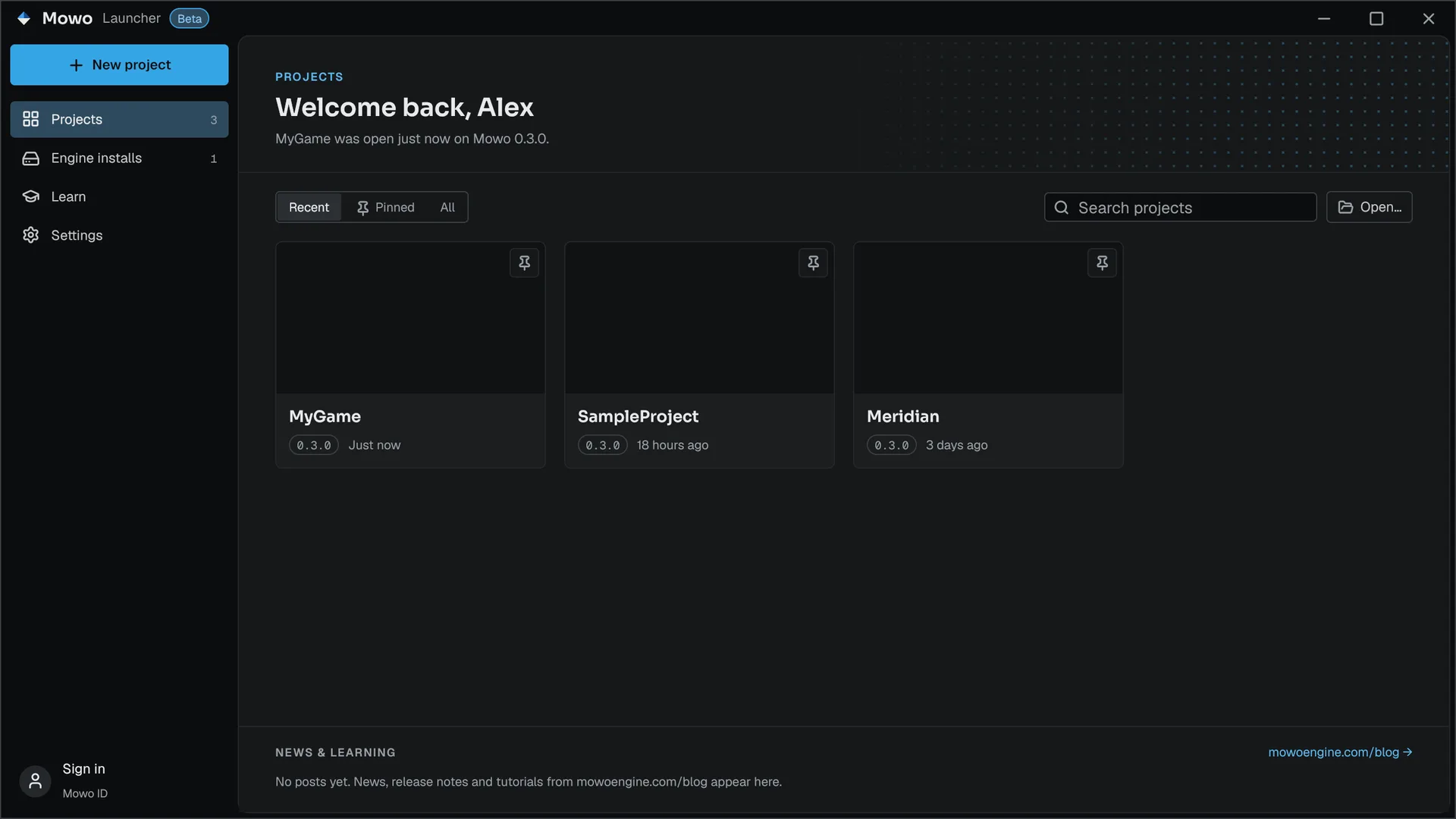
- Projects: Recent, All and Pinned filters and a search field. Double-click a card or press Enter to open the project in the engine install it was saved with. Right-click a card for Open, Show in folder, Pin to top and Remove from list. A project whose folder is gone shows Folder not found. Each card's thumbnail is the frame the editor saves to
Saved/AutoScreenshot.pngwhen you save a level. - Engine installs: this engine, installed builds found on the machine, and source trees you add with Add source build. A source build that needs compiling offers Build editor; Set as default picks the install new projects use.
- Learn and News & learning read the mowoengine.com blog feed, cached so the last posts show offline.
- Settings: the theme (Dark, Light, High Contrast), the default projects folder and the default engine.
The launcher's title bar
The launcher draws its own title bar, like the editor. Drag its empty part to move the window, double-click it to maximize, and on Windows 11 rest the pointer on the maximize button to pick a snap layout. Its menus:
| Menu | What it holds |
|---|---|
| File | New Project… (the wizard), Open Project… (pick a .mproject on disk and open it), Add Existing Project… (add one to the list without opening it), Open Recent (the last ten projects you opened that still exist), Exit |
| Edit | Preferences (the Settings page) |
| Help | Documentation and Release Notes on mowoengine.com, the Learn page, Report a Bug (a dialog that fills in your version, platform and GPU and opens an email to [email protected]) and About Mowo Engine (version, credits and third-party licences) |
Create a project with mbt init
mbt init needs no GUI. Run it from the engine repository root:
.\mbt.cmd init MyGame -o D:\Projects\MyGame| Argument or option | Meaning |
|---|---|
<name> | Project name: letters, digits and underscores, starting with a letter |
-o, --output <dir> | Where to create the project. Default: ./<name>. The folder must be missing or empty |
--no-source | Skip the C++ game module, for a content-only project |
mbt init writes the folder tree (Content/ with Scenes, Materials, Textures, Models and Audio, Config/, Plugins/, Saved/, Intermediate/), a <name>.mproject with default settings, a .gitignore and a .gitattributes. Unless you pass --no-source, it also writes a game module (Source/<name>.Build.cs), a game target (Source/<name>.Target.cs, the player host named after your project) and one actor class, A<name>Actor. It prints the editor command line and the build command when it finishes.
Rendering defaults
Every new project, whichever way it was created, starts with the heavy rendering features off: Global Illumination, ray tracing, MegaLights, the volumetric cloud volume, volumetric fog and frame generation. Sun and local-light shadows, GTAO, screen-space reflections, bloom, TSR or TAA, auto exposure, height fog and the upscalers are on and scale with the quality tier. Turn on what your game needs in Project Settings > Rendering > Features; see Project settings.
Launcher or mbt init?
| Project Launcher | mbt init | |
|---|---|---|
| Start level | Yes, Content/Scenes/Main.mmap from the template | None; the editor opens an untitled level |
| Game mode, input and HUD | Yes | No |
| C++ module layout | Source/<Name>/<Name>.Build.cs beside <Name>.Target.cs and <Name>Editor.Target.cs | Source/<name>.Build.cs, flat |
| Opens the editor | Yes | No |
When the editor opens a project, it loads each built game module it finds at Source/<Module>/<Module>.Build.cs. The flat layout mbt init writes is not in that scan. Load it for the session with Build › Compile Game Module, as described in Your first build.
Open a project from the command line
Pass the manifest to the editor. --no-splash skips the splash screen.
& .\Engine\Binaries\win-x64\dev\MowoEditor.exe --project D:\Projects\MyGame\MyGame.mprojectNext steps
- Templates for what each template contains.
- Project layout for what each folder holds.
- Your first scene to place actors and press Play.
Engine sources
This page describes behavior implemented in these files of the engine repository, checked against commit 32a6c827c.
- Engine/Source/Runtime/AssetSystem/Public/Project/TemplateDefs.h