 Mowo
Your first build
Compile your project's C++ game module, load it in the editor, and package the project into a folder you can run on another machine.
Your game's C++ code lives in a game module: a shared library the editor and the player load at run time. This page builds that module from the command line and from the editor, then packages the whole project into a folder you can hand to someone else.
Run every mbt command on this page from the engine repository root, after you have built the engine once as described in Installing.
What is in the game module
mbt init and every template except Blank give you a module with the same parts:
<Module>.Build.cs, the module's rules: it depends onEngineLoopand runs the header tool overPublic/<Module>/, so everyMCLASSthere gets a class descriptor at run time;Private/<Module>Module.cpp, which exportsInitializeModuleandShutdownModule;<Project>.Target.cs, the game target: the engine's player host named after your project, with your module beside it;- for
mbt init, one actor class,A<Name>Actor.
This is the actor header mbt init MyGame writes:
#pragma once

#include "Game/AActor.h"
#include "Game/MSceneComponent.h"

#include "AMyGameActor.generated.h"

namespace Mowo {

MCLASS()
class AMyGameActor : public AActor {
public:
	MGENERATED_BODY()

	AMyGameActor() {
		MSceneComponent* root = CreateDefaultSubobject<MSceneComponent>("Root");
		SetRootComponent(root);
	}

	void Tick(float deltaSeconds) override;
};

} // namespace Mowo
The last include of a reflected header is its <Header>.generated.h, which the header tool writes during the build. That is why this sample cannot compile on its own.
Build from the command line
Pass your project's target to -t and its Source/ folder to --extra-source, so mbt finds the .Build.cs and .Target.cs files outside the engine tree:
.\mbt.cmd build -t MyGame --extra-source D:\Projects\MyGame\SourceThe target is named after your project, both for mbt init projects and for templates (the launcher renames a template's TP_<Name> module and targets after your project). -t MyGame builds the module and the game host MyGame into the install's Engine/Binaries/<platform>/<config>/ folder, in the configuration the editor was installed as.
When the editor opens a project, it loads each game module it finds at Source/<Module>/<Module>.Build.cs whose binary exists. A module that is not built yet is skipped with a log line.
Close the editor before a plain mbt build. The running editor holds the engine libraries open, so relinking them fails. To build while the editor runs, use Compile Game Module below.
Build and reload from the editor
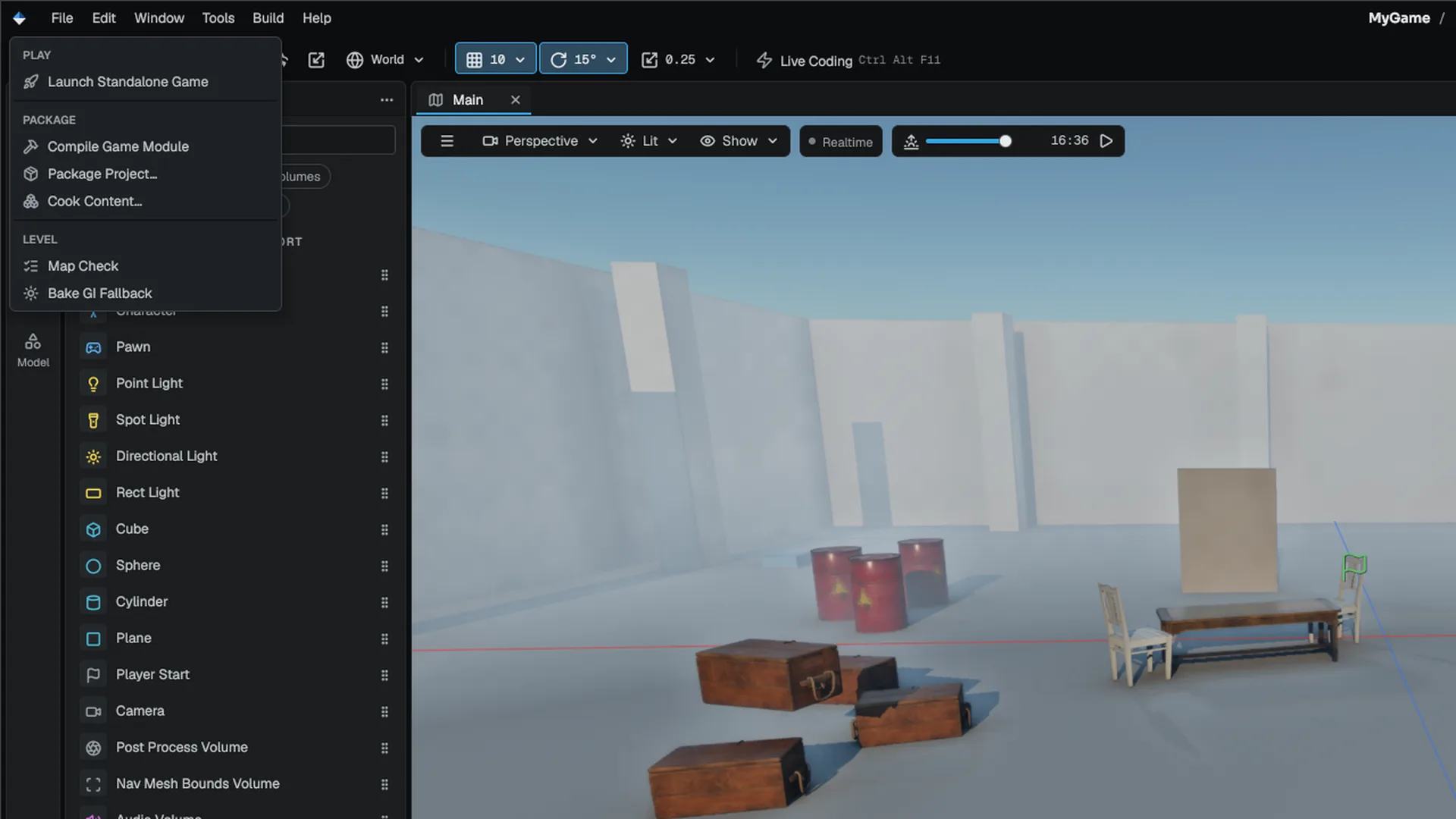
With the project open, choose Build › Compile Game Module. The editor runs this for you:
mbt build -t <Module> --hot-reload --frozen-engine --extra-source <Project>/Source- Compile Game Module
- mbt build --frozen-engine
- <Module>.v<N> library
- hot reload
--frozen-engine treats every engine module as up to date and builds only project modules against the existing engine binaries. --hot-reload links the module to a versioned file, <name>.v<N>.dll, because the operating system locks the one already loaded. This is also how you load an mbt init module: its flat Source/<Name>.Build.cs layout is not in the start-up scan, so compile it once per session from the Build menu.
Add a class
Use Tools › New C++ Class… in the editor, or the command line:
.\mbt.cmd newclass ADoorActor --project D:\Projects\MyGame--parent picks actor (the default), component or none. --parent-class with --parent-include subclasses any reflected class, for example --parent-class ACharacter --parent-include Game/ACharacter.h. The command scaffolds the module first if the project has none.
Programming covers game modules, Live Coding and hot reload in depth.
Package the project
mbt package builds the engine and your module, compiles shaders, cooks content and lays out a runnable folder. Start with a dev package:
.\mbt.cmd package --project D:\Projects\MyGame\MyGame.mproject -c dev- Build C++
- Compile shaders
- Validate and cook assets
- Stage runtime files
- Zip
| Default | Value |
|---|---|
| Configuration | release, when you pass no -c |
| Product name | --name, else build.outputName from the manifest, else the manifest's file name |
| Output folder | Config/Packaging.ini if it sets one, else Saved/Packaged/<Product>/ in the project |
| Zip | On: <Product>-<version>-<config>.zip |
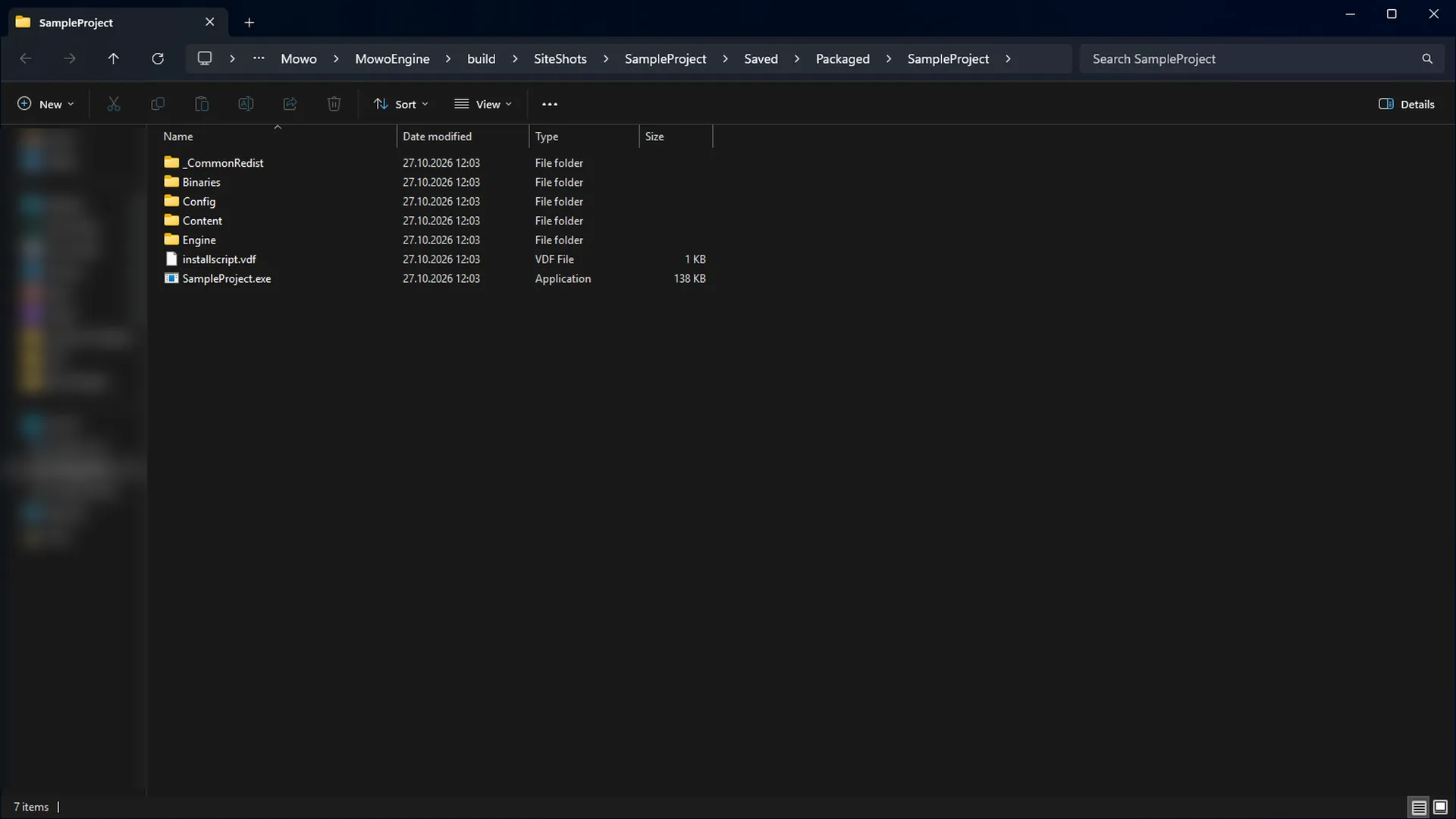
The package looks like this:
MyGame/
  MyGame.exe              thin launcher; run this
  Binaries/win-x64/       the real host MyGame.exe, its libraries and enabled plugins
  Content/Paks/           packed content archives
  Config/                 the project's shipped INI files
  Engine/Config/          the engine's INI layer
  Cache/PsoCache.mdfb
Double-click MyGame.exe to test it.
A release package encrypts and signs content with the keys in the project's Config/DefaultCrypto.ini, and refuses to package without them. Create keys with mbt crypto generate --project <manifest>, or pass --unprotected for a test build. Other configurations do not need keys. release also links the engine statically and builds with link-time optimization, which is the slowest build. See Shipping.
When you only changed content, --skip-build and --skip-shaders reuse the binaries and shaders you already have. The same flow is in the editor under Build › Package Project….
Next steps
- Core concepts for how modules, actors and the ECS fit together.
- Programming to write gameplay code.
- Shipping for signing, installers, Steam and servers.
Engine sources
This page describes behavior implemented in these files of the engine repository, checked against commit 3f3a08d31.
- Templates/TP_FirstPerson/Source/TP_FirstPerson.Target.cs