 Mowo
Settings and accessibility
The player settings and rebinding screens that ship with ArcUI, the model behind them, and every Accessibility option with its console variable.
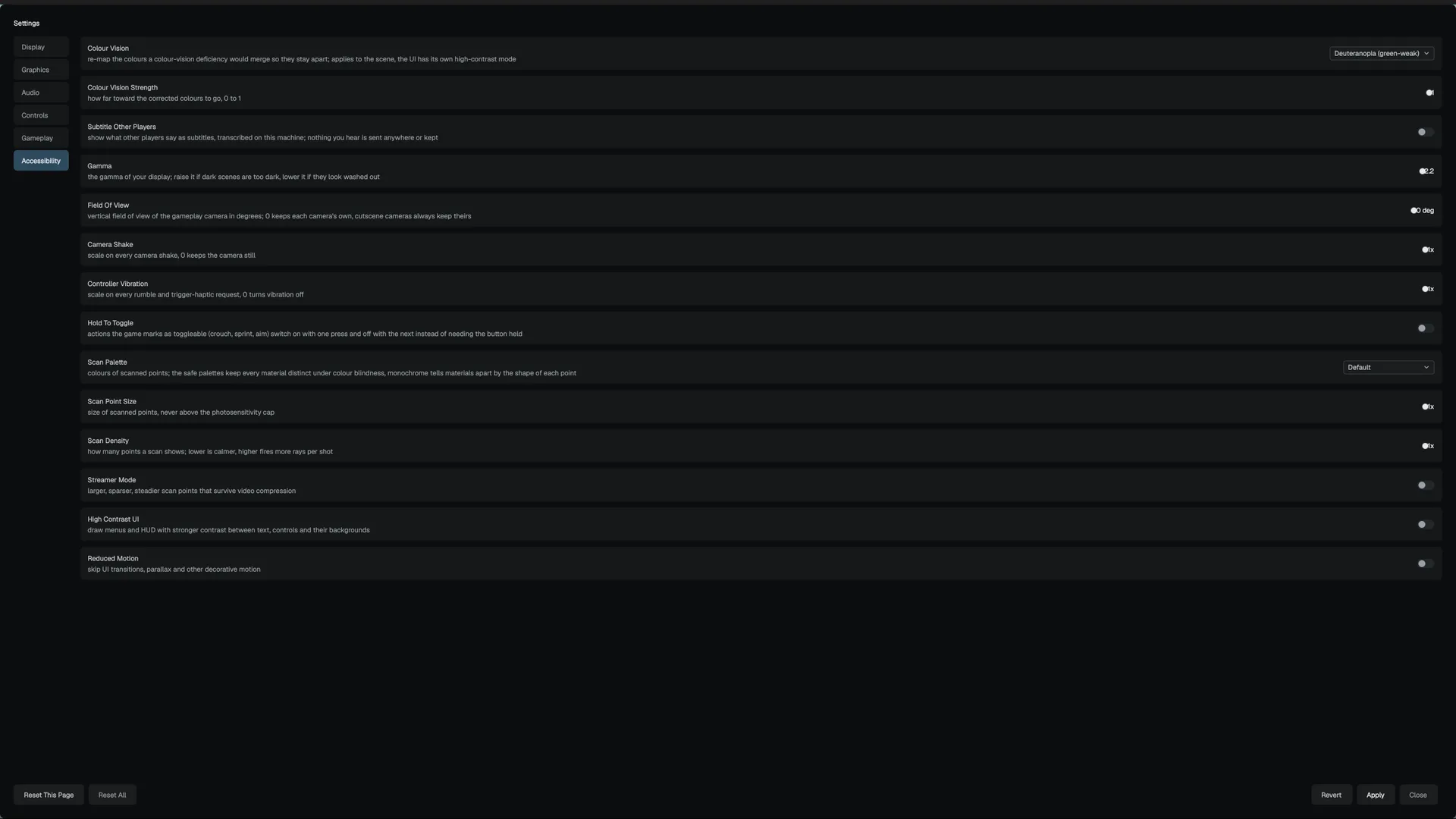
ArcUI ships a complete player settings screen and a key-rebinding screen. You do not build these from scratch: drop them into a .ui or create them in C++, and they read and write the same console variables the editor's Project Settings pages use. This page explains how the screens work and lists every Accessibility option.
How the settings system is built
- FGameUserSettings (model)
- AArcUISettingsScreen (view)
- Apply
- Cvars / GlobalConfig / Host
- GameUserSettings.ini
FGameUserSettingsis the model, the counterpart of Unreal's GameUserSettings. It owns every row, pending edits, Apply/Revert/Reset, the display confirmation countdown and the save file FGameUserSettings. A game with its own UI can use the model alone.AArcUISettingsScreenis the screen: a category rail, the rows of the selected category, and Apply / Revert / Reset. Rows the device cannot use are greyed with the reason shown, not hidden AArcUISettingsScreen.
Each row has a backend FGameUserSettings:
| Backend | Used for |
|---|---|
Cvar | Most rows. Written through the console manager. |
GlobalConfig | The five audio bus volumes (audio.master_volume, audio.music_volume, audio.sfx_volume, audio.voice_volume, audio.ambient_volume), which the audio engine reads from config. |
Host | Window mode, monitor, resolution and refresh rate. The runtime host applies these through SetHostApplier. |
Add the screens to your game
- Place the screen in a .ui
Add a node with
class: "SettingsScreen". It firesclosedwhen the player closes it andrebindwhen they ask for key bindings. Acategoryprop (Display,Graphics,Audio,Controls,GameplayorAccessibility) opens it on that page, for a menu button that leads straight to one category. ARebindScreennode firesclosed. - Wire the events
Handle
closedandrebindlike any other ArcUI event: aPlayAnim:verb, aVisualScript:Class.Eventaction, or a C++ action handler. See ArcUI screens. - Push it
Push the asset as a modal screen so gameplay stops receiving input while it is open.
In C++, build them with ArcNew(Arcf::AArcUISettingsScreen) and ArcNew(Arcf::AArcUIRebindScreen).
The packaged runtime prepares the model at startup: it builds the rows against the probed device, loads the save file, and pushes the stored values to their backends. You can also drive the model directly:
#include <ArcUI/Settings/FGameUserSettings.h>

Mowo::FGameUserSettings& settings = Mowo::FGameUserSettings::Get();

if (!settings.IsBuilt()) {
	settings.BuildModel(Mowo::FArcDeviceProfile::Probe());
	settings.Load();
}

settings.SetPending("cam.ShakeScale", "0");
settings.SetPending("r.ColorBlind.Mode", "2");
settings.Apply();
SetPending is refused for a row the device cannot drive FGameUserSettings. Apply pushes every staged value and writes the file. It returns false only when the file could not be written; the values are live either way.
Apply, revert and confirmation
- Edits stage as pending values.
Apply()commits them,Revert()drops them, andResetToDefaults()stages the shipped defaults for one category or all. - The four display rows (Window Mode, Monitor, Resolution, Refresh Rate) need confirmation. After Apply, a countdown runs; if the player does not confirm, the previous values come back. The default window is 15 seconds FGameUserSettings. The screen stack advances the countdown every tick.
- Rows marked
NeedsRestart, such as UI Scale Override and Global Illumination, take effect on the next launch. - If a cvar row has no registered variable (for example, a disabled plugin owns it), Apply logs a warning naming the row.
Device gating
FArcDeviceProfile::Probe() reads what the graphics API and GPU support. A control the API can never do is greyed with the backend's name; one the GPU lacks is greyed with "unavailable on this RHI/GPU". A third axis is the game itself: the Global Illumination, ray-tracing, MegaLights, volumetric fog and frame-generation rows are greyed with "this game does not use it" when the project left that feature off in Project Settings > Rendering > Features. The four ray-traced rows (reflections, ambient occlusion, sun shadows and the Global Illumination gather) are decided one by one by the ray-tracing capability query. A saved value for a greyed row is dropped on load, because the save file can outlive the GPU it was written on.
Where settings are saved
<project>/Saved/Config/GameUserSettings.ini, or the per-user folder when no project is open. An older GameUserSettings.mdf is converted on first read Engine/Source/Runtime/Core/Public/Core/ProjectLayout.h. Never the project's committed Config/ folder. A value at its default is not written, so a later engine that changes a default carries the player along.
Categories
There are six built-in categories: Display, Graphics, Audio, Controls, Gameplay and Accessibility FGameUserSettings. A game adds pages of its own after them (see Add your own settings).
| Category | Examples |
|---|---|
| Display | Window mode, monitor, resolution, refresh rate, vertical sync, frame-rate cap, HDR output, UI scale override |
| Graphics | Quality preset (r.Quality), anti-aliasing and upscaler (r.Upscaler), frame generation, shadows, GI, reflections, view distance and more |
| Audio | Bus volumes, subtitles and captions, voice chat |
| Controls | Mouse sensitivity and invert, stick and trigger deadzones (global and per player 1–4), input debug overlay |
| Gameplay | Language (i18n.Locale), autosave interval, autosave on travel |
| Accessibility | See below |
Add your own settings
A game adds rows (and pages) to the same screen with FGameUserSettings::RegisterRow. Registration keeps the definition, so a model rebuild (the GPU probe finishing, for example) never drops it, and it may run before or after the model is built FArcGameSettingDef.
#include <ArcUI/Settings/FGameUserSettings.h>

FArcGameSettingDef leaves;
leaves.Id = "mygame.fancyLeaves";               // the key saved in GameUserSettings.ini
leaves.Label = "Fancy Leaves";
leaves.Description = "Draw leaves with transparency.";
leaves.Category = EArcSettingCategory::Graphics; // or leaves.Page = "My Game" for a page of its own
leaves.Control = EArcSettingControl::Toggle;     // Toggle, Slider or Choice
leaves.DefaultValue = "1";
leaves.TierValues = { "0", "0", "1" };           // follows the Quality Preset until the player moves it
leaves.OnApply = [](const std::string& value, bool persist) {
    MyGame::SetFancyLeaves(value == "1");
};
FGameUserSettings::Get().RegisterRow(leaves);| Field | Meaning |
|---|---|
Id, Label, Description, Suffix | The saved key and what the player reads. The id must not collide with an engine row. |
Control, ValueType, Choices, MinValue, MaxValue, Step | A toggle, a slider with a range and step, or a choice list (values must be unique). |
DefaultValue | The value a fresh install and Reset use. A value at its default is not written to the file. |
CvarName | Bind the row to a console variable: read at start-up, written on Apply. Without it the row is a pure callback row. |
OnApply | Called with the value after Apply (persist = true) and on the start-up replay of the saved value (persist = false). |
Requirement, RequirementReason, HideWhenUnavailable | A check that decides whether the row is usable. A failing one greys the row and prints the reason in place of the description, or removes it. Call RefreshRequirements() when the answer changes at run time. |
TierValues | The value at each Quality Preset tier (the last entry covers higher tiers). A row follows the preset only while it still holds its tier's value. |
Page | A page of your own, listed in the rail after the six built-in categories. |
NeedsRestart, NeedsConfirmation | The same behaviours as the engine rows, including the 15 second revert countdown. |
RegisterRow returns false, and logs why, for an empty or taken id, a binding to a console variable nobody registered, a choice row with no choices or two choices with one value, and a slider whose maximum is not above its minimum. UnregisterRow removes a row. The screen shows your page with AArcUISettingsScreen::SetPage.
Accessibility options
Every Accessibility row writes a console variable that an engine system reads, so a game gets these options without extra wiring. | Setting | Cvar | Range (default) | What reads it |
| --- | --- | --- | --- |
| Colour Vision | r.ColorBlind.Mode | Off, Protanopia, Deuteranopia, Tritanopia (Off) | Post-tonemap color correction on the scene |
| Colour Vision Strength | r.ColorBlind.Strength | 0–1 (1) | Same pass |
| Gamma | r.DisplayGamma | 1.8–2.6 (2.2) | Re-encodes the SDR image for the panel's gamma |
| Field Of View | cam.FOV | 0–120° (0) | Gameplay camera's vertical FOV. 0 keeps each camera's own value; Sequencer cut cameras always keep theirs |
| Camera Shake | cam.ShakeScale | 0–1× (1) | Scales every camera shake |
| Controller Vibration | i.RumbleScale | 0–1× (1) | Scales every rumble and trigger-haptic request; 0 is off |
| Subtitle Other Players | audio.AutoSubtitles | on/off (off) | Transcribes what other players say in voice chat on this machine and shows it as subtitles |
| Hold To Toggle | i.HoldToToggle | on/off (off) | Hold actions marked toggleable latch on one press and release on the next |
| High Contrast UI | ui.HighContrast | on/off (off) | Arc accessibility manager flag |
| Reduced Motion | ui.ReducedMotion | on/off (off) | Arc accessibility manager flag |
The color-vision correction applies to the rendered scene only. The UI has its own high-contrast mode.
Apply pushes ui.HighContrast and ui.ReducedMotion into CArcAccessibilityManager. With High Contrast UI on, Arc draws with its high-contrast colours. With Reduced Motion on, decorative transitions jump to their end and popups open without sliding.
Hold To Toggle only affects actions the game marks as toggleable (the row's own examples are crouch, sprint and aim).
The Accessibility category also has four r.PointCloud.* rows: Scan Palette (including red-green safe, blue-yellow safe and monochrome-with-shapes palettes), Scan Point Size, Scan Density and Streamer Mode. They serve the engine's LiDAR point-cloud renderer and matter only for games that use it.
Subtitles and captions
Subtitle options live in the Audio category. The Narrative module's subtitle system registers the cvars.
| Setting | Cvar | Range (default) |
|---|---|---|
| Show Subtitles | audio.Subtitles | on/off (on) |
| Closed Captions | audio.ClosedCaptions | on/off (off); also describes non-speech sounds |
| Show Speaker Names | audio.SubtitleSpeakerNames | on/off (on) |
| Subtitle Size | audio.SubtitleScale | 0.5–3× (1) |
| Background Opacity | audio.SubtitleBackgroundOpacity | 0–1 (0.6) |
| Max Subtitle Lines | audio.SubtitleMaxLines | 1–6 (3) |
These rows are defined in the settings table.
Rebinding keys
FArcRebindModel lists every action of every registered input context, with one column per device family. AArcUIRebindScreen::Model() returns it AArcUIRebindScreen.
| Call | Does |
|---|---|
BeginCapture(context, action, device) / CancelCapture() | Start or stop listening for a new input |
CaptureKey, CaptureMouseButton, CaptureGamepadButton, CaptureGamepadAxis | Commit the pressed input as the new binding |
ResetAction, ResetContext, ResetAll | Drop overrides |
Save() | Write the player's bindings |
While IsCapturing() is true, the host routes raw input to the model instead of the game FArcRebindModel. Rebinding the keyboard column keeps the gamepad binding and the other way round. Actions and contexts are the project's .inputaction and .inputcontext assets. Conflicts are reported on the row (KeyboardConflicts, GamepadConflicts) but not refused, since some overlaps are intentional.
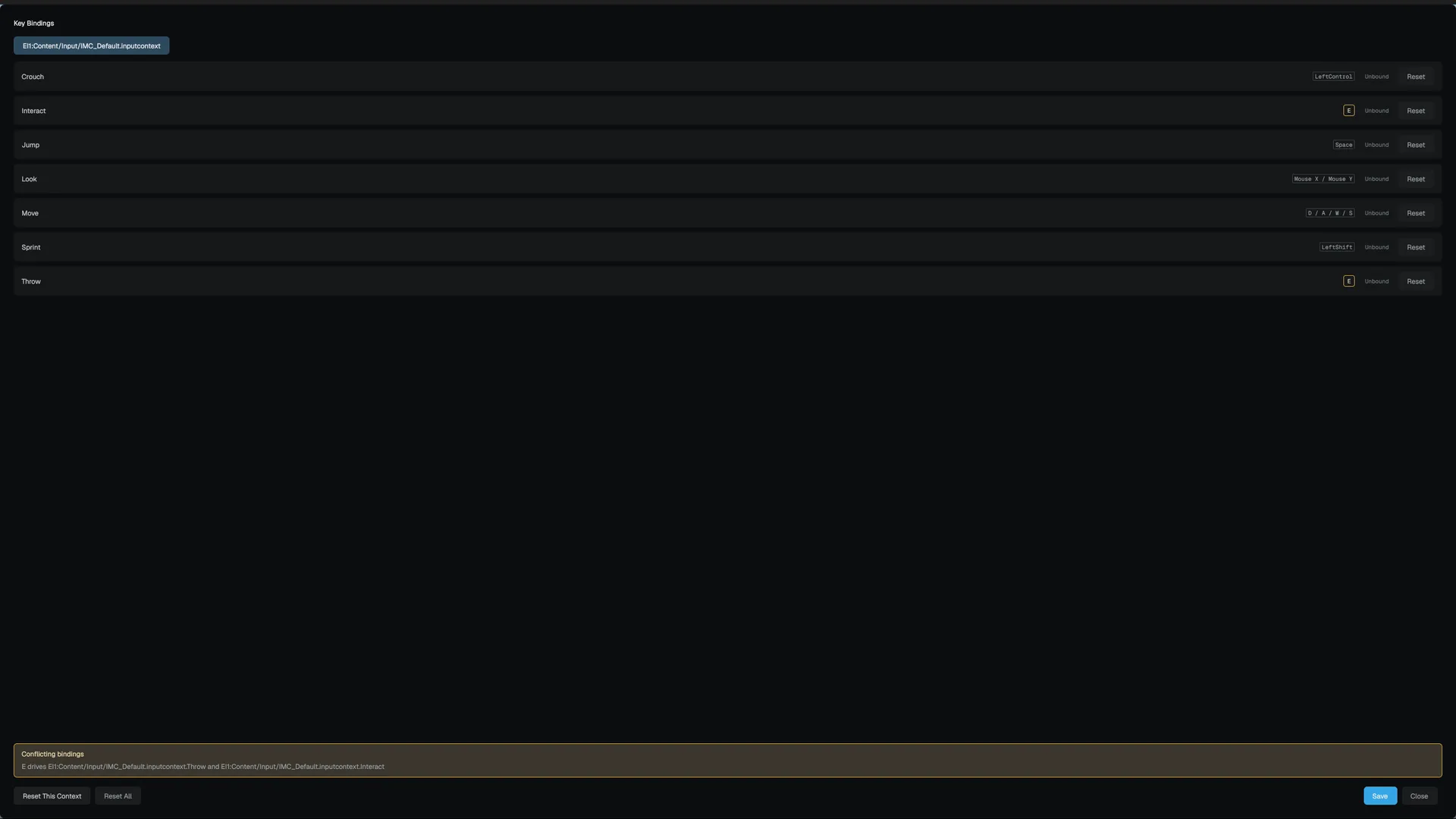
A custom controls screen
A game that builds its own controls screen in a graph or an ArcUI layout, instead of using RebindScreen, uses the Rebind Library (MRebindStatics): list the actions with their bindings, start a capture, poll it, read conflicts, reset and save MRebindStatics.
Lobby screen
A LobbyScreen node shows a multiplayer lobby and fires closed when the player leaves it. Its data comes from a lobby source the host installs AArcUILobbyScreen.
Related
- ArcUI screens for events and modal screens.
- API: ArcUI reference, including
FGameUserSettings,AArcUISettingsScreen,AArcUIRebindScreen,FArcRebindModel, CArcAccessibilityManager.
Engine sources
This page describes behavior implemented in these files of the engine repository, checked against commit 47c78cd0a.
- Engine/Source/Runtime/ArcUI/Public/ArcUI/Settings/FGameUserSettings.h
- Engine/Source/Runtime/ArcUI/Public/ArcUI/Widgets/AArcUISettingsScreen.h
- Engine/Source/Runtime/ArcUI/Public/ArcUI/Widgets/AArcUIRebindScreen.h
- Engine/Source/Runtime/ArcUI/Public/ArcUI/Settings/FArcRebindModel.h
- Engine/Source/Runtime/Arc/Public/Arc/Accessibility/CArcAccessibility.h
- Engine/Source/Runtime/ArcUI/Public/ArcUI/Statics/MRebindStatics.h
- Engine/Source/Runtime/ArcUI/Public/ArcUI/Widgets/AArcUILobbyScreen.h
- Engine/Source/Runtime/Core/Public/Core/ProjectLayout.h