 Mowo
Animation editors
Author notifies, curves and montages on clips, standalone montages, blend spaces, pose assets, IK retargeters and control rigs, and generate motion candidates.
These editors author the data that animation runs on. Keyframes come from imported models and are read-only here; what you author is the layer on top: notifies, curves, montages, blend spaces, poses, retargeting and rigs. The animation graph, which ties them together at runtime, is covered in Gameplay. All of these editors use the shared asset editor frame and share one preview scene rig.
Animation Clip editor
Open a skinned .mmodel with Open With ▸ Animation Clip. The model must carry a skeleton and at least one clip. What you author is saved in the model's sidecar: per-clip loop, rate scale and root motion, notifies, curves and montages. Clip data itself is read-only.
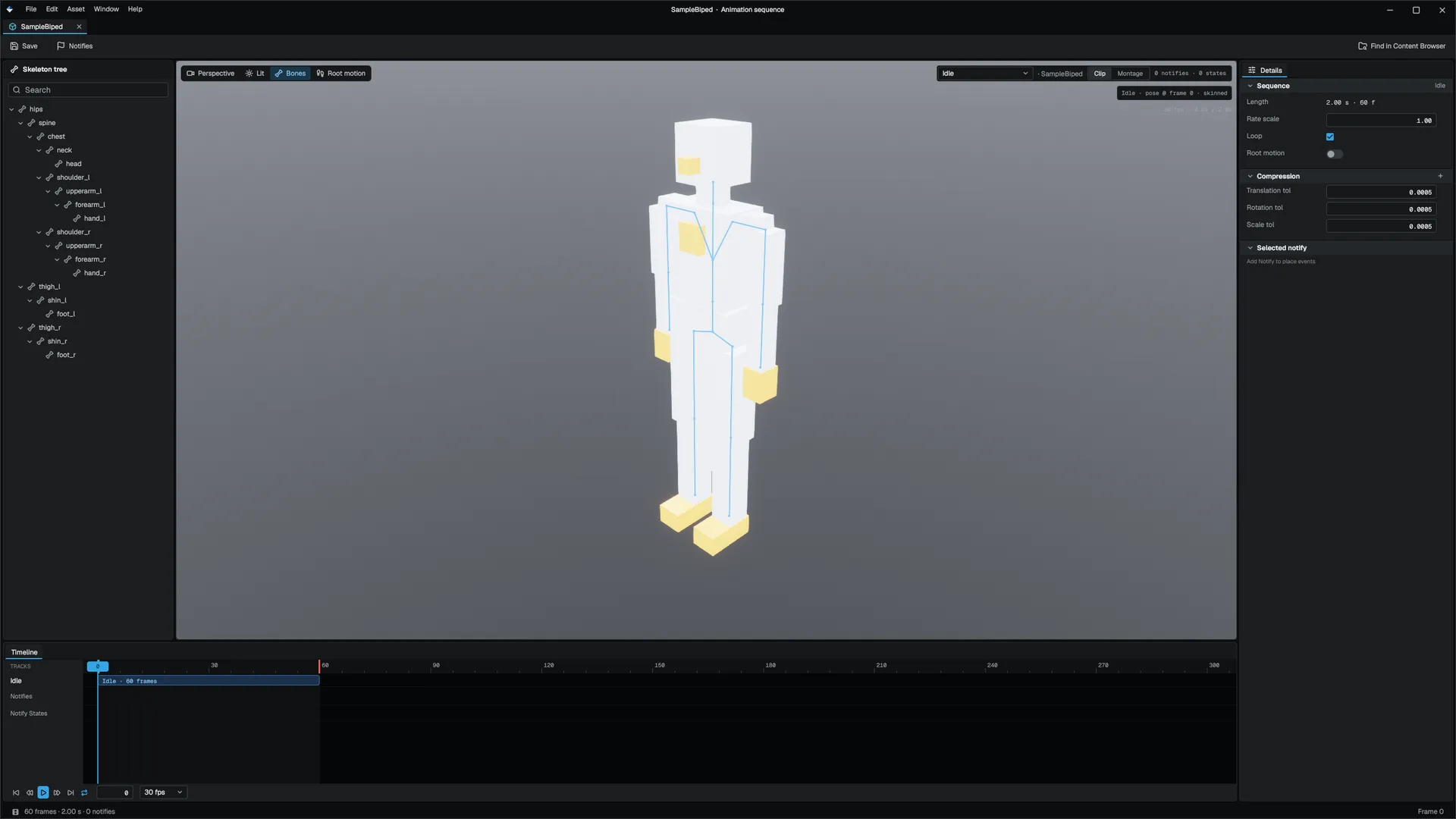
| Area | Contents |
|---|---|
| Toolbar | Save, Notifies (add a notify or a notify state at the playhead), Find in CB |
| Skeleton tree | The clip's skeleton with a search box; a picked bone is named in the preview |
| Preview | The clip combo, Clip / Montage switch, and chips for perspective, lighting, bones and Root motion (off plays in place; on lets the root travel and draws its path on the floor) |
| Timeline | Notify and curve tracks over a scrubbable ruler, with the transport bar |
| Details | Sequence settings, compression, the selected notify, and in montage mode the montage, its sections, notifies and curves |
The transport has start, previous frame, play/pause, next frame, end, a loop toggle (which writes the clip's own loop flag), the frame number and an fps choice of 24, 30, 60 or 120. With the timeline focused, Space plays, Left/Right step a frame and Delete removes the selected notify. Times are stored in seconds and shown in frames.
A notify with a duration is a notify state. A notify can play a sound or a particle effect or fire a named event; see Gameplay for what notifies do at runtime.
Anim Montage editor
A .montage is a montage as its own asset (Add ▸ Anim Montage), referable from anywhere. Montages authored in a clip's sidecar keep working.
| Field | Meaning |
|---|---|
| Name | The montage's identity; gameplay plays it by this name |
| Skeletal Mesh | The .mmodel whose clips the sections name |
| Clip | The fallback clip for sections that do not name their own |
| Slot | The animation graph slot the montage plays in |
| Blend In / Blend Out | Seconds to blend over the base pose and back |
| Play Rate | Playback speed |
The toolbar has Save, Find in CB, Sections (show the section chain), Notifies (add one at the playhead) and Curves. The left panel lists fired notifies and the Sections chain, where a combo per section picks the section it hands over to. The viewport plays the montage through the runtime montage player, so what you see is what the game does. The dock holds the timeline and curves.
Blend Space editor
Blend spaces live inside animation graph states, not as separate assets. Open one by double-clicking a blend-space state on the animation graph canvas, or with Open Blend Space Editor in the state inspector. It opens as its own tab but shares the graph's document, so undo and save are shared.
| Gesture | Result |
|---|---|
| Drag the green cursor, or click the pad | Moves the preview point; weights and pose update live |
| Drag a sample | Moves it, one undo entry per drag; snaps with Snap to grid |
| Double-click empty pad | Adds a sample there |
| Click a sample | Selects it to edit its clip and position in Details |
The toolbar switches between 1D (a strip) and 2D (a pad) and toggles Show triangulation. Under the preview, Current weights lists each clip contributing at the cursor.
Pose Asset editor
A .pose is a set of named poses over a shared bone list, used by the Pose by Name, Pose Blender and Pose Driver graph nodes.
| Toolbar | Effect |
|---|---|
| Add pose | Adds a pose holding what the preview shows |
| Update from viewport | Captures the preview into the selected pose |
| Additive | Toggles the asset's additive mode |
| Reset weights | Returns every preview weight to 0 |
The Poses list has a filter and, per pose, a preview weight slider. Weights are editor state only, not saved; the viewport blends the poses with the same code the Pose Blender node uses. With every weight at zero it shows the selected pose.
IK Retargeter
A .retarget maps one skeleton's animation onto another. Two previews play side by side: the source rig with one of its clips and the target rig replaying it through the retarget map the runtime uses.
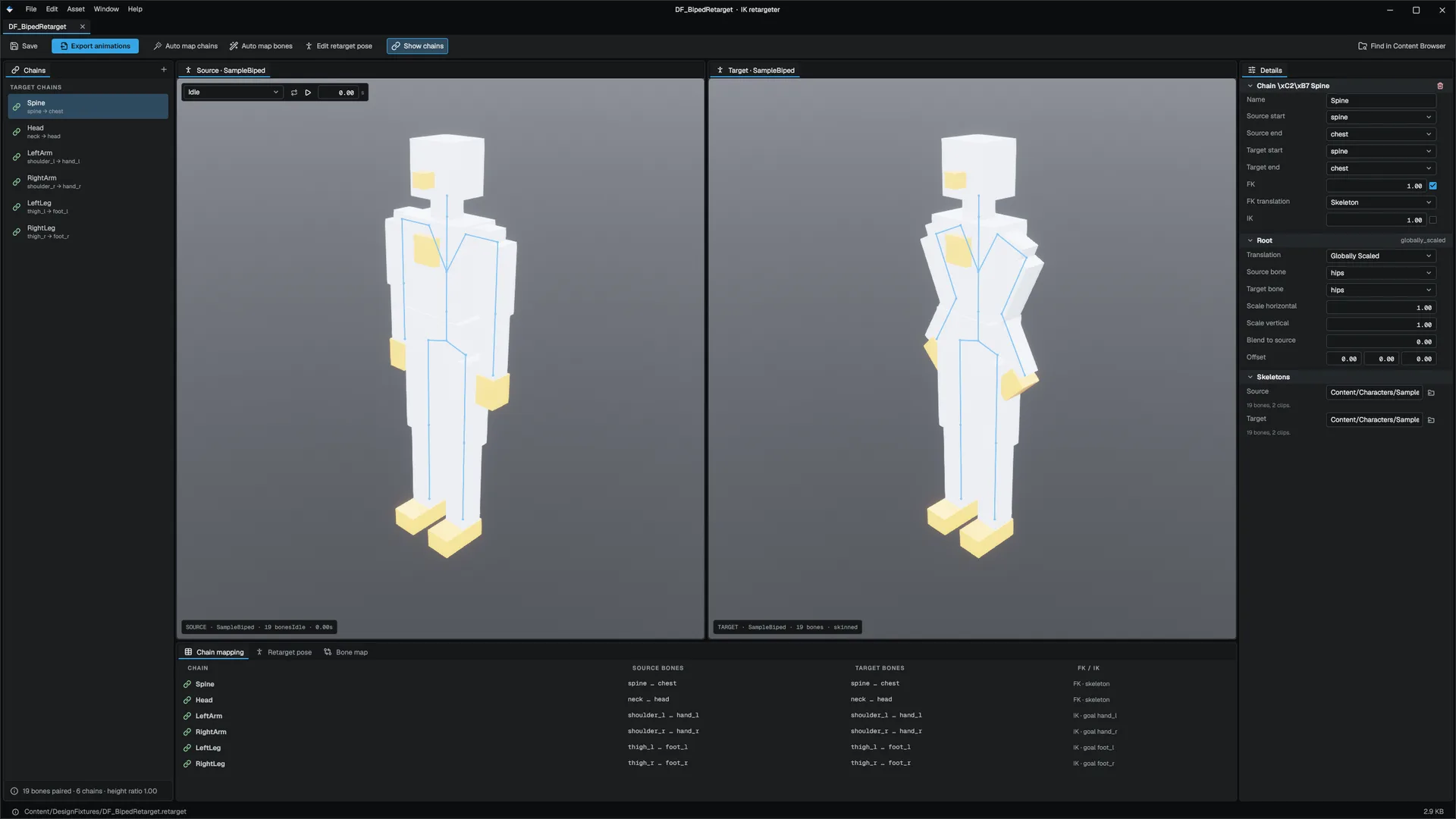
| Toolbar | Effect |
|---|---|
| Export animations | Retargets the previewed clip onto the target skeleton and writes it beside the target model |
| Auto map chains | Fills the target ends of chains whose source ends are set |
| Auto map bones | Pairs unmapped bones whose names match |
| Edit retarget pose | Switches the dock to adjusting the source and target retarget poses |
The Chains panel lists each chain with its span and whether both rigs are mapped. Details holds the bone map, name prefixes to strip (such as mixamorig:), per-bone translation modes, the root settings (mode, scale, blend, offset) and per-chain FK and IK settings.
Root mode, FK gating and the retarget poses are used by this editor's preview and by Export animations; the runtime retarget component does not read them yet.
Control Rig editor
A .controlrig is a node graph that edits a skeleton's pose procedurally. Execution wires order the pose-changing nodes from Begin to Result; data wires carry floats, vectors and transforms into node inputs. A Begin node's event picks the chain: Forward runs every frame, Construction once at bind.
| Node | Role |
|---|---|
| Control, Set Control | Read or write a named control |
| Get / Set Bone Transform | Read or write a bone, local or global |
| Two Bone IK | Reach an effector with a three-bone chain, with an optional pole |
| Aim | Aim a bone at a target |
| Offset Transform, Blend Transform | Offset or interpolate transforms |
| Math (Transform), Math (Float) | Add, multiply or lerp |
Controls are the inputs the game and animator set at runtime. Add them with Add Control (float, vector or transform); the rail lists them with their space and parent. The preview runs the rig on its skeleton as you edit.
Generate Motion
Generate Motion depends on an external motion-generation environment that is not part of the engine. Without it, the window can still import a previously written stream.
Window ▸ Debug ▸ Generate Motion asks an external model for motion and turns the result into ordinary keyframes. Nothing runs at game time.
- The Prompt panel describes the motion: a prompt, a style key, an optional reference clip, duration, loop and root motion; constraints such as keeping feet planted and a seed; a root trajectory as waypoints; and the target rig with bone-name prefixes and a name map.
- Generate bakes four candidates with consecutive seeds; Stop cancels.
- The Candidates panel shows the selected candidate's root path and four candidate cards.
- Save selected retargets the chosen candidate onto the target rig and writes it as a clip. Import stream loads the last written stream as candidate 1.