 Mowo
Working with C++
Add C++ classes to your project's game module, rebuild and hot reload it or patch it with Live Coding, browse classes, and open sources in your IDE.
Gameplay code in Mowo is C++ in your project's game module, a DLL built from <Project>/Source/. The editor can create classes in that module, rebuild it while you keep working, and swap the new binary into the running session. This page covers that loop from the editor's side. For how to write the classes themselves, see the Gameplay section.
- New C++ Class (mbt newclass)
- Edit in your IDE
- Compile Game Module (--hot-reload --frozen-engine)
- Hot reload swaps the DLL
- Actors restored
Adding a class
- Open the wizard
Choose Tools ▸ New C++ Class…, or New C++ Class… in the C++ Classes root of the Content Browser.
- Pick a parent
Choose Actor (a placeable object with components, a transform and Tick), Actor Component (reusable behavior that ticks with its owner) or Empty Class (plain C++, no reflection). The list also offers existing reflected actor classes, such as the engine's pawns and characters, when their header can be found.
- Name it
Type the class name. The dialog previews the file paths and rejects invalid names.
- Create
Create writes the files. Create & Build also rebuilds the module and hot reloads it.
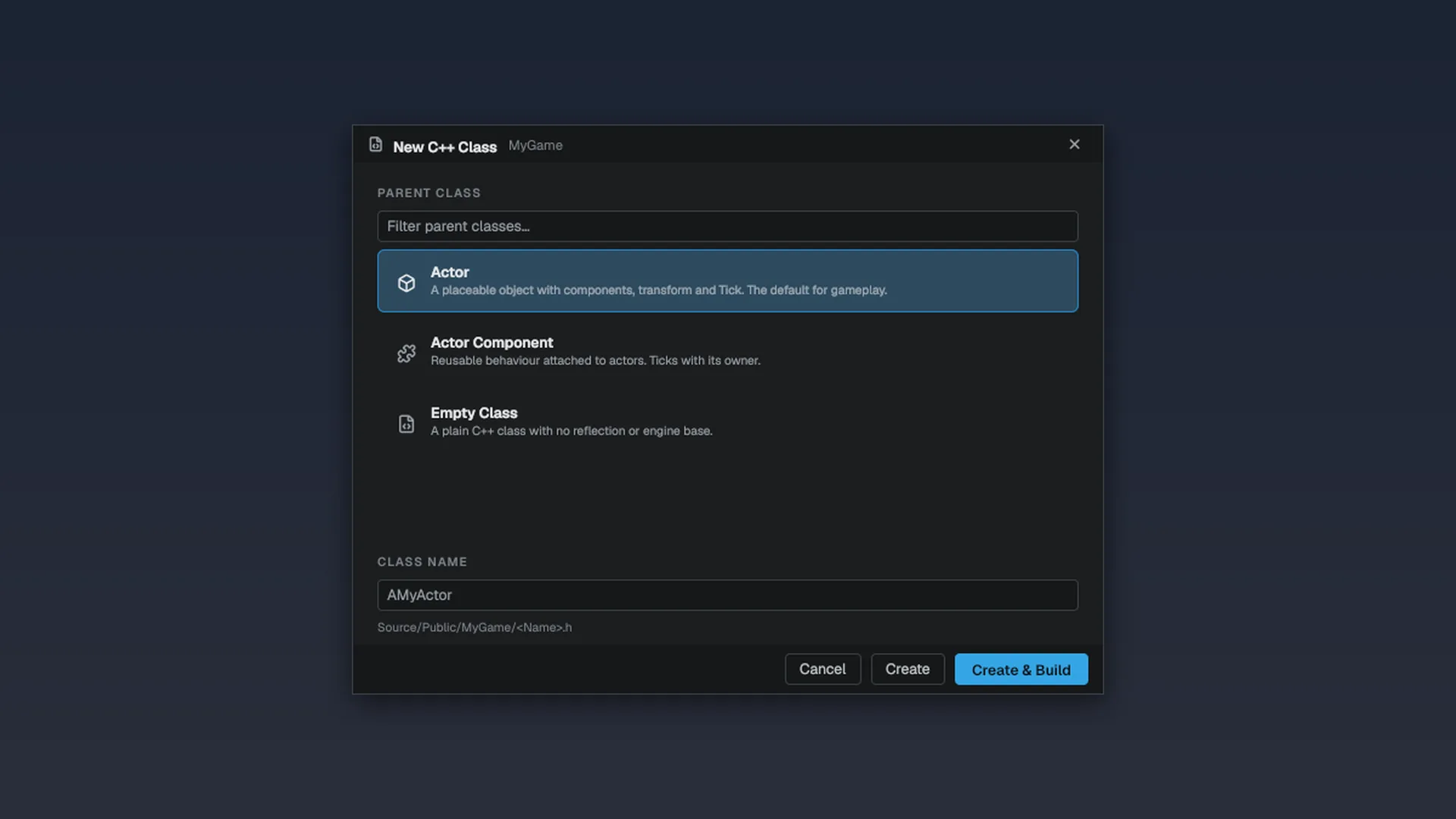
The wizard runs mbt newclass for you. The first time, it also scaffolds the module itself. A class lands in two files:
<Project>/Source/<Module>/Public/<Module>/<ClassName>.h
<Project>/Source/<Module>/Private/<ClassName>.cpp
An Actor parent produces this header:
#pragma once

#include "Game/AActor.h"
#include "Game/MSceneComponent.h"

#include "ADoorActor.generated.h"

namespace Mowo {

MCLASS()
class ADoorActor : public AActor {
public:
	MGENERATED_BODY()

	ADoorActor() {
		MSceneComponent* root = CreateDefaultSubobject<MSceneComponent>("Root");
		SetRootComponent(root);
	}

	void Tick(float deltaSeconds) override;
};

}
and this source file:
#include "stdafx.h"
#include "MyGame/ADoorActor.h"

namespace Mowo {

void ADoorActor::Tick(float deltaSeconds) {
	AActor::Tick(deltaSeconds);
}

}
The header's last include is its .generated.h, which the header tool writes during the build; the sample only compiles inside the module build for that reason.
Name each header after the class it declares. The editor finds a class's source by its header name, for Edit in C++ and the Class Viewer's Open Source.
See Gameplay for what to put in the class, and the Game API for AActor, MActorComponent and MSceneComponent.
Rebuilding and hot reloading
Build ▸ Compile Game Module rebuilds your module while the editor keeps running and swaps it into the live session. It runs this build in the background:
mbt build -t <Module> --hot-reload --frozen-engine --extra-source <Project>/SourceWith several game modules, Compile builds every module that no other project module depends on (read from every string in each .Build.cs, comments excluded, so multi-line lists count; a static-library module is built with its users and never swapped on its own). If one module fails to build, the ones that built are still swapped and the toast names the failure. When the swap is deferred until Play stops, a second compile keeps the modules still waiting one after another and swaps them together once all have built. Building a module also rebuilds what it depends on, so nothing is left stale behind a success message. A module that others depend on stays loaded and locked while the editor runs, so it cannot be swapped: keep logic you want to hot reload in a static library module (BinaryType = ModuleBinaryType.StaticLibrary), which links into the DLL that uses it, or restart the editor after changing a shared DLL.
--frozen-enginebuilds only your module and links it against the engine binaries already on disk. The editor has the engine DLLs loaded and locked, so relinking them would fail.--hot-reloademits a versioned DLL that can be loaded next to the old one.
Notifications report the start, the success, or a failure with a short detail taken from the build output. The command is disabled while a compile is running and during Play. If a compile finishes during Play, the swap waits and happens on the first frame after you stop.
What the swap does
The swap is done by FHotReload::ReloadModule:
- Snapshot and destroy every actor whose class lives in your module.
- Run a garbage collection pass so nothing still points into the old DLL.
- Unregister the module's classes and unload it.
- Load the newest binary.
- Recreate the actors against the new class tables and restore their saved property values.
Property values are matched by name, so a field that moved in the class still restores. A removed field is skipped and a new field keeps its constructor default. References to other actors and components are restored by identity after all actors are back.
Fields whose bytes hide a heap pointer, such as a struct containing a std::string or a container, are not carried across a reload; they return to their constructor defaults. A plain struct holding a raw pointer would carry a stale address, so mark such fields MOWO_RUNTIME_ONLY.
Projects with several game modules
A project can hold several modules under Source/, for example a server-safe Foo and a FooClient that depends on it, plus static-library modules. List the dependency in the dependent's .Build.cs; the editor reads that list.
- On open, the editor loads each module after the modules it imports, whatever their folder names, and registers every module's classes.
- Anything that stops a module loading is written to the Output Log as an error with the reason: the file it looked for, the dependency DLL the loader could not find, the build ids of a stale module (the one on disk and the one the build manifest records) or the operating system's own message. Rebuild with the command in the message.
- If the project's game mode class belongs to a module that did not load, Play shows an error toast and logs the module's reason before falling back to the default game mode.
When you must restart
If your module needs something the engine binaries on disk do not export (for example, after pulling engine changes), the frozen-engine link fails with a message telling you the engine binaries are older than the engine source. Close the editor, run mbt build from a terminal, and reopen the project.
Actors that run in the editor
Placed actors are inert until Play. An actor that previews generated content in edit mode, such as a procedural world, overrides:
bool ShouldTickInEditor() const override { return true; }
void TickInEditor(float deltaSeconds) override;
The edit world calls TickInEditor once per editor frame, within the ed.TickBudgetMs budget (default 4 ms; 0 is unlimited). When the budget is spent the remaining actors run first on the next frame, so a slow generator cannot freeze the editor. Tick and BeginPlay stay play-only, and nothing runs while Play is active: the edit world is paused behind the play copy and resumes on Stop. A tick that only adds transient (generated) actors does not mark the level modified, so generating a preview never asks you to save or wakes the autosave; a tick that creates or changes authored content does mark it, and TickInEditor should not do that. It creates no undo entries unless it records one itself.
Ask where the viewers are with FViewerRegistry::Get().GetViewers(world). In the edit world it returns the cameras of the visible editor viewports; in Play it returns the player's camera, in a game the main camera. A scene system that only has the ECS world passes that instead.
Generated content
Mark what an editor-time actor creates as transient with owner->MarkGenerated(child):
- it is not written to the level, not copied into the Play world (which regenerates its own from
BeginPlay) and not part of save games; - it is left out of one-file-per-actor levels as well, and so are its children in the hierarchy (a transient parent takes its subtree with it);
- it is hidden from the Outliner until you switch on Show Generated in the type filter menu;
- clicking it in the viewport selects the actor that generated it;
owner->ClearGeneratedContent()destroys it, together with the owner's transient components, before a regenerate and atEndPlay.
A Regenerate control is a plain property: declare MPROPERTY(EditAnywhere) bool regenerate = false;, and in TickInEditor call ClearGeneratedContent(), rebuild, and set it back to false. It shows as a checkbox in Details, and editing any generation setting there reaches the next TickInEditor the same way.
Live Coding
Live Coding patches changed function bodies into the running editor without unloading anything, so all state stays as it is. Edit a .cpp, then press Ctrl+Alt+F11, click Live Coding on the toolbar, choose Tools ▸ Live Coding, or type LiveCoding in the console.
mbt livecodingrecompiles the.cppfiles newer than the running binaries, with their modules' own flags.- The editor links each new object into the process and redirects the old functions to the new bodies, between frames.
The toolbar button and the status bar item follow the compile: ready, compiling with a file count, patched with how many functions were replaced, failed with an error count, or restart required. Click the status item for the files in flight, the last patch and an Open log link.
Live Coding refuses a file whose headers changed, because a class layout or inline change cannot be patched in. You get a Save all and restart prompt instead; use Compile Game Module or restart. Live Coding is available on Windows only, and only in an editor that runs from a source tree; the button appears when the project has a game module.
The Class Viewer
Window ▸ Class Viewer answers "what types exist and what do they derive from" across every registered class: C++ classes, Visual Scripting classes and, optionally, reflected components. It opens as a picker card over the editor; the same list is also a dock tab.
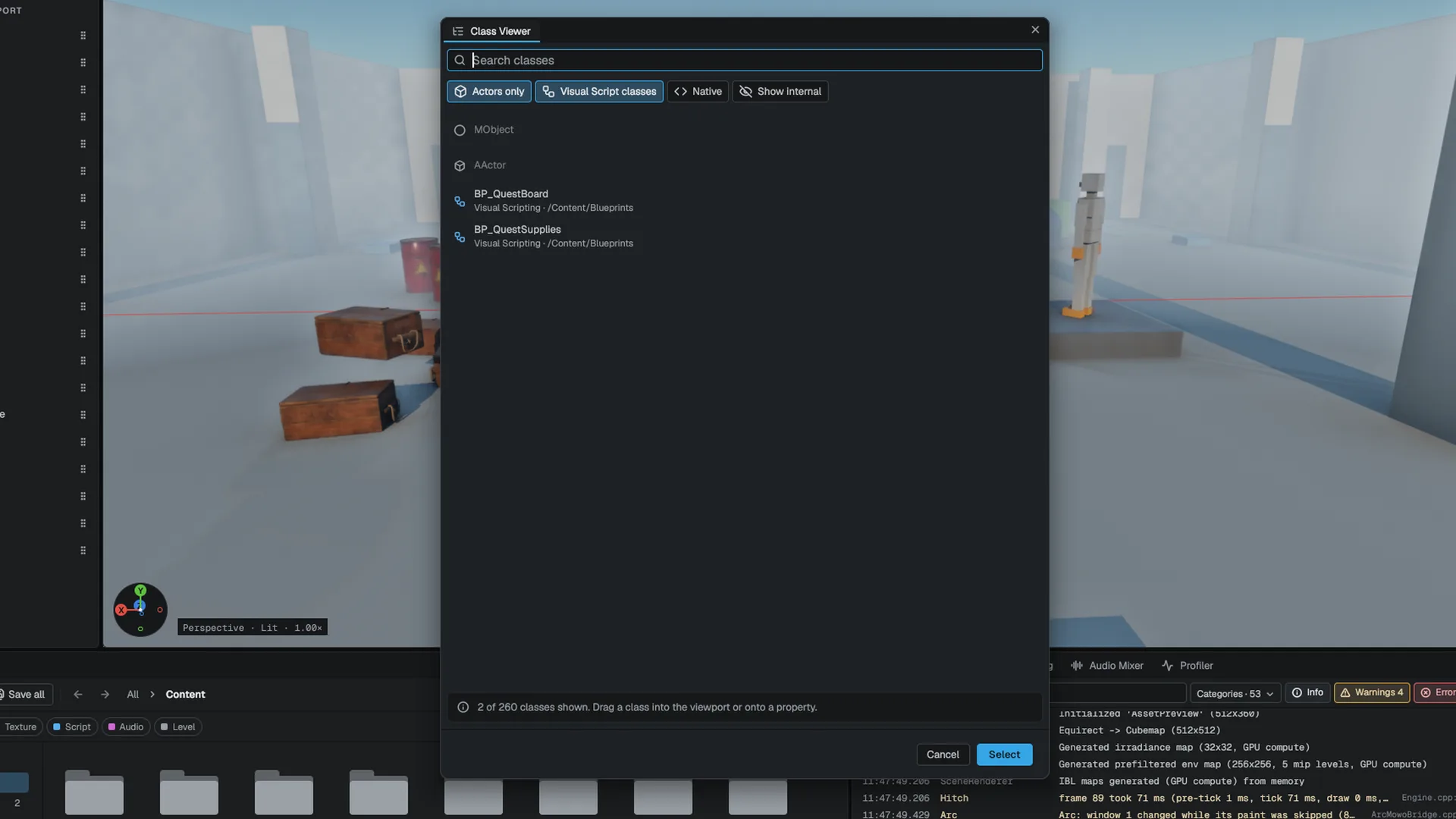
| Toggle | Default | Keeps |
|---|---|---|
| Actors only | On | Classes derived from AActor |
| Visual Script classes | On | Visual Scripting classes |
| Native | Off | Classes compiled from C++ |
| Show internal | Off | Reflected components, under a Components root |
Search filters by name. A match keeps its ancestors on screen as greyed context, and a banner counts the matches against the whole registry. Each row's second line says where the class comes from: Visual Scripting · <folder>, Visual Scripting · child, C++ · <base> or Reflected component.
Select (or a second click on the selected class) places a placeable class in the level and opens the source of any other. The row menu has Place in Level, Open Source (C++ classes; the project's Source/ wins over the engine) and Copy Class Name. The list refreshes after a hot reload, a Visual Scripting compile or a plugin load.
The C++ Classes root
When your project has a Source/ folder, the Content Browser shows a C++ Classes root that mirrors it and lists source files only. It is browse-only:
- New C++ Class… is the only create action.
- Rename, delete, duplicate and drag-to-viewport are refused with a notification pointing you to the wizard and your IDE.
- Copy Path, Show in Explorer and Open in IDE work as usual.
Opening code in your IDE
Double-click a source file, or use Open in IDE, to open it with your project's solution loaded. Tools ▸ Open IDE opens the solution alone. To jump from the level to code, select an actor and use Edit in C++ in the Details header or the Outliner row menu; the editor finds the class's header, preferring your project over the engine.
Tools ▸ Source Code Editor chooses between Visual Studio, Rider and VS Code. Undetected IDEs are greyed out. Your choice is stored per user as ide.preferred; without one, the first IDE found wins.
The project solution
The solution lives in your project folder as <ProjectName>.slnx and contains your game module, not the engine. Engine headers are on the include path, so IntelliSense and go-to-definition work without building the engine. Building from the IDE runs the same frozen-engine mbt build, and debugging launches MowoEditor.exe --project <Project>.mproject from the build output folder.
If the solution is missing or older than a file under Source/, the editor runs mbt generate vs --project <Project>.mproject in the background first and opens the IDE when it finishes. A project without a Source/ module has nothing to open; add a C++ class first.
Related
- Gameplay overview for how gameplay code is structured.
- Outliner and Details for the class row in Details.
- Play in editor for testing your code.
Engine sources
This page describes behavior implemented in these files of the engine repository, checked against commit 90e6739a9.
- Engine/Source/Runtime/Game/Public/Game/FViewerRegistry.h
- Engine/Source/Runtime/Game/Public/Game/HotReload.h