 Mowo
Data and gameplay editors
Edit data tables, data assets, curves and input assets, author behavior trees, state trees, environment queries and AI director profiles, and build Smart Props.
These editors author gameplay data: tables and data objects, curves, input, AI and Smart Props. Each uses the shared asset editor frame and keeps its own undo history. Their columns and fields come from reflection, so adding a reflected field to a struct makes it editable with no editor change. For the runtime side of each asset, see Gameplay.
Data Table editor
A .datatable is rows of one reflected row struct. A new table has no struct: pick one from the type combo and the grid shows its columns.
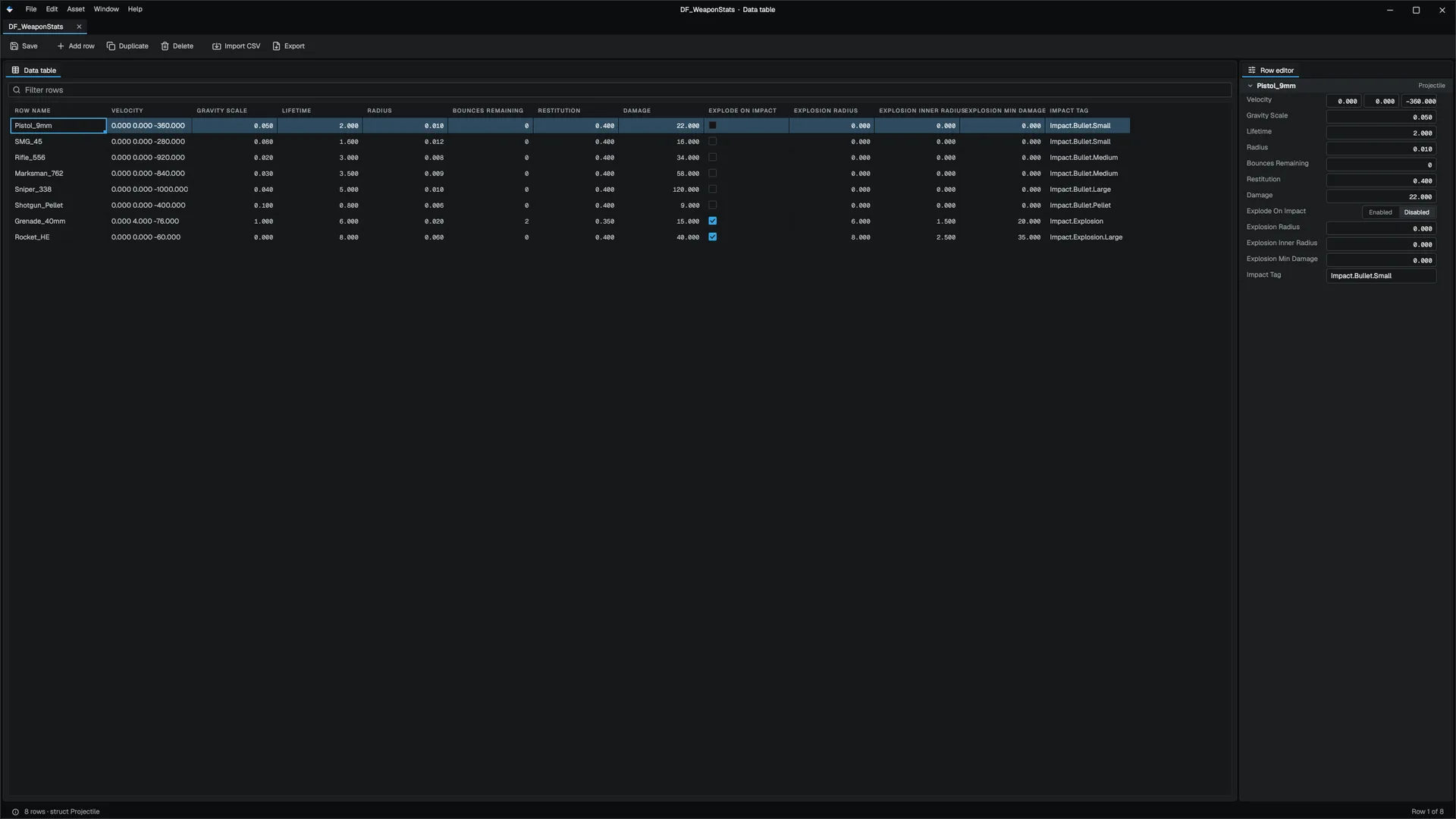
- Add, duplicate and delete rows from the toolbar; the cell menu also inserts above or below and moves rows.
- Enter, F2 or a double-click edits a cell in place (the first column renames the row); a boolean cell toggles. Esc cancels.
- The Row editor on the right edits the cursor's row with typed widgets.
- Import CSV merges rows from a
Name,<field>,…file; Export CSV writes the table out.
| Key | Action |
|---|---|
| Arrows | Move the cell cursor |
| Shift + arrows | Extend the block selection |
| Home / End | First or last column |
| Ctrl+Home / Ctrl+End | First or last cell |
| Delete | Clear the selected cells |
| Tab | Leaves the grid (the grid is one tab stop) |
Every row change and every import is one undo entry.
Data Asset editor
A .data asset is a single reflected data object, edited as a property list with the same widgets as Details. Data types without a dedicated editor, such as quests, dialogues, items and environment profiles, open in the similar Asset Properties editor.
Curve editor
A .curve holds named channels: one channel is a float curve, three make a vector, four make a colour. The graph draws exactly what gameplay evaluates.
| Input | Action |
|---|---|
| Click a key, drag | Select and move; one undo entry per drag |
| Shift + click | Add to or remove from the selection |
| Ctrl + click empty space | Add a key |
| Drag a tangent handle | Set the slope of a cubic key |
Each key has a tangent mode: Auto (smooth, recomputed on every edit), User (your slope, both handles together) or Break (independent handles). Dragging a handle on an Auto key makes it User. Keys can also be Linear or Constant, which have no handles.
Input editors
The Enhanced Input assets are described from the gameplay side in Gameplay.
Input Action (.inputaction):
- Action: the value type (Digital, Axis1D, Axis2D, Axis3D), Consume input, and Accumulation (take highest or cumulative).
- Triggers: an ordered stack (Down, Pressed, Released, Hold, Tap, Pulse, ChordedAction, HoldAndRelease, Combo), each with its own fields and a one-line summary.
- Modifiers: an ordered stack (Negate, Swizzle, DeadZone, Scale, Smooth, ResponseCurve, FOVScaling).
Input Mapping Context (.inputcontext) is the key-to-action table. The toolbar has + Add Mapping and the context's default Priority. Each mapping card picks an action asset and a key, and can carry its own triggers and modifiers.
Behavior Tree editor
A .btree is the tree an AI runs.
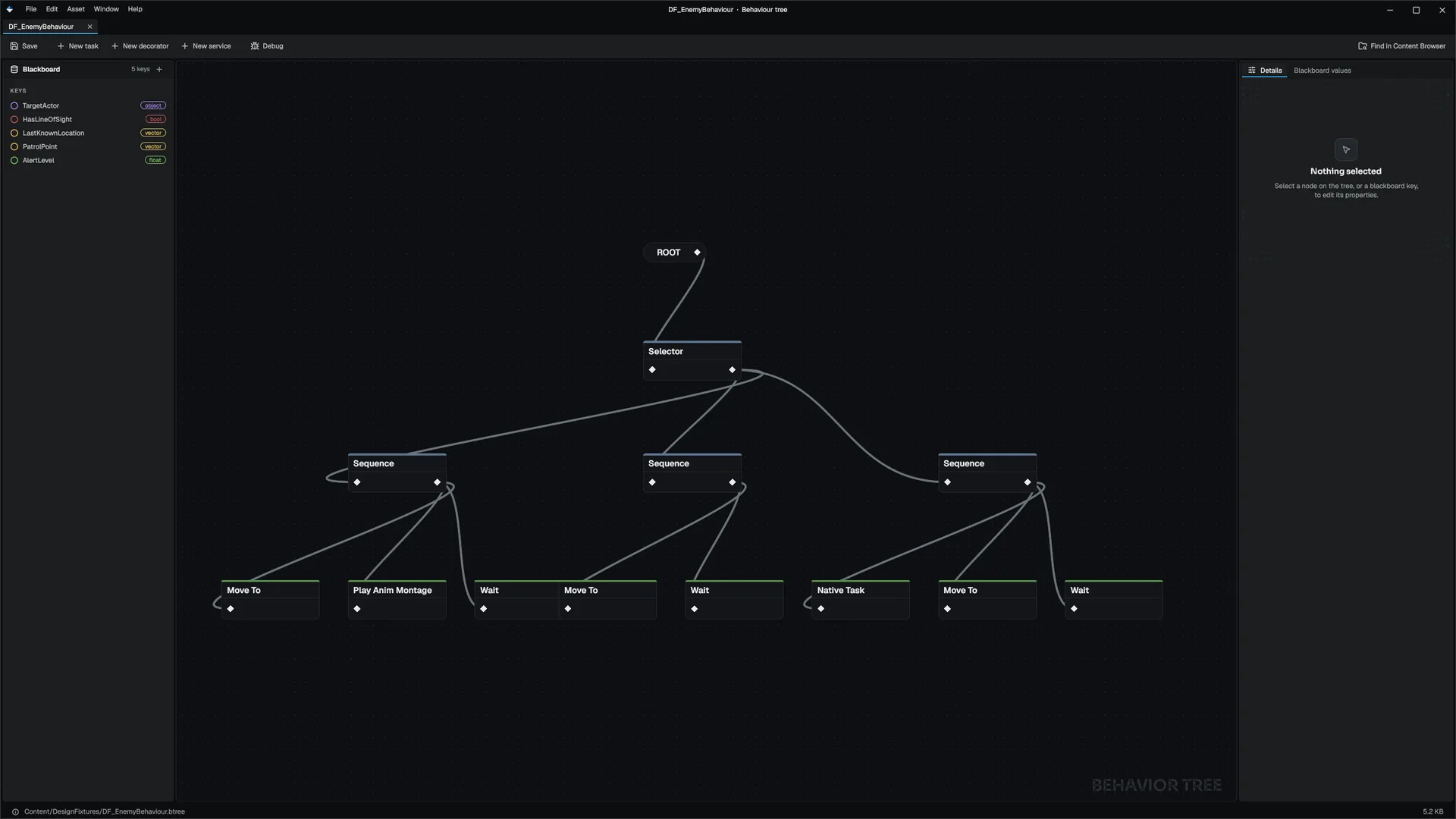
- The Nodes palette groups composites, tasks, decorators and services. Clicking a composite or task adds it under the selected composite; clicking a decorator or service attaches it to the selected node.
- On the canvas, ROOT feeds one child, composites show their child order, decorators show as diamonds and services as circles on their node.
- Details edits the selected node or blackboard key. The Blackboard list adds and removes keys.
The canvas has the shared graph gestures, plus C to wrap the selection in a comment box and Ctrl+F to find in the graph. Built-in tasks include Move To, Play Anim Montage and Run Visual Script Task, which runs a Visual Scripting class's function.
State Tree, Environment Query and AI Director editors
| Editor | Asset | What you edit |
|---|---|---|
| State Tree | .statetree | The state hierarchy (add child or sibling, reorder, remove); the selected state's enter conditions, tasks and transitions; the blackboard keys conditions read |
| Environment Query | .eqs | The generator and the ordered test list; a scored preview of a run, including the candidates tests dropped. Test in level runs the query against the level with the selected actor as querier |
| AI Director Profile | .director | Target population and timing per pacing phase, and the Pacing, Perception, Noise, Population and Spawning settings, each with a reset arrow |
Smart Prop editor
A Smart Prop (.prop, or a set of them in .propset) is a parametric assembly: generation rules that place parts according to parameters. Create one with + Add ▸ Smart Prop.
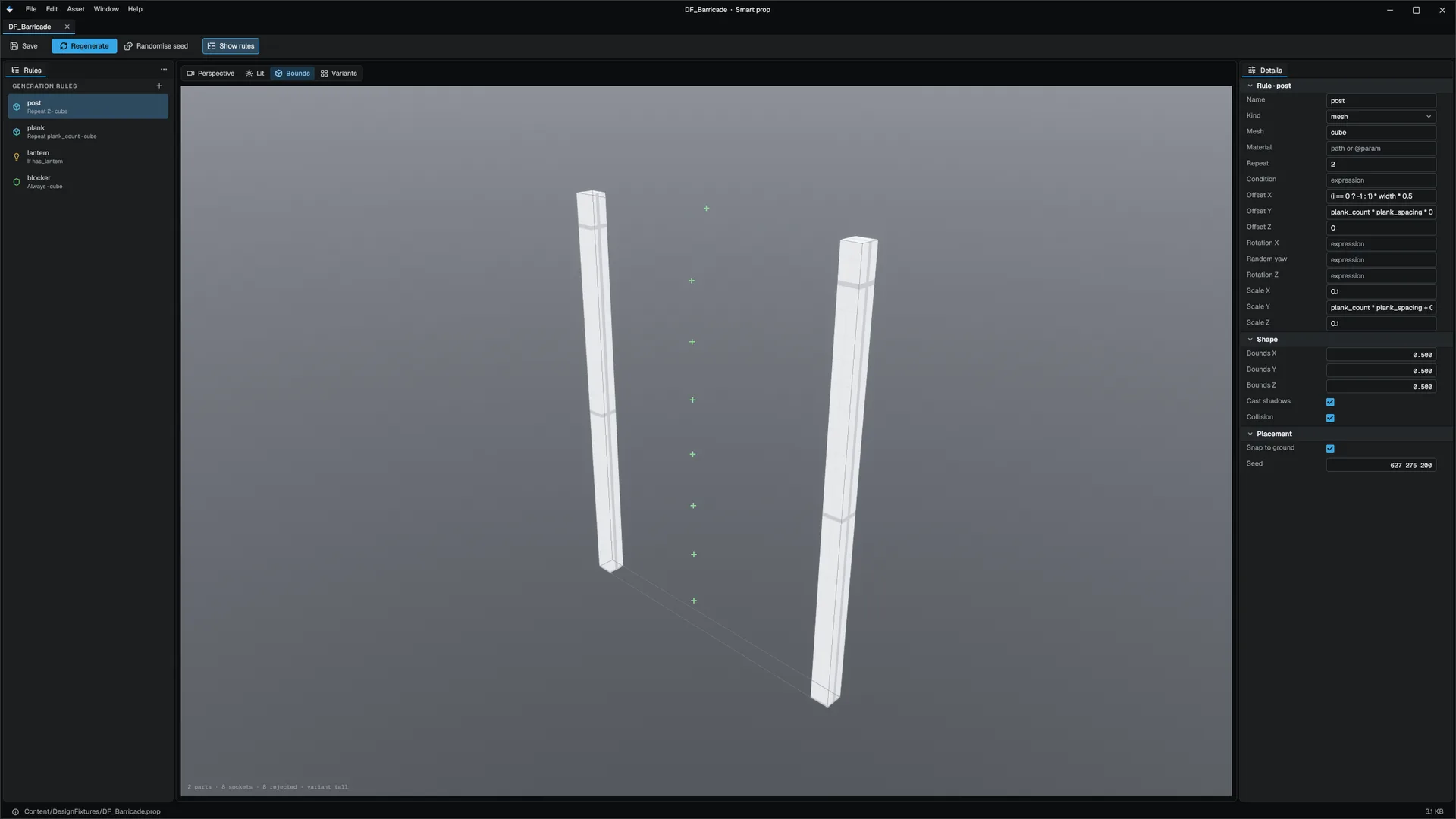
- Rules lists the generation rules, each firing Always, Repeat a number of times or If a condition. + adds one. The ··· menu opens Parameters, Variants, Sockets, Placement and Scatter.
- The preview regenerates on every edit and reports part and socket counts, rejected placements and any warning.
- Details edits the selected rule: name, kind, mesh, material, repeat, condition, offset, rotation, scale, shape settings and placement.
- Parameters draw their own widgets: ranged numbers as sliders, booleans, enums and asset pickers.
Every transform field takes an expression over the parameters and shows its current value beside it, for example i * spacing. Expressions can use the parameters, i (repeat index), n (repeat count), t (0 to 1 across the repeat), seed, arithmetic, comparisons, logic, ? :, and functions such as min, max, clamp, lerp, sin, cos and rand. A malformed expression turns red and the prop keeps its last good result. For anything more complex, switch the part's source to a Visual Scripting graph.
Place props in the level with Props mode (World building).