 Mowo
Package a game
Step by step, turn a Mowo project into a tested Windows package, from project settings and content keys to a clean-machine launch.
This guide takes a project from the editor to a folder you can hand to a player. It targets Windows, the platform packaging is finished for. macOS, Linux and Android are covered at the end, with what does not work yet.
You need a built engine (see Build tool) and a game project with a start scene.
Before you start
mbt finds the engine by walking up from the current directory. Run it from the engine root and point --project at your game's .mproject. Without --project, mbt package uses the manifest at the engine root only when there is exactly one.
Package your game
- Set the product identity
The package reads its name, version and publisher from the project manifest. Open Edit > Project Settings… and fill in the IDENTITY rows (Project Name, Version) and the PUBLISHER rows (Product Name, Company Name, Copyright).
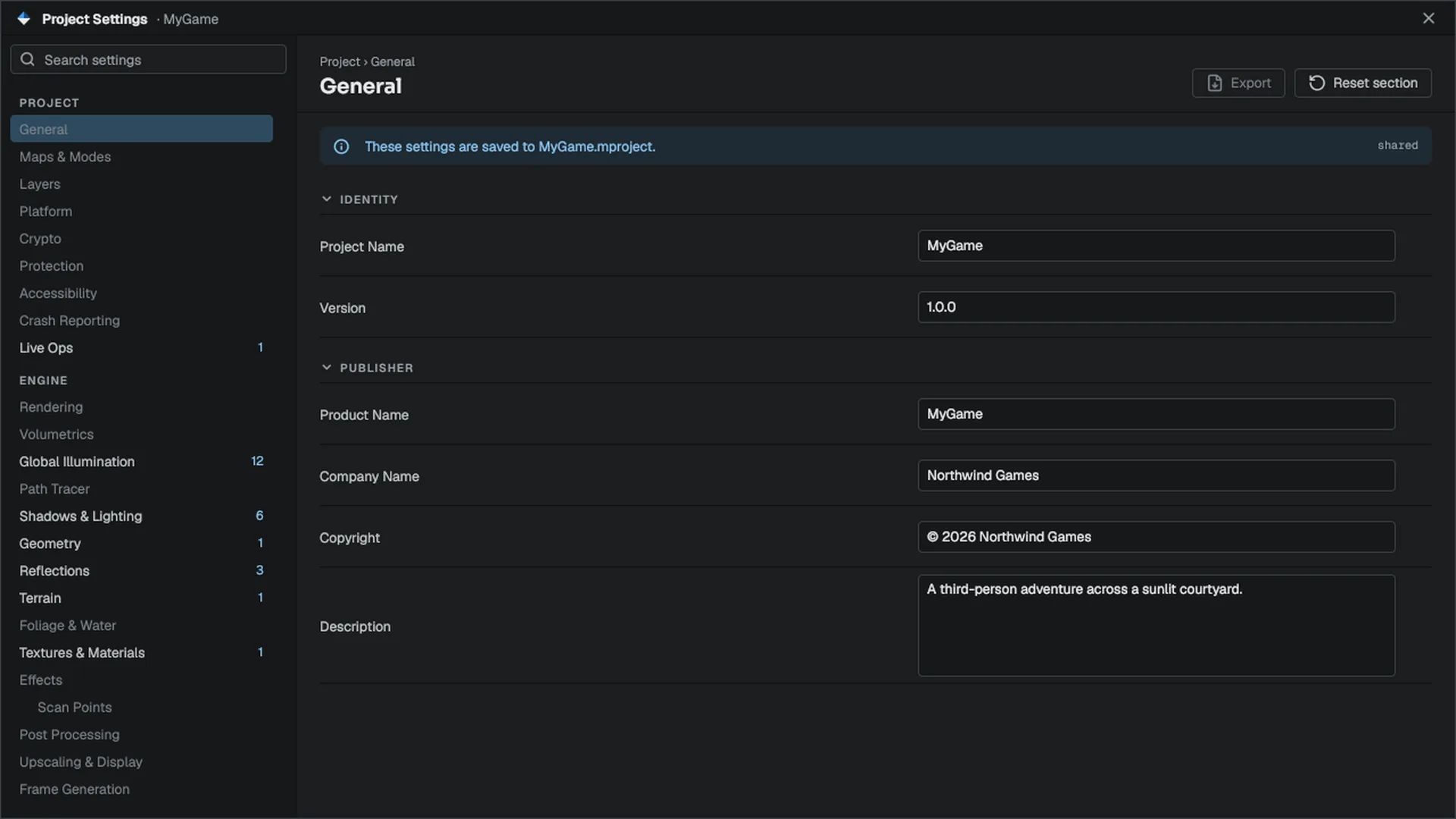
The keys packaging reads from the
.mproject:MyGame.mproject (excerpt){ "build": { "outputName": "MyGame" }, "player": { "productName": "My Game", "companyName": "My Studio", "copyright": "© 2026 My Studio", "iconPath": "" }, "project": { "startScene": "Content/Scenes/Main.mmap", "version": "1.0.0" } }build.outputNamenames the executables and the package folder. Without it, the manifest's file name is used;--nameoverrides both.project.versiongoes into the version stamp and the zip name.player.*goes into the executable's file properties andBuildInfo.json.player.iconPathis the icon source. Without it, the engine's default icon is used;--iconoverrides it.
The project files reference describes the rest of the manifest.
- Check the start scene
Start Scene (
project.startScene) is the level a packaged build opens. It is on the Project Settings page with Game Mode Class and the game window defaults. A package that boots into the wrong level, or none, is the most common first-package mistake.Open the project in the editor at least once before packaging. That writes
Intermediate/AssetRegistry.mdfb. Without it the package still boots, but every UUID-keyed reference (material overrides, decal materials, particle assets) resolves to nothing, and the packager warns about it. - Create the content keys
A
releasepackage encrypts your content and signs every archive and module. It refuses to run when the project has no keys. Create them once, in Project Settings > Crypto (Generate next to Encryption Key and Signing Keys, then Apply), or from the command line:PowerShell./mbt.cmd crypto generate --project D:/Projects/MyGame/MyGame.mprojectCommit the
Config/DefaultCrypto.iniit writes. The signing private key is not in that file: it goes to your per-user key store, and you back it up. Content protection explains the keys and how a build machine gets the private key. - Commit a PSO cache (recommended)
Play through your game once in a development build, then run
mbt package --promote-pso-cacheand commitConfig/PsoCache.mdfb. Without it, the package warns that it ships with a cold pipeline cache and hitches the first time each pipeline is used. See Bundled PSO cache. - Run the package
Choose Build > Package Project…. Select Release on the toolbar, leave the Monolithic row enabled unless you want the modular layout (see Targets and link modes), pick the folder in Archive to, then press Package.
The window shows the pipeline and a live log, and Cancel stops the whole build. A package always cooks the whole
Content/tree; the Used only choice applies to Cook Content only.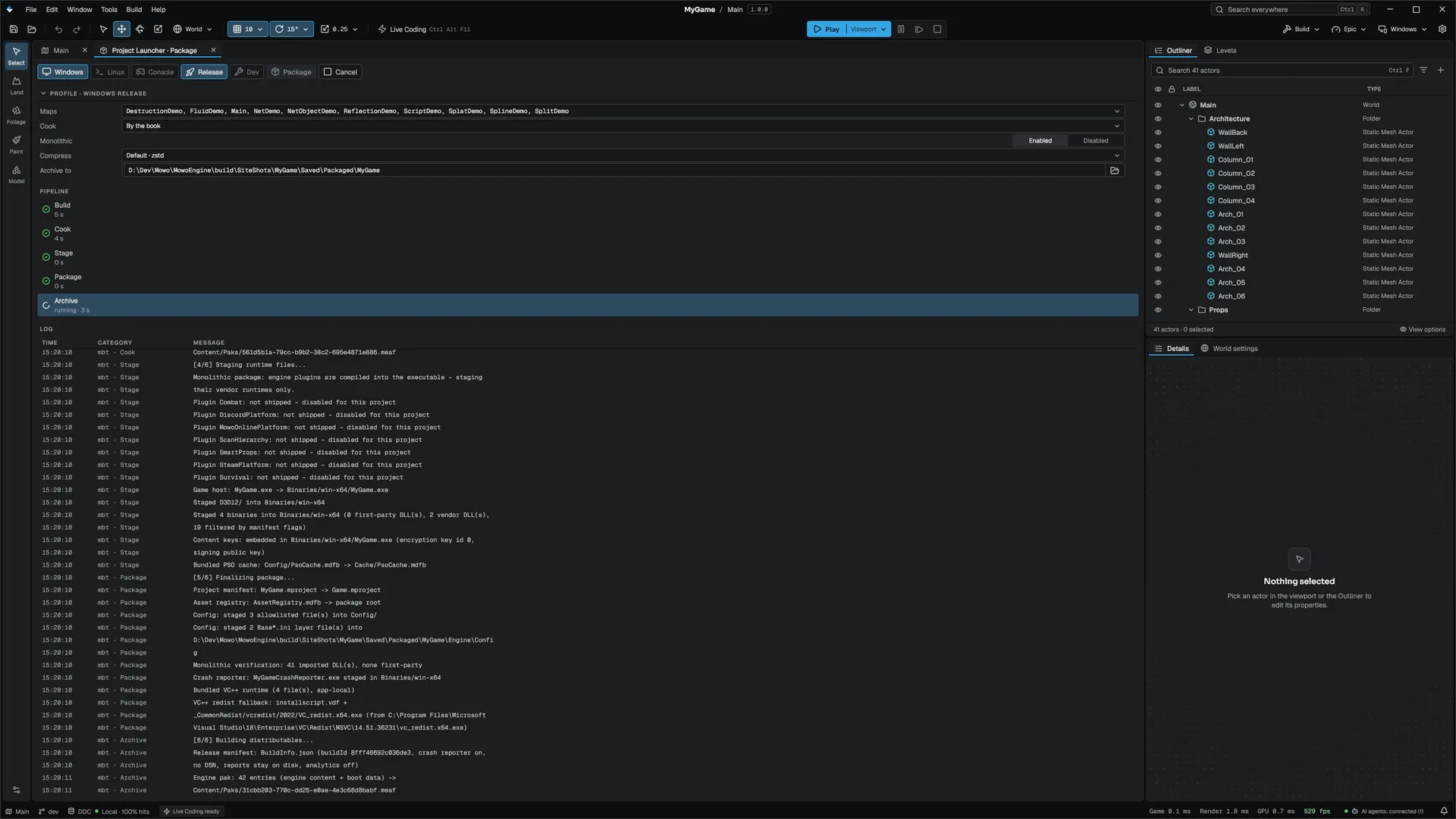 PowerShell
./mbt.cmd package --project D:/Projects/MyGame/MyGame.mproject
./mbt.cmd package --project D:/Projects/MyGame/MyGame.mproject -o D:/Builds/MyGame
./mbt.cmd package --project D:/Projects/MyGame/MyGame.mproject -c profile
The first line is the common case:
release, monolithic, output inSaved/Packaged/<Product>/, with a zip beside it. The third builds theprofileconfiguration, the release code generation with the log and stat commands kept (GPU timers throughr.GpuTimings), for profiling. - Read the output
The run ends with
Package completeand the output path. Read the warnings: every optional part that was skipped says why. The package folder, the zip,<Product>-chunks.json,<Product>-Manifest.txtand the archived symbols sit side by side in the output's parent folder. The section overview shows the layout.The Visual C++ runtime ships app-local:
vcruntime140.dll,vcruntime140_1.dllandmsvcp140.dllsit next to the host, so a player needs no redistributable installer.--full-crtbundles the whole redist folder instead.Behind the app-local DLLs, a Windows game package also carries
_CommonRedist/vcredist/2022/VC_redist.x64.exeand a Steaminstallscript.vdfthat runs it once per machine, for a store or antivirus that removes loose DLLs. The Mowo Games Launcher runs the same installer when the runtime is missing.--no-vc-redist, orvcRedist=falseinConfig/Packaging.ini, leaves it out. - Launch the package
Start
<Product>.exeat the package root, with--logso a release build writes its log. Play to the end of the start level and quit. A launch failure shows up as a non-zero exit code; the log goes to the per-userSaved/Logsfolder of the product. - Test on a clean machine
Copy the folder to a machine or virtual machine that has never had Visual Studio installed, and double-click the launcher. If it starts, the app-local runtime and content resolution are correct. Also try it from a read-only location such as Program Files: the game should write its saves and logs to the per-user folder.
- Distribute
Hand out the zip, build an installer, or upload the folder to a store. See Installers and code signing and Uploading to Steam. Before a public release, set your own crash endpoint and decide on consent: see Crash reporting.
How the game starts
A packaged game starts like an Unreal game: there is no engine splash and no "Made with Mowo Engine" card. The game window is on screen, black, within a few hundred milliseconds of launch: the engine shows it as soon as the operating system's video layer is up, before it mounts archives, loads modules and plugins, opens the audio device or creates the graphics device. Once the device exists it presents a black frame of its own. From then on every startup stage, the level load and the pipeline prewarm, reads the operating system's message queue and presents again, so Windows never marks the window as not responding. The first game frame replaces the black frame.
Work that does not have to precede the first frame stays off the way to the window. Crash reports a previous run left behind upload on a background thread, and gamepads are detected after the graphics device is up; a pad that was already plugged in is picked up then, exactly like one plugged in later.
To show an image instead of black, set Game Splash in Project Settings > Maps & Modes > Game Window (player.splashImage in the .mproject, a PNG, JPEG or BMP relative to the project root). The game shows it fitted on black from the first device frame until the first game frame. mbt package copies it into the engine pak as GameSplash.<ext>, because it is read before any content archive is mounted. --no-splash skips it; a Play in Editor client never shows either.
The log marks each step from process start, so you can see where your start spends its time:
[Startup] Window shown (black, before the graphics device) at 49 ms after process start
[Startup] First device frame presented (black) at 378 ms after process start
[Startup] Engine and graphics device up at 445 ms after process start
[Startup] Start level loaded at 532 ms after process start
[Startup] Pipeline cache prewarmed at 741 ms after process start
[Startup] Scene renderer ready at 824 ms after process start
[Startup] First game frame submitted at 834 ms after process start
Ship the pipeline cache (Config/PsoCache.mdfb, see PSO cache) so the prewarm compiles from a recorded set instead of the first frames hitching.
What the package carries
The package stages the plugins and engine feature modules your project enables in Config/Plugins.ini, and nothing else: a modular package leaves out the libraries of disabled feature modules (and their runtimes, such as ONNX Runtime for Automatic Subtitles), a monolithic one compiles in only the enabled set. Config/Plugins.ini ships with the game so the player loads the same set. See Writing a plugin.
When the project turns upscalers on (graphics.upscalers in the .mproject: true ships every vendor, a list ships the vendors it names), the vendor runtimes for DLSS and Reflex (Streamline), FSR, XeSS and XeLL go to Binaries/<platform>/Upscalers. Every player gets the same files; at launch the game checks the player's GPU and driver and loads only the runtimes that GPU can run, and its settings screen lists only those options. The [Capabilities] block at the top of the log says what it found.
The committed packaging settings
The packaging window stores the team half of its settings in Config/Packaging.ini, which you commit:
[packaging]
config=3
compression=2
mdfText=false
monolithic=true
usedContentOnly=false
targetPlatforms=win-x64
outputDir=Saved/Packaged/MyGame
cookOutputDir=Saved/Cooked
config indexes the configurations in the packaging window's order (debug, dev, profile, release); compression indexes None, Fast, Default, Best. Directories are stored relative to the project, so the file never names one developer's machine; a directory outside the project stays absolute, with a warning Engine/Source/Runtime/Project/Public/Project/PackagingSettings.h.
mbt package reads outputDir, monolithic, targetPlatforms, and the keys only it uses: ioStore, vcRedist and vcRedistInstaller. Packaging for a platform the list does not name works from the command line, with a warning. Per-user choices, such as the skip toggles, go to Saved/Config/Editor/Packaging.ini instead.
When a package fails
| Message | What to do |
|---|---|
| Output directory is not empty and does not look like a previous package | -o points at a folder with other files. Pick an empty folder. |
| Release packages are encrypted and signed, and the project has no … | Create the keys (see above) or pass --unprotected to ship plaintext deliberately. |
| … its private key is not on this machine | Import the signing private key: mbt crypto import-signing-key --file <key>. |
| Build output not found | You passed --skip-build without a build of that configuration. Drop the flag. |
| MowoGame not found, so texture/mesh sources cannot cook | The texture and mesh cook runs a debug or dev MowoGame; a release binary carries no cook code. Build one (mbt build -c dev -t MowoGame), or pass --allow-raw to pack sources raw. |
| No committed Config/PsoCache.mdfb | Not an error. The package works, but hitches on first use of each pipeline. |
| Monolithic verification FAILED | See Targets and link modes. |
| A release package whose symbols did not reach the crash server … | Retry the upload with mbt symbols <archive> --wait, or package with --no-symbols. See Crash reporting. |
--strict-refs turns quiet degradations into failures: an asset reference that resolves to nothing, or a texture or mesh cook that could not run. Use it on release builds. --no-validate skips the asset-validation gate that runs before the cook.
macOS, Linux and Android
Only Windows packaging is ready to ship. The packaging window packages for the host only, and Linux packages build only on a Linux host.
macOS. mbt package -p osx-arm64 --installer on a Mac builds a .dmg holding a self-contained .app. The bundle is signed ad hoc only (codesign --sign -), and the game package has no Developer ID signing and no notarization step. Gatekeeper on a buyer's Mac will not open it; the ROADMAP lists notarization as an open blocker. The .dmg step needs a macOS host.
Linux. -p linux-x64 exists. A release or profile package splits debug information out of every shipped image (objcopy --only-keep-debug on Linux, dsymutil on macOS) and keeps it beside the build for the symbol upload; this path was written on Windows and has not run on a POSIX host yet. See Platforms for the platform status.
Android. mbt package refuses mobile platforms. A separate command, mbt package-android, builds an installable Android Gradle project (Vulkan only, arm64-v8a). Android is not a supported product platform; treat that command as experimental.
Related
Engine sources
This page describes behavior implemented in these files of the engine repository, checked against commit 8f1cfbd42.
- Engine/Source/Runtime/Project/Public/Project/PackagingSettings.h
- Samples/SampleProject/SampleProject.mproject