 Mowo
Project settings and editor preferences
The Project Settings and Editor Preferences windows - where each setting is stored, how to find and change it, themes, and rebinding keyboard shortcuts.
Two windows hold every setting you can change from the editor:
| Window | Open with | What it holds |
|---|---|---|
| Project Settings | Edit ▸ Project Settings… (editor.projectSettings) | The project manifest and the engine's console variables for this project. Shared with your team |
| Editor Preferences | Edit ▸ Editor Preferences… (editor.editorPreferences) | How you want the editor to behave: startup, autosave, theme, shortcuts, the AI agents server. Per user |
Both are separate windows, so you can keep one open beside the viewport while you tune. The command palette's Settings scope searches every row of both.
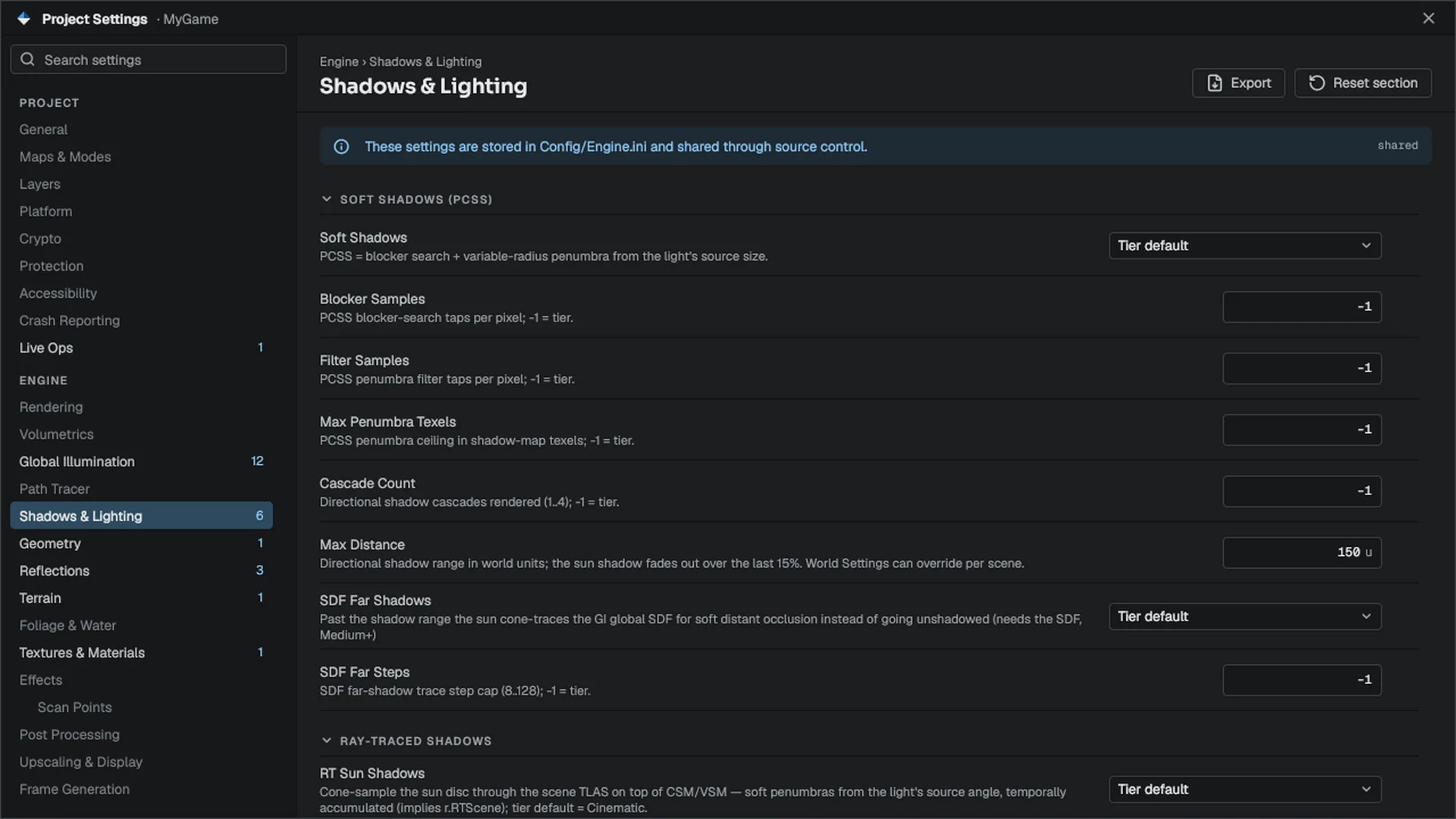
The window
- The category tree on the left lists the pages by section. A number beside a page counts its rows that differ from the default.
- The page header shows the breadcrumb, Export (writes the page's values as an
.iniunderSaved/Exports/Settings/) and Reset section (click twice to confirm). - Banners say where the page is stored (shared or local), warn when a user config overrides a value, and list changes that need a restart, with Restart now.
- Each row has a label and description, its control, and a reset arrow. A dot marks a value that is not its default; a restart chip marks a value read only at startup.
Values are written as they change. There is no Apply button: a page is written once your edits have been still for a moment, and when the window closes. The exception is Crypto, which stages generated keys and has its own Apply and Discard.
Finding a setting
Type in Search settings. The search matches page names and individual rows: their label, their description and their console variable name. Typing substeps or r.Shadow lands on the row that owns it. Pages with matching rows show how many; the others dim.
How engine settings are stored
Most Engine pages edit console variables. The Project Settings window writes them into the project's Config/Engine.ini, the project tier of the configuration.
- Shipped default
- Project tier: Config/Engine.ini
- User tier: per-user Engine.ini
- Command line
| Tier | Where | Who shares it |
|---|---|---|
| Project | <Project>/Config/Engine.ini | Everyone on the team; commit it |
| User | Engine.ini in your per-user config folder (%LOCALAPPDATA%\MowoEngine\Config on Windows) | Only you |
| Command line | --cvar=name=value | That one run |
The user tier overrides the project tier. If you change a value that your user config also sets, the file changes but the running value does not, and the page says so. Otherwise the new value applies immediately, wherever the console variable supports live changes.
A control left at its shipped default removes its key rather than writing the default. A page you never touched writes nothing, so Config/Engine.ini only holds what your project changed.
Many rendering rows are tri-state: Tier default, Off or On. Tier default leaves the value to the active scalability preset. Each console variable is listed in the console variables reference.
Project Settings pages
A page whose features the active graphics API can never support is hidden. A setting this machine's GPU cannot run is removed too (the path tracer page and the mesh-shader rows without the hardware), except settings that configure the shipped game for your players' hardware, such as the anti-aliasing method, frame generation, low latency, DLSS options and the ray-traced rows: those stay, with the note Not available on this machine — applies to players' hardware.
Project
| Page | Stored in | Contents |
|---|---|---|
| General | .mproject | Name, version, product, company, copyright, description |
| Maps & Modes | .mproject | Start level, game mode class, game window defaults, and the Game Splash (player.splashImage) |
| Layers | .mproject | The named layer slots every layer mask uses |
| Platform | .mproject | Steam, Discord and Mowo Online Services integration |
| Crypto | Config/DefaultCrypto.ini | Generate the encryption and signing keys, and choose whether packages encrypt content and sign archives and modules |
| Accessibility | Config/Engine.ini | Accessibility defaults for the game |
| Live Ops | Config/Engine.ini | Live operations networking settings |
| Scripting | Config/Plugins.ini, Config/Engine.ini | Wolang for the project, Reload on Save (wolang.HotReload), the debugger port (wolang.DebugPort), the VS Code workspace and a compile button; see Wolang scripting |
Regenerating the crypto keys means archives built with the new keys cannot be opened by older builds, and patches or DLC for a shipped build must be made with that build's keys. See Shipping.
Engine
All Engine pages write Config/Engine.ini.
| Area | Pages |
|---|---|
| Rendering | Rendering, Volumetrics, Global Illumination, Path Tracer, Shadows & Lighting, Geometry, Reflections, Terrain, Foliage & Water, Textures & Materials, Effects (with Scan Points), Post Processing, Upscaling & Display, Frame Generation |
| Quality and performance | Scalability, Performance |
| Simulation | Physics, Networking (with Rollback Netcode), Gameplay (with Time Rewind), Audio (with Geometric Acoustics), Voice Chat, AI (with Noise Map), Animation, World Partition (with HLOD) |
| Systems | Input, Save & Persistence, Content & Import, Garbage Collection |
| Page | Example settings |
|---|---|
| Rendering | Graphics API and dynamic GI method (both need a restart), and the project feature switches under Features |
| Scalability | The active quality preset (r.Quality) and per-category overrides |
| Performance | Parallel command recording, async compute, pipeline deduplication, variable rate shading, and Inference Device under On-device inference |
| Physics | Maximum substeps, distance LOD, physics debug drawing |
| Input | Stick and trigger dead zones, per-gamepad overrides, and a gamepad slot table |
| Networking | Encryption and pre-shared key, RPC rate limits, replication budgets, character prediction |
| Save & Persistence | Game autosave and the world persistence journal |
| Garbage Collection | Collection interval and incremental marking and sweep budgets |
Rendering
Engine > Rendering > Features holds the project's heavy rendering features, Unreal's "Support Hardware Ray Tracing" and "Dynamic Global Illumination Method" in one place. Every switch is off for a new project, the templates and the samples; turn on the ones your game needs.
| Switch | Console variable | Off means |
|---|---|---|
| Global Illumination | r.GlobalIllumination.EnableForProject | No DDGI, screen probes, SSGI, neural cache, SDF reflections or SDF far shadows; sky light and AO light the scene |
| Ray Tracing | r.RayTracing.EnableForProject | No ray-traced reflections, shadows or AO, no HWRT gather, no path tracer, no DLSS Ray Reconstruction, no ray-tracing scene |
| MegaLights | r.MegaLights.EnableForProject | Shadowed local lights past the shadow atlas take the screen-space march |
| Volumetric Clouds | r.VolumetricClouds.EnableForProject | A cloud actor draws the flat cloud layer at every tier |
| Volumetric Fog | r.VolumetricFog.EnableForProject | Height fog stays analytic; no froxel volumes |
| Frame Generation | r.FrameGeneration.EnableForProject | r.FrameGeneration is ignored and the player's options leave the rows out |
A switch that is off wins over every quality tier, device profile and r.* cvar, and the renderer allocates nothing for it. Sun shadows (cascaded and virtual), local-light shadows, GTAO, SSR, bloom, TSR and TAA, auto exposure, height fog and the upscalers are not switches: the tiers scale them as before.
The page writes a switch into Config/Engine.ini only where it has to differ from the layers below. A project can also set them under [ConsoleVariables] in Config/DefaultEngine.ini; the page then shows that value and turning it off writes an explicit 0:
[ConsoleVariables]
r.GlobalIllumination.EnableForProject=1
r.RayTracing.EnableForProject=1
Game Splash
Project > Maps & Modes > Game Window > Game Splash names a PNG, JPEG or BMP relative to the project root, Unreal's Windows > Splash > Game Splash. The game shows it fitted on black from the moment its window opens until the first game frame. Empty, the default, opens on a black frame and then the game, with no engine branding. Play in Editor never shows it; --no-splash skips it. See Package a game.
The Input page's gamepad slot table is per user: which physical pad is Player 2 belongs to one machine, so it is written to your Saved/Config/ rather than the project config.
On-device inference
The On-device inference section of the Performance page has one row, Inference Device (ml.ExecutionProvider, default Auto). It chooses where AI texture enhancement and the auto-subtitle speech recognizer run:
| Choice | Value | Effect |
|---|---|---|
| Auto | auto | Texture enhancement runs on the GPU through ONNX Runtime's WebGPU provider (D3D12, Vulkan or Metal), or on the CPU where there is none. The speech recognizer stays on the CPU: it is as fast there and leaves the game's frame alone |
| GPU | gpu | Both run on the GPU, with a warning in the log when one has to fall back to the CPU |
| CPU | cpu | Inference never touches the GPU |
The choice applies to models loaded from then on. Once a model has asked ONNX Runtime for the GPU, the row's description also names the GPU it found, or says why there is none. Opening the page never starts that check itself: it brings the GPU runtime up, which takes seconds. On a platform without ONNX Runtime the row is greyed out. See Importing for AI enhancement and its measured speed-ups.
Plugins have their own window, not a settings page; see Plugins and extensions.
Editor Preferences pages
Editor Preferences are per user and per project. They are written to the project's Saved/Config/Editor/UserPreferences.json, never to Config/, so one person's inverted mouse does not become the team's.
Preferences
| Section | Rows |
|---|---|
| Startup | Load level at startup: the project's start level, the last opened level, or nothing (--scene= on the command line always wins). Show Welcome on startup |
| Multi-user editing | Display name, session port, host address, host for other machines (Multi-user editing) |
| Autosave | Autosave and Autosave interval (Saving and recovery) |
| Viewport | Mouse look sensitivity, invert mouse look Y |
| Play | Multiplayer client windows: inside the editor or separate windows |
| Message log | Open on new error |
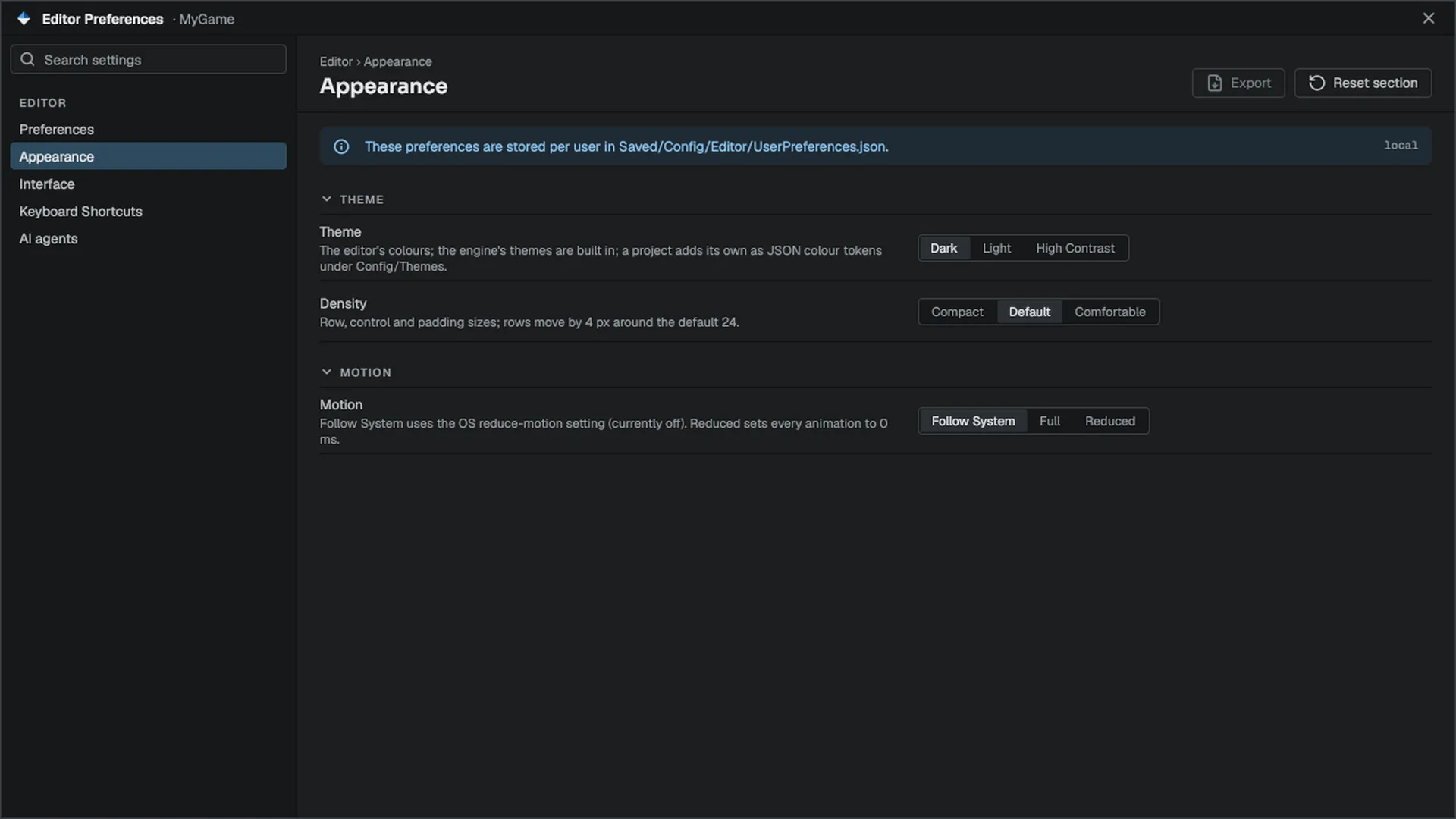
Appearance
| Row | Choices |
|---|---|
| Theme | Dark, Light or High Contrast; a project that adds its own theme files gets a picker instead |
| Density | Compact, Default or Comfortable, applied live |
| Motion | Follow System (the OS reduce-motion setting), Full or Reduced |
Interface
UI scale and text shaping. These are read at startup, so they need a restart.
Keyboard Shortcuts
Every editor command, grouped as General, Viewport, Modes, Transform, Actors, Play, Panels and Animation, with a primary and a secondary chord.
- Find the command
Open Editor Preferences ▸ Keyboard Shortcuts and search by name.
- Record the new chord
Set a primary or secondary chord.
Only chords that differ from the default are saved, to EditorKeybindings.ini in your per-user config folder. Tooltips and menus read chords from the command system, so a rebind shows up everywhere at once.
AI agents
Turns the editor's MCP server on and sets its port, whether remote connections are allowed, and which commands agents may run. See MCP server.
Related
- Main window for layouts, the command palette and default shortcuts.
- API: Core.
Engine sources
This page describes behavior implemented in these files of the engine repository, checked against commit d510a9760.
- Engine/Source/Runtime/Core/Public/Core/ProjectLayout.h
- Engine/Source/Runtime/RHI/Public/RHI/ProjectRenderFeatures.h
- Engine/Source/Runtime/Project/Public/Project/Project.h